Creating an Event Without Assigned Seating
Jul 4, 2026Updated5 min read00
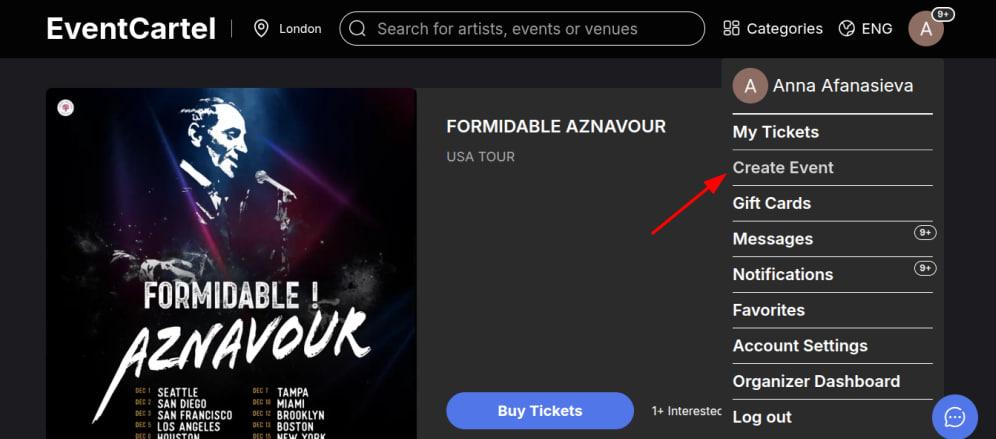
- Log in to your Event Cartel account;
- Hover over the account icon (in the top right corner of the page);
- Click on "Create Event".
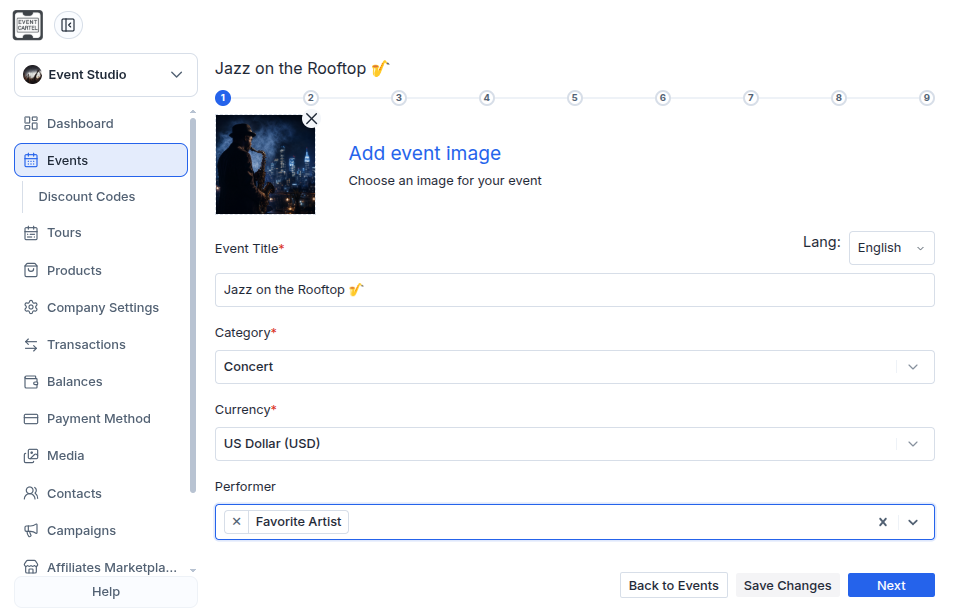
Step 1: Add event details:
- Upload a cover image;
- Enter the event title;
- Select a category;
- Choose a currency;
- Select artists by entering their name (if your event includes performers);
- Click "Next" (your progress will be saved automatically when you click this button).
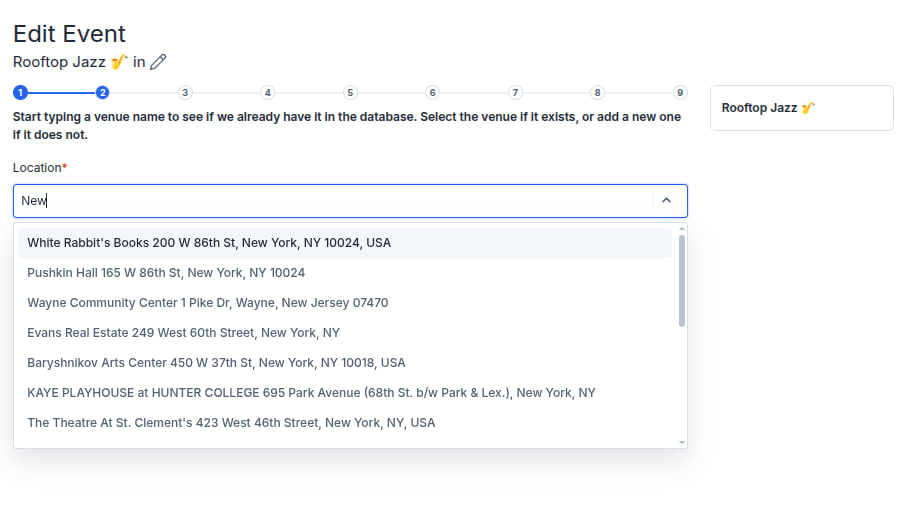
Step 2: Choose the event venue:
- Start typing the venue name and select it from the list;
- Click "Next".
If the venue is not in the database, you will be prompted to create a new one:
- Enter the venue name;
- Select the address;
- Click "Next".
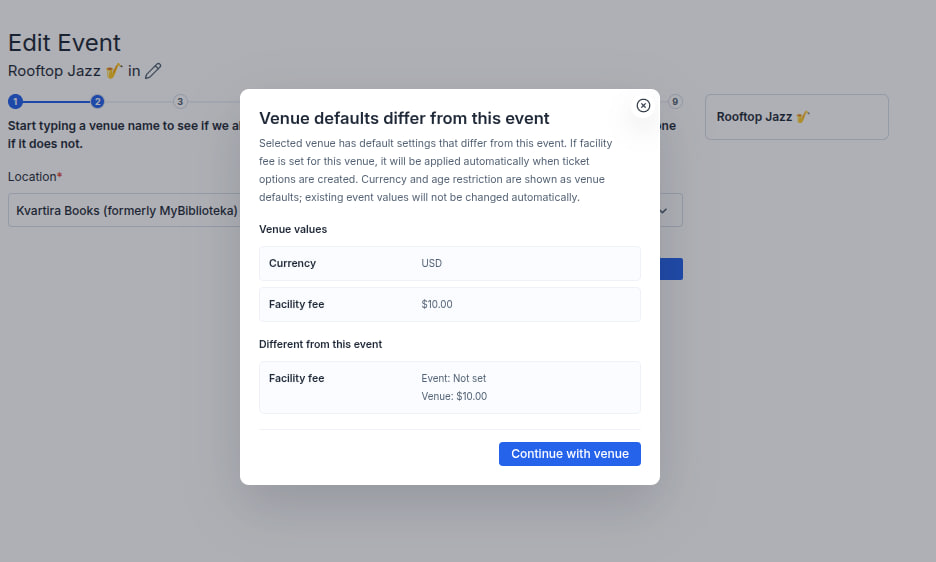
Depending on the selected venue when creating an event, you may see a pop-up window called “Venue defaults differ from this event”.
This notification appears if the venue has its own settings that differ from your current event settings. For example:
- The venue may use a specific currency. The system will notify you and automatically change the event currency to match the venue currency;
- The venue may have age restrictions. The system will show the recommended attendee age limits;
- The venue may charge a Facility Fee - an additional fee collected by the venue. If this fee is enabled, it will be automatically applied when creating tickets;
Please note: age restrictions are advisory only and are not applied automatically. We recommend taking them into account when configuring your event to avoid misunderstandings with attendees and possible issues during the event.
- The venue may use a specific currency. The system will notify you and automatically change the event currency to match the venue currency;
- The venue may have age restrictions. The system will show the recommended attendee age limits;
- The venue may charge a Facility Fee - an additional fee collected by the venue. If this fee is enabled, it will be automatically applied when creating tickets;
Please note: age restrictions are advisory only and are not applied automatically. We recommend taking them into account when configuring your event to avoid misunderstandings with attendees and possible issues during the event.
After reviewing the information, click "Continue with venue" to proceed with event creation.
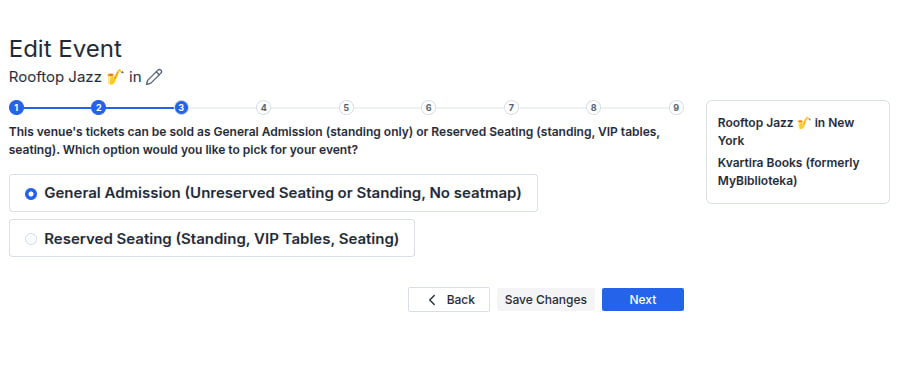
Step 3: Select "General Admission (No seat map)"
(standing-only admission ticket)
- Click "Next".
(Since this is a non-seated event, Step 4 is automatically skipped).
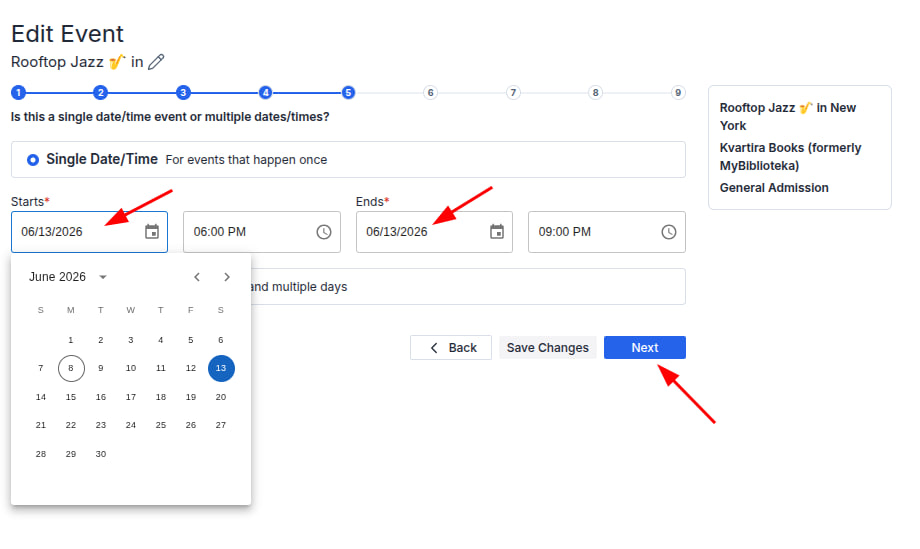
Step 5: Set the date and time:
If your event takes place only once, select "Single Date/Time".
For a single-date event:
- Enter the event start date and time;
- Enter the event end date and time (if you leave this field blank, the system will automatically set the end time to three hours after the start time);
- Click "Next".
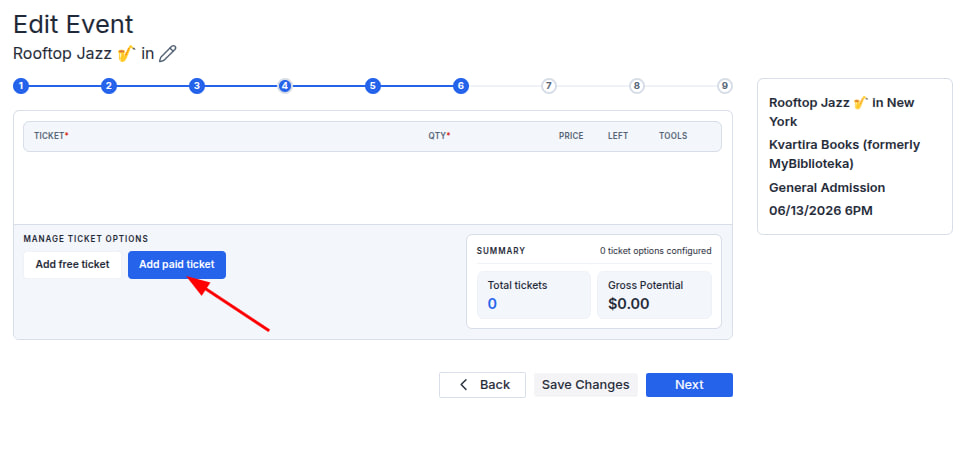
Step 6: Add ticket options:
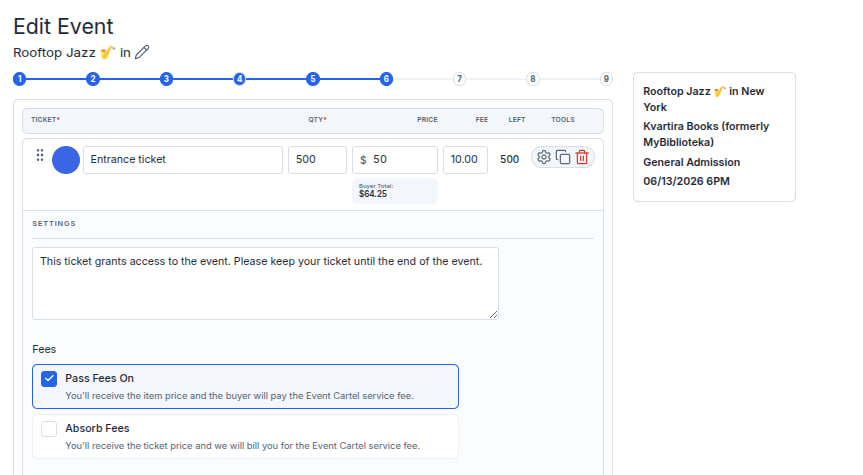
- Click "Add Paid Ticket".
- Enter the ticket name;
- Set the ticket quantity;
- Set the ticket price;
- Add a description;
- Select "Pass Fees On" if the service fee will be paid by the buyer;
- Select "Absorb Fees" if you will cover the service fee.
You can add multiple ticket types by clicking "Add Ticket" again. A maximum of 500 tickets can be created for each ticket type.
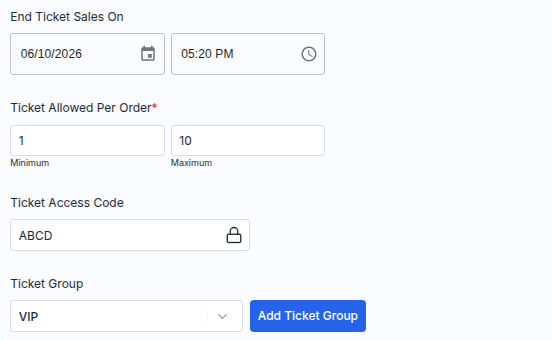
Optionally, you can configure additional settings:
End Ticket Sales On - specify the date and time when ticket sales will end;
Tickets Allowed Per Order – set the maximum number of tickets that can be purchased in a single order;
Ticket Access Code – add an access code required to purchase tickets;
Ticket Access Code – add an access code required to purchase tickets;
Ticket Group – combine this ticket type with other tickets into the same group.
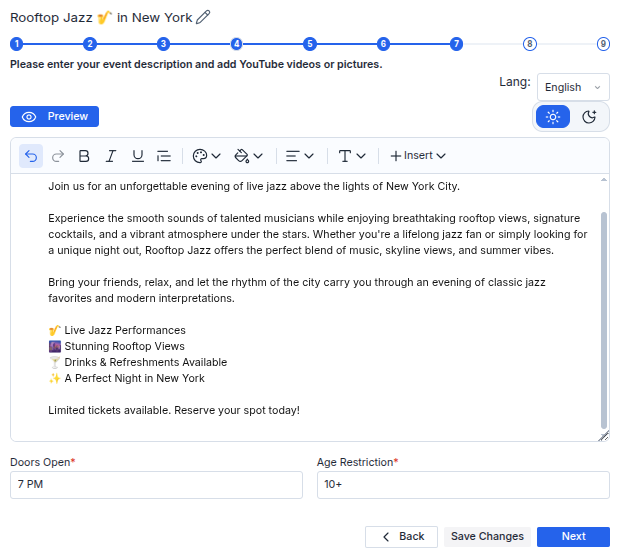
Step 7: Add the event description:
- Fill in the event description so attendees can learn more about the event;
- Specify the door opening time and age restriction;
- Click "Next".
Tip: You can make your description more engaging using the built-in editor. Change the font, highlight important text, choose different text colors and text highlight colors, and switch the editor to dark mode for a more comfortable editing experience.
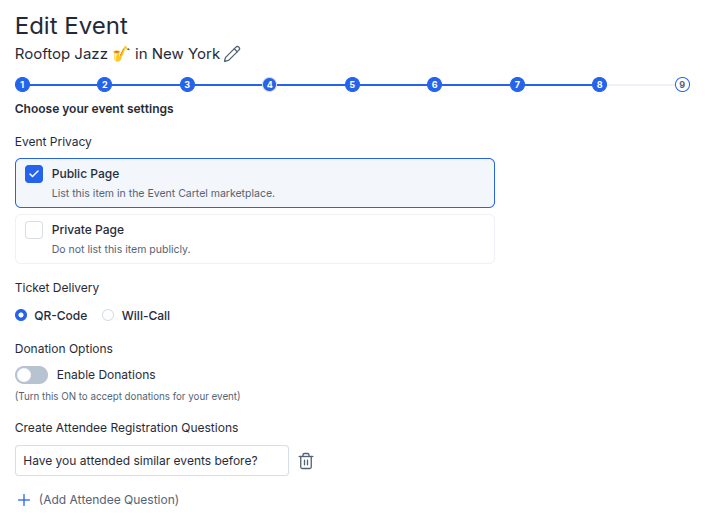
Step 8: Event settings:
Event Privacy – allows you to make your event private;
(Please note: if Will Call is selected, buyers will not receive a ticket with a QR code via email, SMS, or the app.)
Donation Options – enable this option if you would like to give buyers the opportunity to support you with an additional donation when purchasing tickets. Buyers can enter a donation amount or skip this step;
Create Attendee Registration Questions – add registration questions if you need to collect additional information from attendees. Responses to these questions will be required to complete the checkout process.
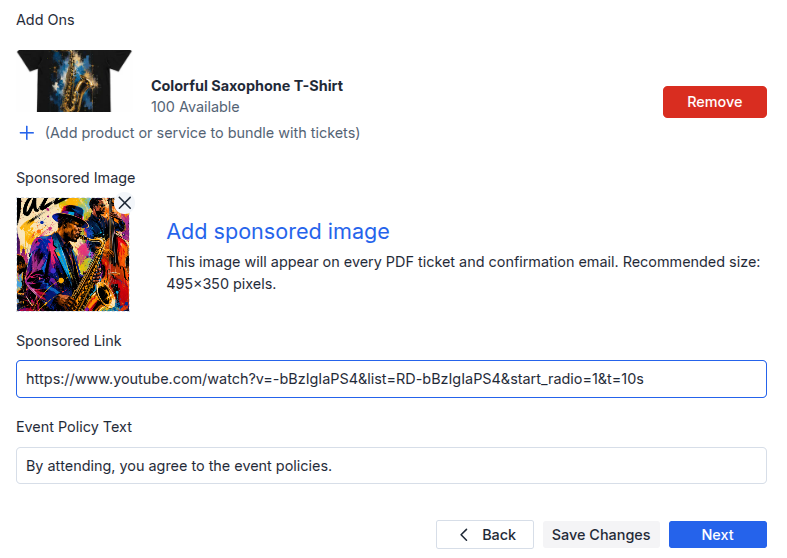
Add Ons – allows you to add additional products or services that attendees can purchase along with their tickets;
Sponsored Link – add a link to a sponsor's website, partner website, or another external resource that you would like to promote on the event page;
After purchasing a ticket, attendees will see a Sponsored Image and can visit the specified link by clicking on that image.
Event Policy Text – specify important event rules, for example: "Minors may attend the event only when accompanied by an adult";
You can preview how your event will appear by clicking View Event.
Click "Next".
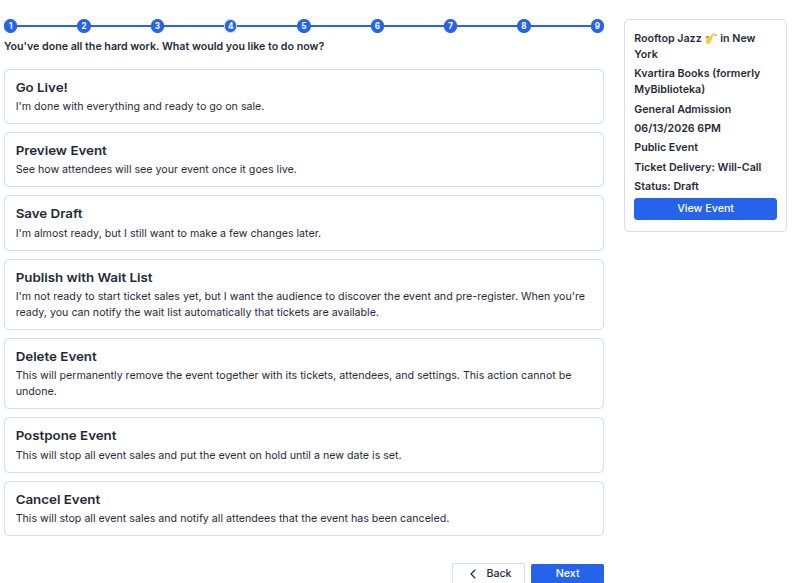
Step 9: Done! You can now publish your event immediately or save it for further editing:
Go Live – publish the event and start ticket sales;
Preview Event – see how the event page will appear to attendees;
Save Draft – save the event as a draft if you are not ready to publish it yet;
Publish with Wait List – publish the event without opening ticket sales. Attendees will be able to view the event page and join the waitlist. When ticket sales open, you can automatically notify everyone who signed up;
Delete Event – permanently delete the event and all its settings. Please note that an event can only be deleted before ticket sales begin. This action cannot be undone;
Postpone Event – reschedule the event to a later date. Ticket sales will be paused until a new date is set;
Cancel Event – ticket sales will be stopped, and all registered attendees will receive a cancellation notification.
- Click "Next".
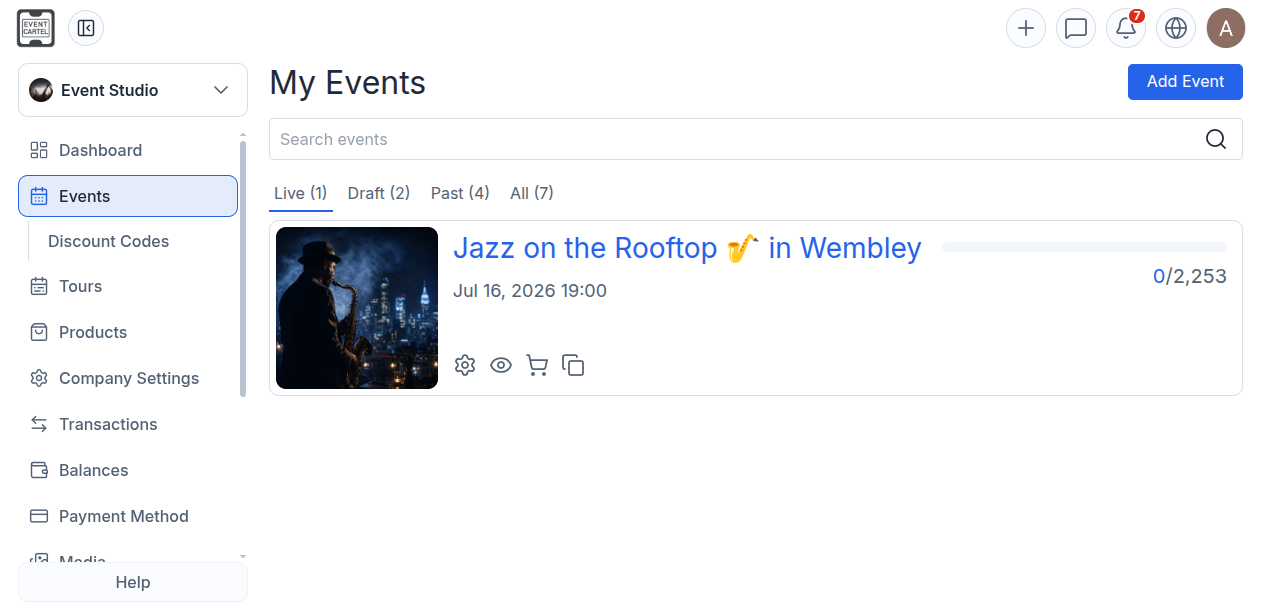
Great! You can now find your event in the "Events" section.
Available actions:
⚙️ Manage - edit your event settings;
👁️ View - open the event page and see how it appears to attendees;