Back to Event Creation & Management
Creating a Multi-Event
A Multi-Event allows you to combine multiple event dates under a single event listing. This is useful for concerts, performances, workshops, and other events that take place more than once.
Creating a Multi-Event follows the same process as creating a regular event. You can review these steps in the articles Creating an Event Without Assigned Seating and Creating an event with a seating map.
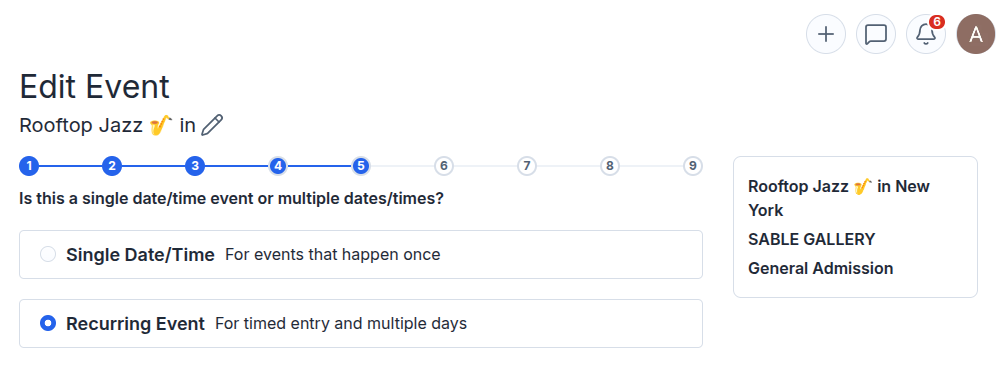
The only difference is Step 5, where you configure the Multi-Event settings. Let's take a closer look:
At this stage, select Recurring Event (For timed entry and multiple days).
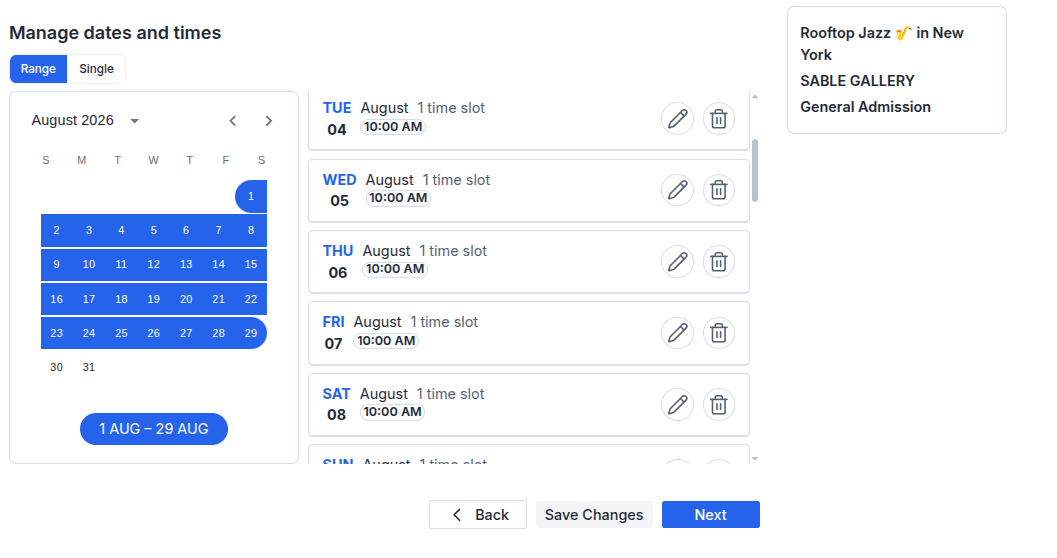
You will see a calendar where you can select the dates for your event.
(The dates can be consecutive or spread across any time period)
For convenience, two date selection modes are available:
Range – allows you to select multiple dates at once by choosing a start date and an end date;
Single – allows you to add dates one at a time.
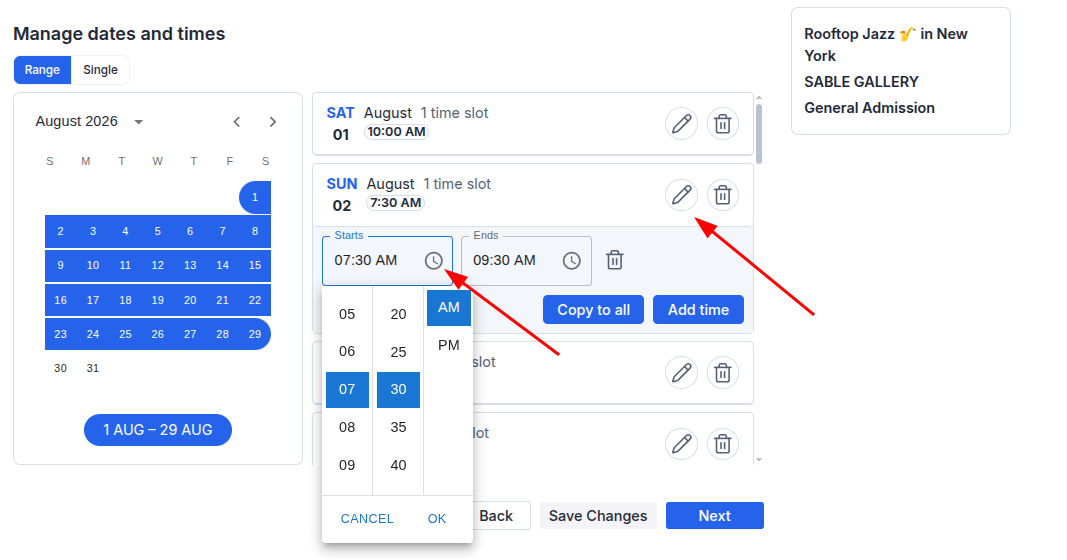
After selecting your dates, you can configure the event times.
If you need to set different times for each date, click the pencil icon next to the desired date. You will then be able to specify the event start and end times.
Clicking Copy to All will apply the selected time settings to all added dates.
If you click Add Time, an additional time slot will be added to the selected date. This allows the event to take place multiple times on the same day.
If necessary, you can remove any event date. This can be done both before and after the event is published, provided that no tickets have been purchased for that date.
Once you have finished configuring your dates and times, click Next to proceed to the next step.
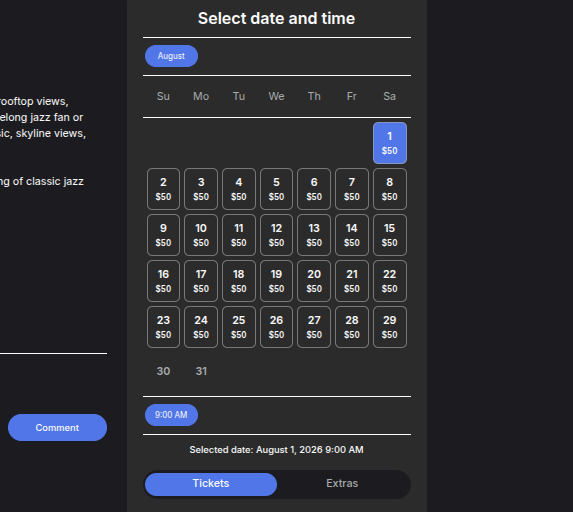
After the event is published, attendees will see a list of available dates and will be able to select their preferred date and time before purchasing a ticket.