How to issue bulk refunds to customers
Sep 1, 2026Updated1 min read00
If you need to issue refunds to several or all customers at once, you can do so through the "Sales History" section.
To issue a refund for a single purchase, follow the instructions in "How to issue a refund to a customer".
To proceed with a bulk refund:
- Open the "Events" section and select the relevant event;
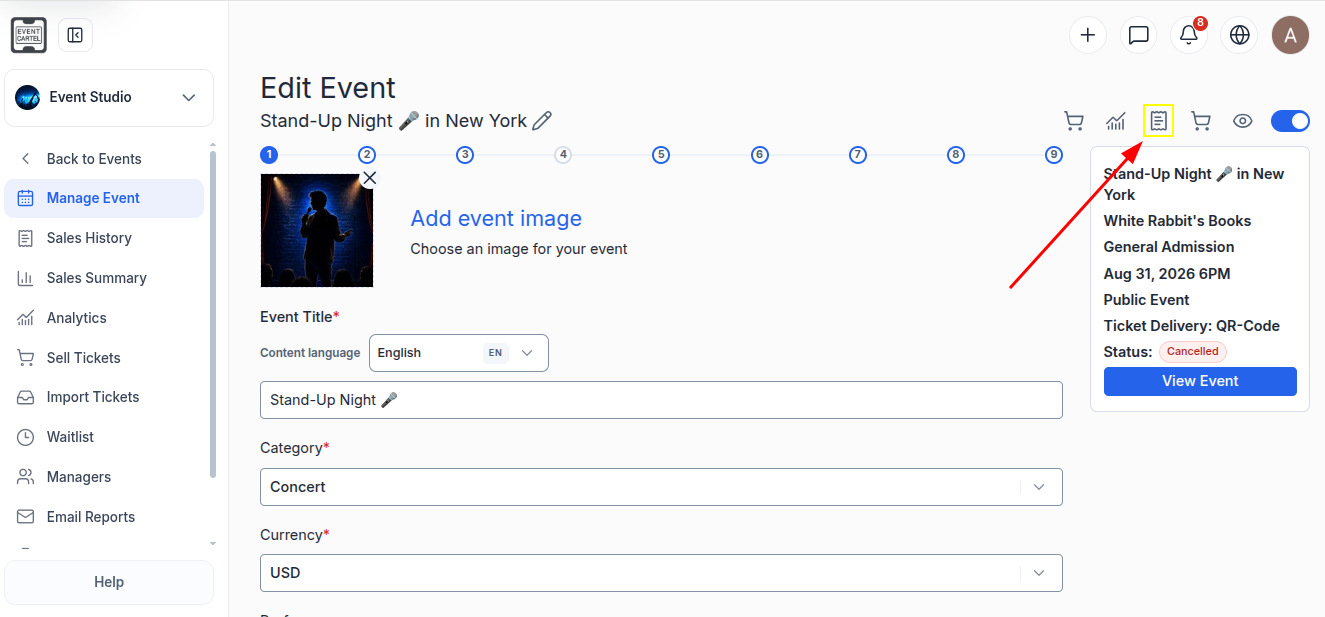
- Click the "Sales History" icon in the upper-right corner of the page.
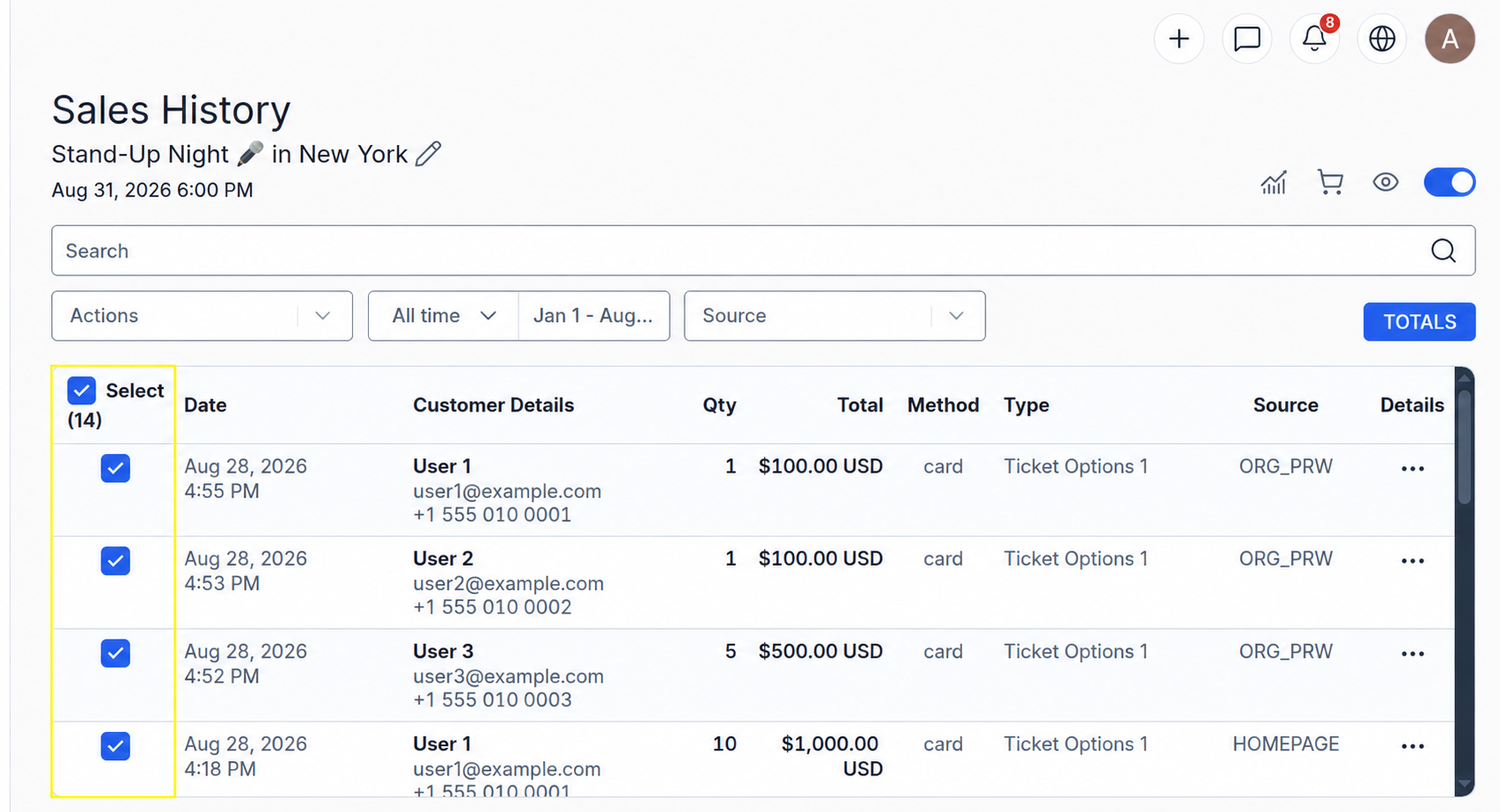
- In the sales table, select the purchases you want to refund.
To select all purchases, check the box next to "Select".
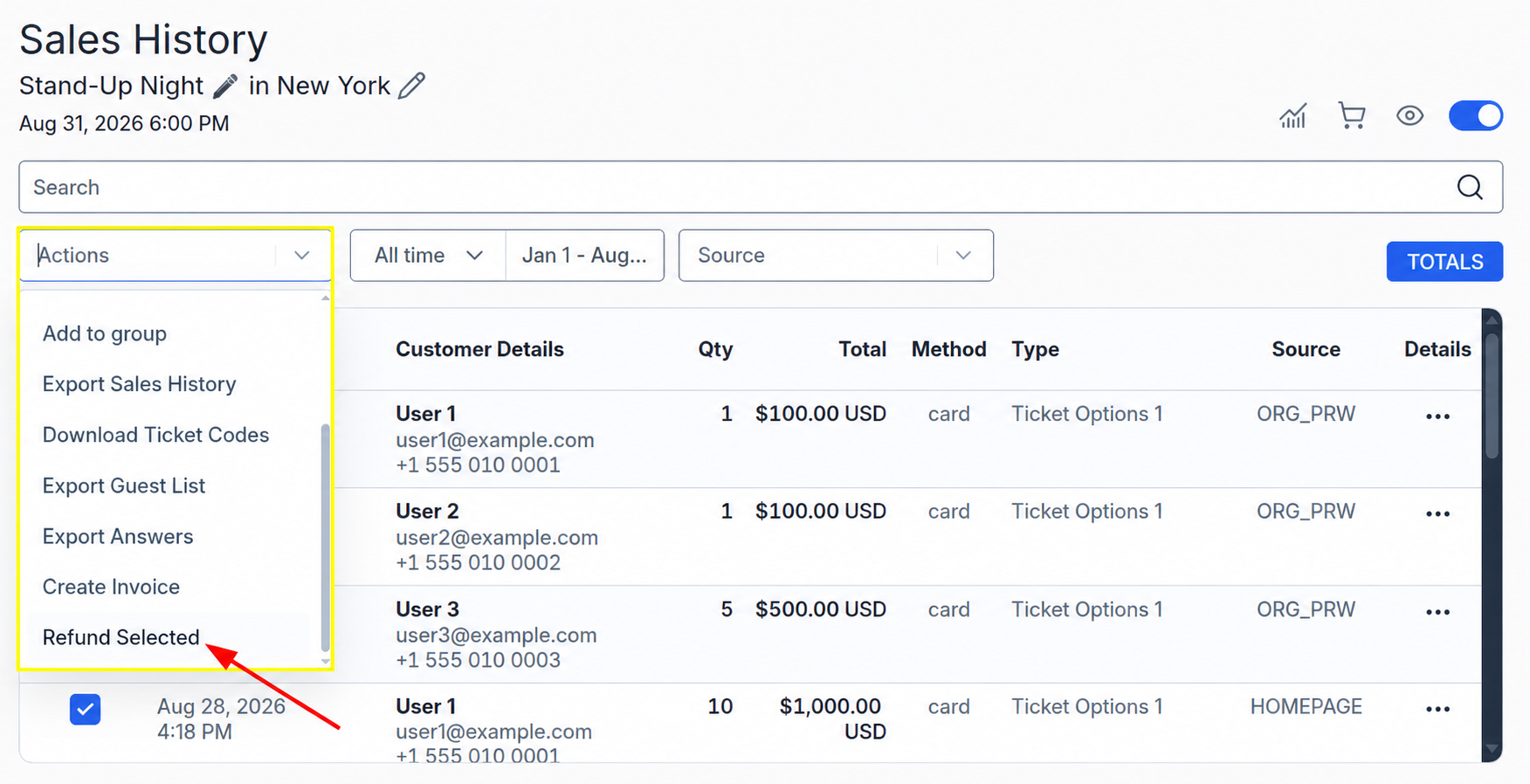
- Open the "Actions" menu;
- Select "Refund Selected".
- Select "Refund Selected".
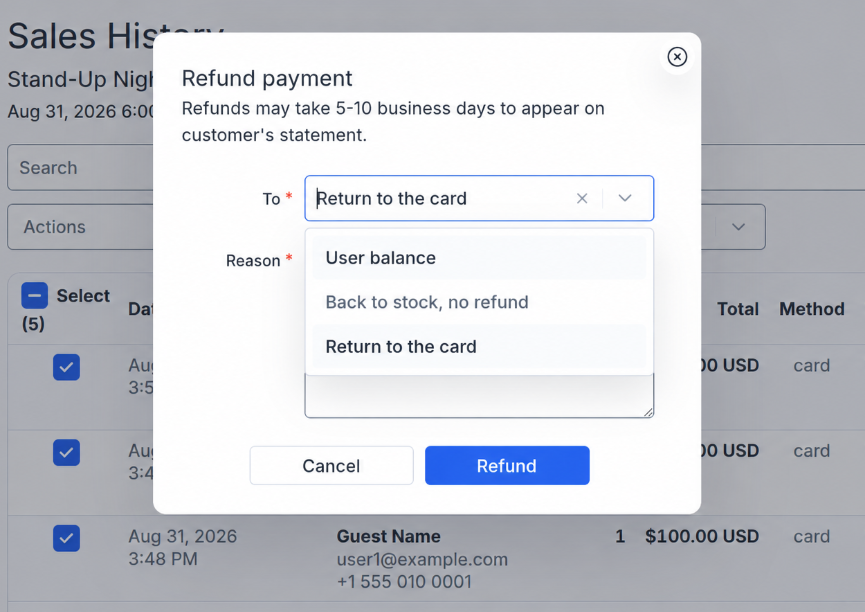
- In the window that opens, select the refund method in the "To" field:
"Return to the card" - the funds will be returned to the cards used for the purchases;
"User balance" - the funds will be credited to the customers’ EventCartel balances;
"Back to stock, no refund" - the tickets will be canceled and returned to stock without refunding the customers.
Please note: Select "Back to stock, no refund" only if the customers do not need to receive a refund.
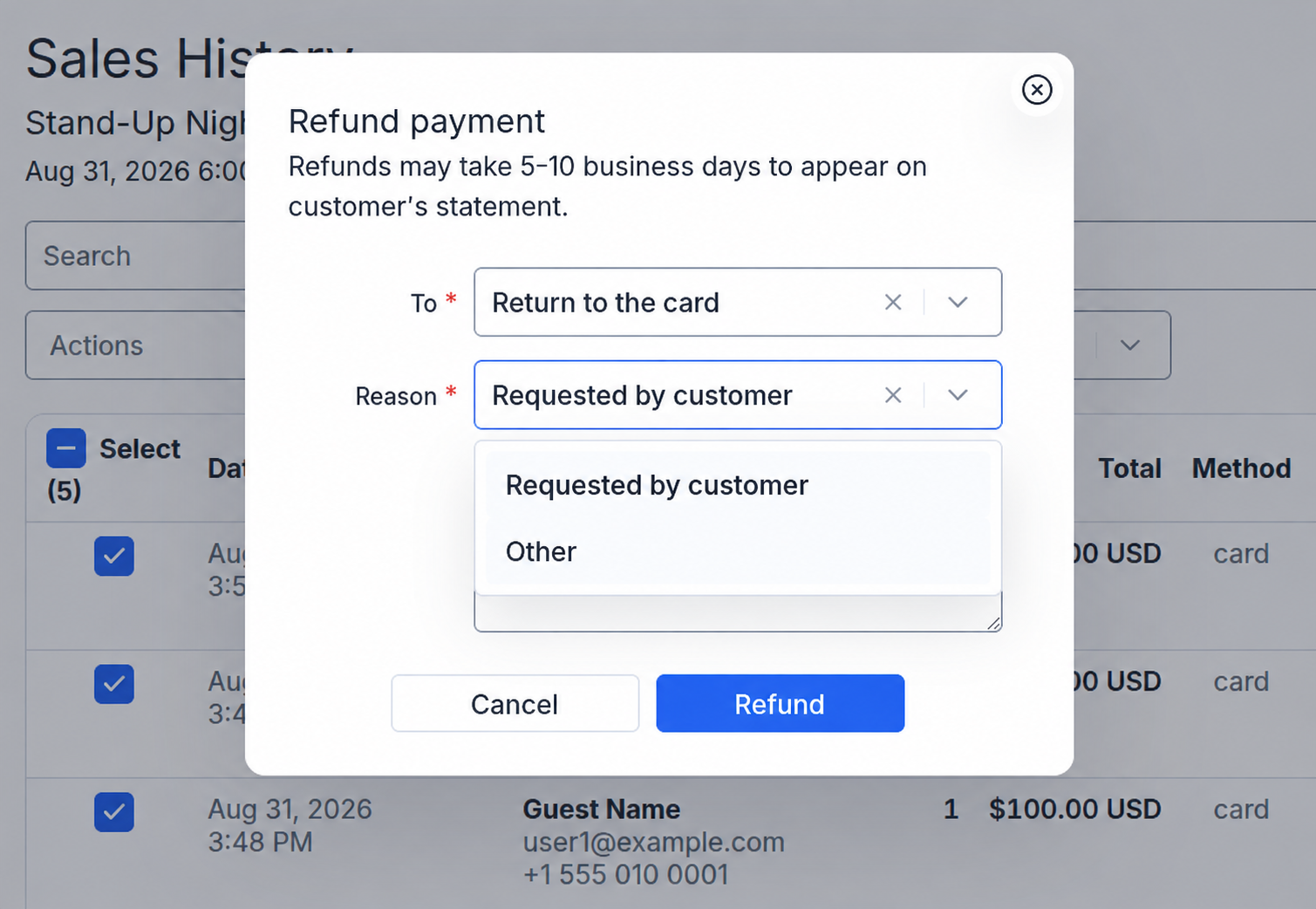
- In the "Reason" field, select the reason for the refund:
"Requested by customer" - if the customers requested a refund;
"Other" - if the refund is being issued for another reason. After selecting this option, enter the reason in the comment field, for example, "Event canceled".
- Click "Refund" to confirm.
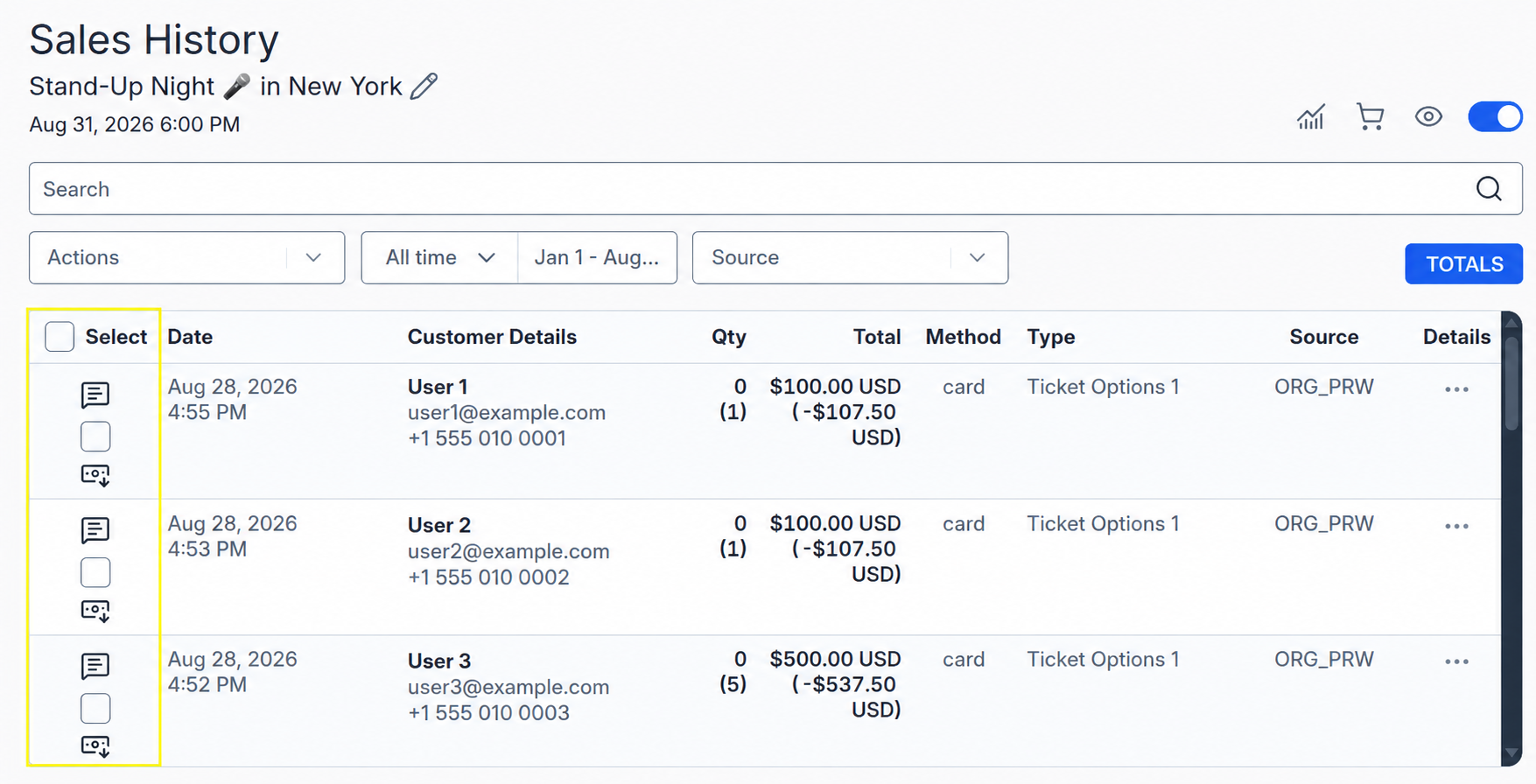
Once confirmed, the refunds will be submitted for processing. In the "Sales History" section, a refund icon will appear next to the corresponding purchases, and the refunded amounts will be shown in parentheses.
It may take 5–10 business days for the funds to appear on the customers’ card statements.