How to issue a refund to a customer
Aug 10, 2026Updated2 min read10
You can issue a refund to a customer through the "Transactions" section or through the "Sales History" of a specific event. The first option is convenient for finding a purchase by the customer’s details or order number across all sales, while the second is useful for finding a purchase within a specific event.
Let’s start with the first option:
- Sign in to your EventCartel account;
- Go to "Business Manager";
- In the side menu, open the "Transactions" section.
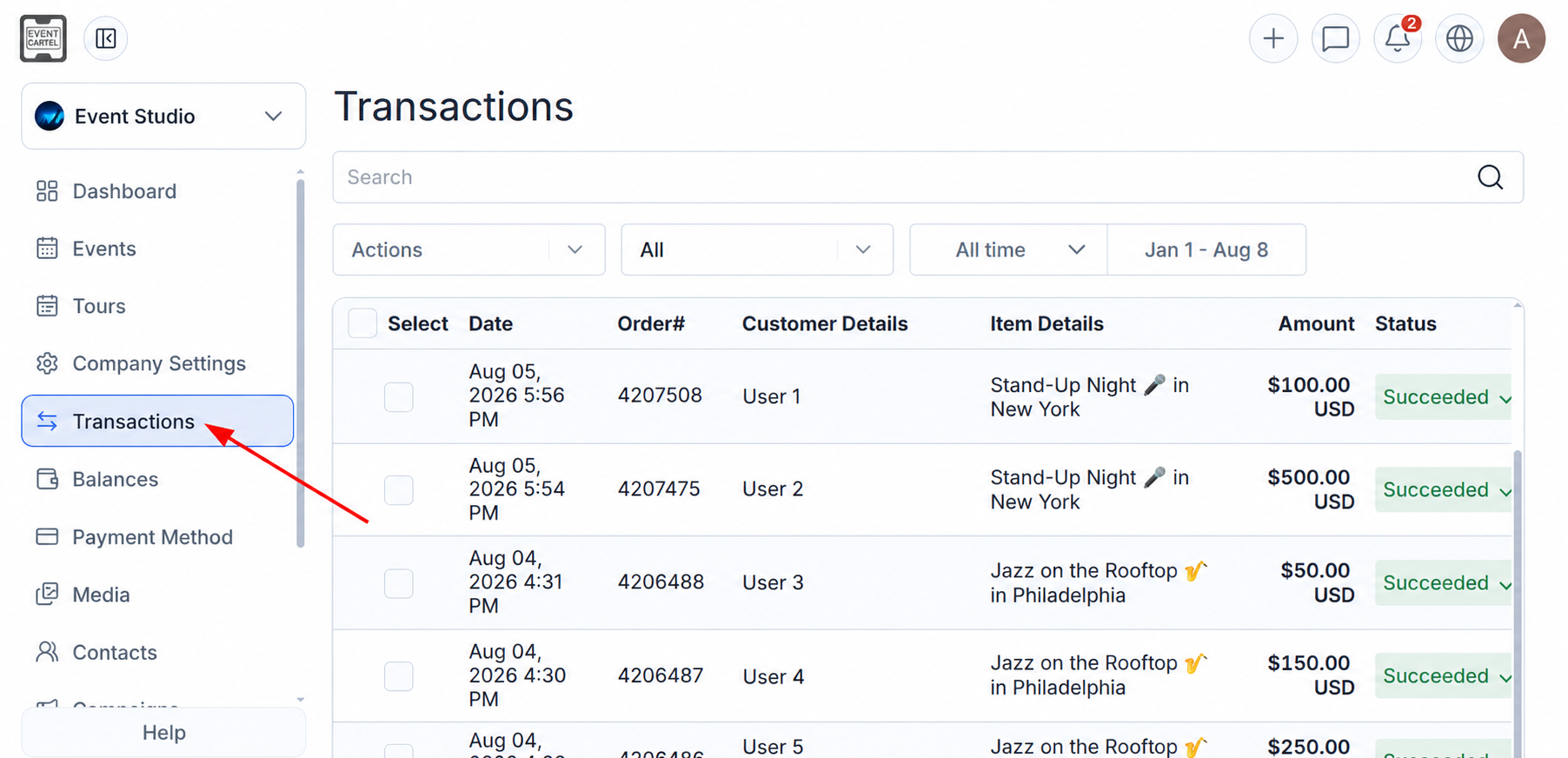
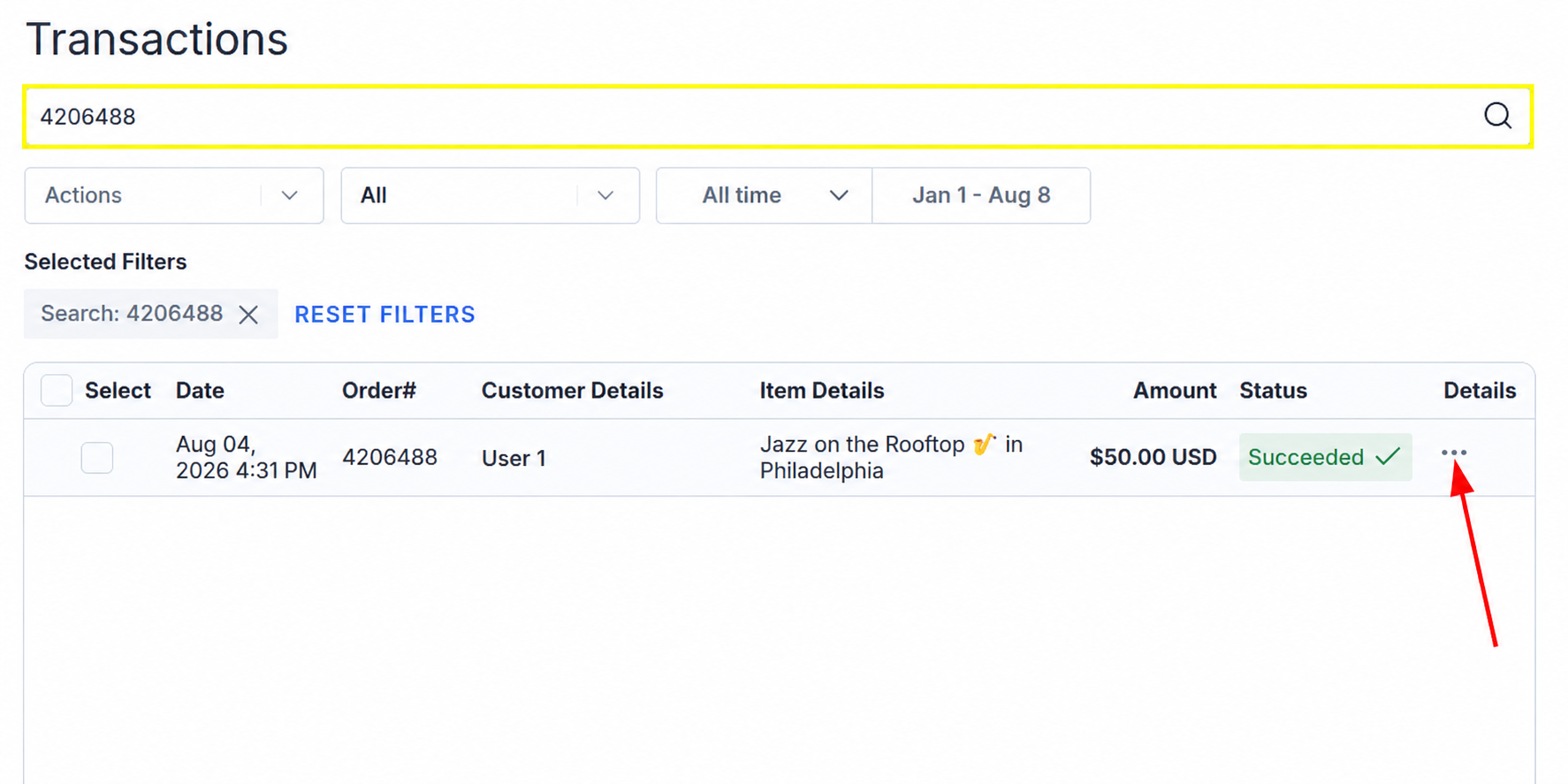
- Enter the customer’s details in the search bar (order number, name, or phone number);
- Find the required purchase, scroll the table to the right, and click the ••• icon in the "Details" column.
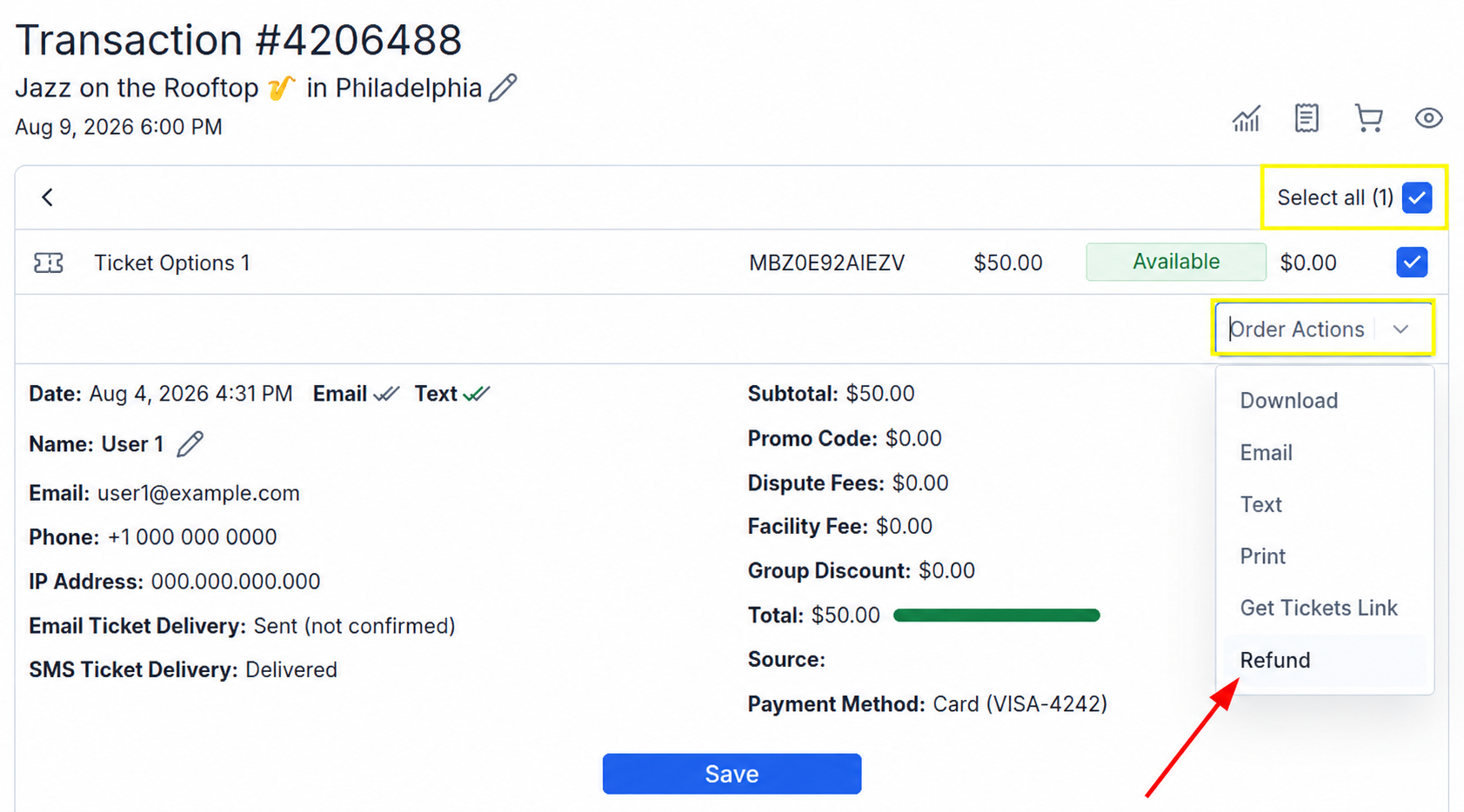
- In the order that opens, select the tickets you want to refund;
To select all tickets in the order, check the box next to "Select all".
- Open the "Order Actions" menu and select "Refund".
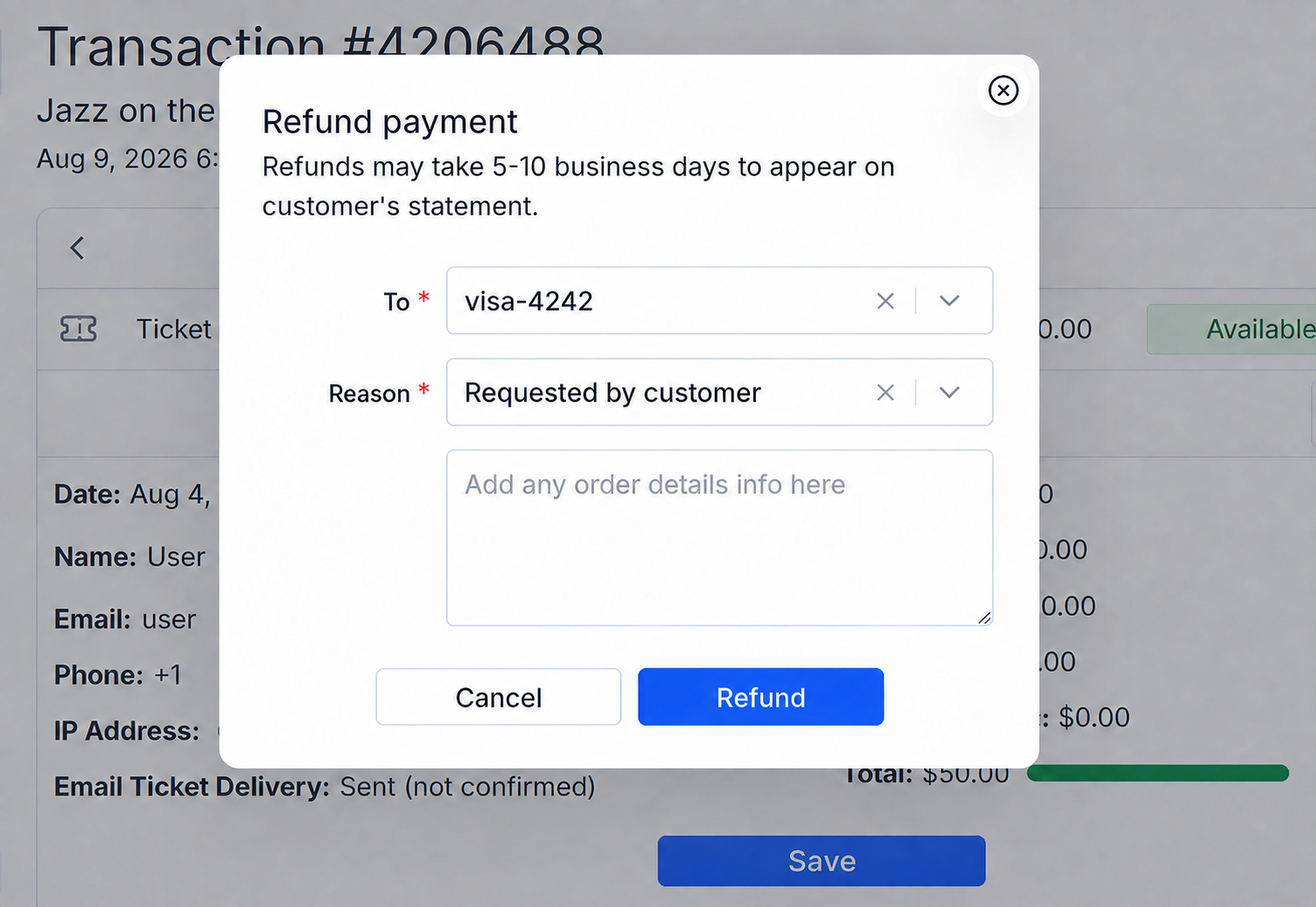
- In the window that opens, enter the refund information.
In the "To" field, select one of the following options:
• Customer’s payment card - the funds will be returned to the card used to pay for the order. The refund may take 5–10 business days;
• User balance - the funds will be credited to the customer’s EventCartel balance;
• Back to stock, no refund - the ticket will be returned to sale without refunding the customer.
In the "Reason" field, select a reason:
• "Requested by customer" - the refund was requested by the customer;
• "Other" - another reason. If you select this option, you must enter the reason for the refund in the text field.
If you select "Requested by customer", you can add additional information if needed.
- Click "Refund" to confirm.
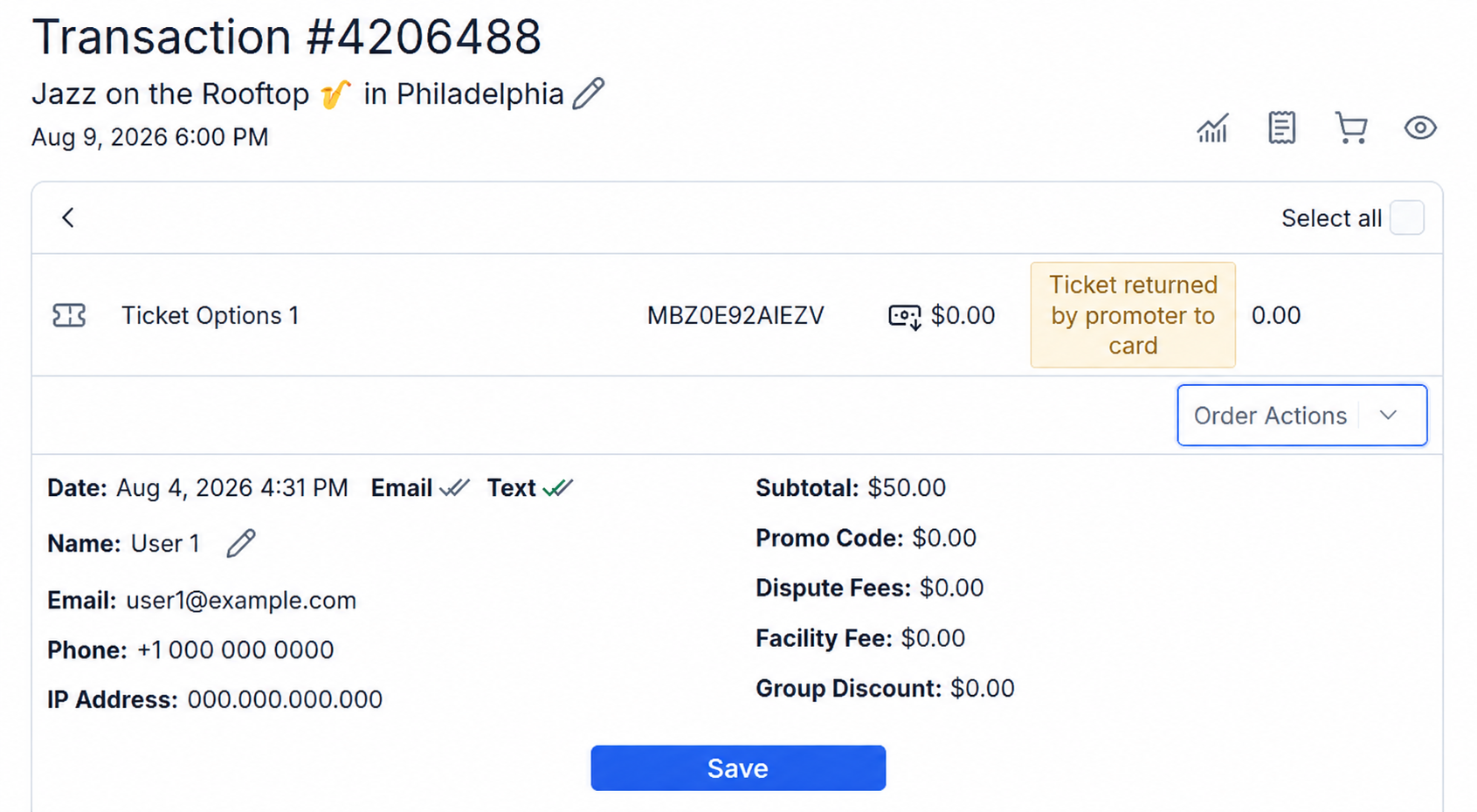
Done! Once the refund has been successfully processed, the ticket status will change. For example, if the funds are returned to the customer’s payment card, the "Ticket returned by promoter to card" label will appear next to the ticket.
How to issue a refund through "Sales History":
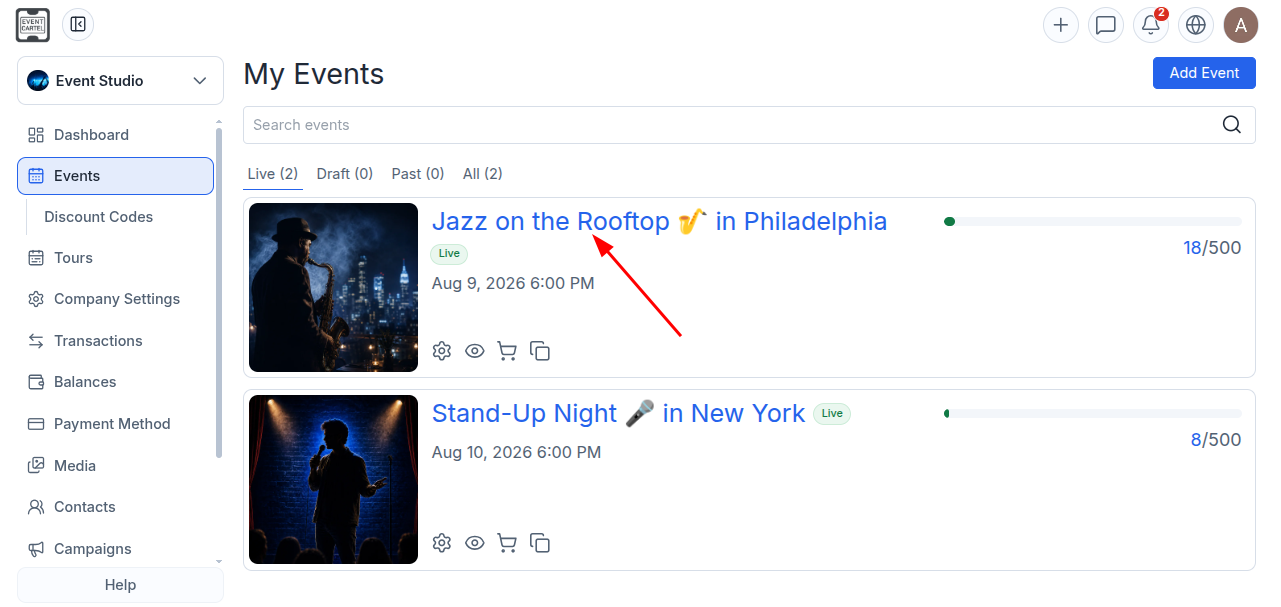
- Open the "Events" section;
- Select the event for which you want to issue a refund.
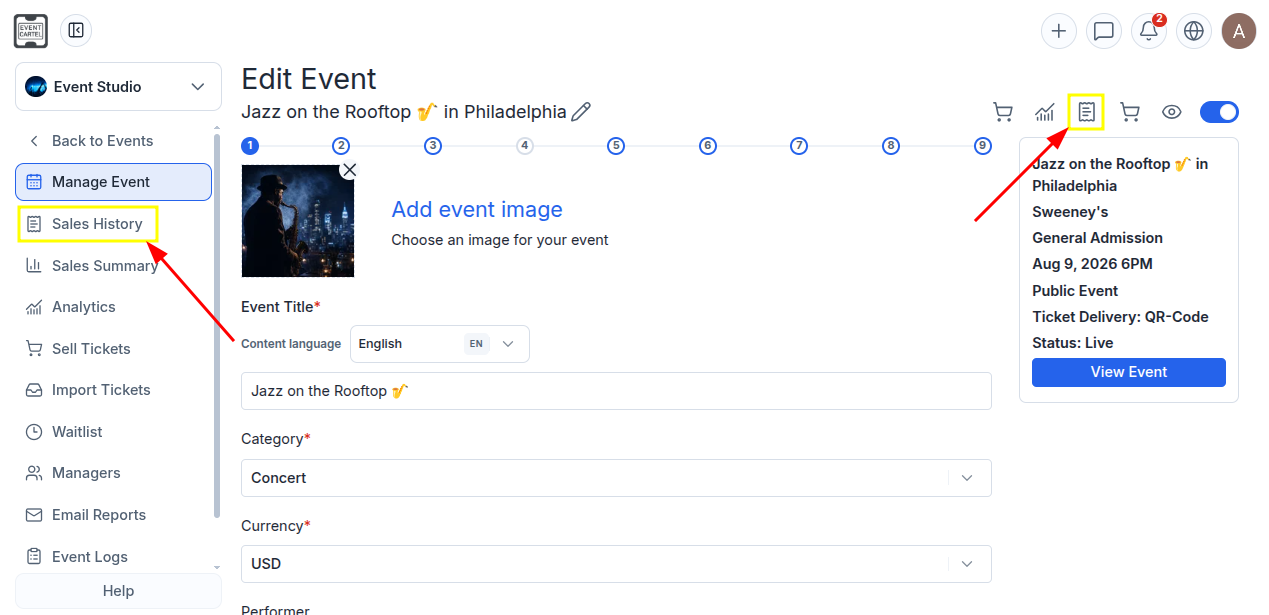
- In the left-hand menu, open the "Sales History" section, or click the 📄 icon at the top of the page.
- Select the required purchase by checking the box to its left.
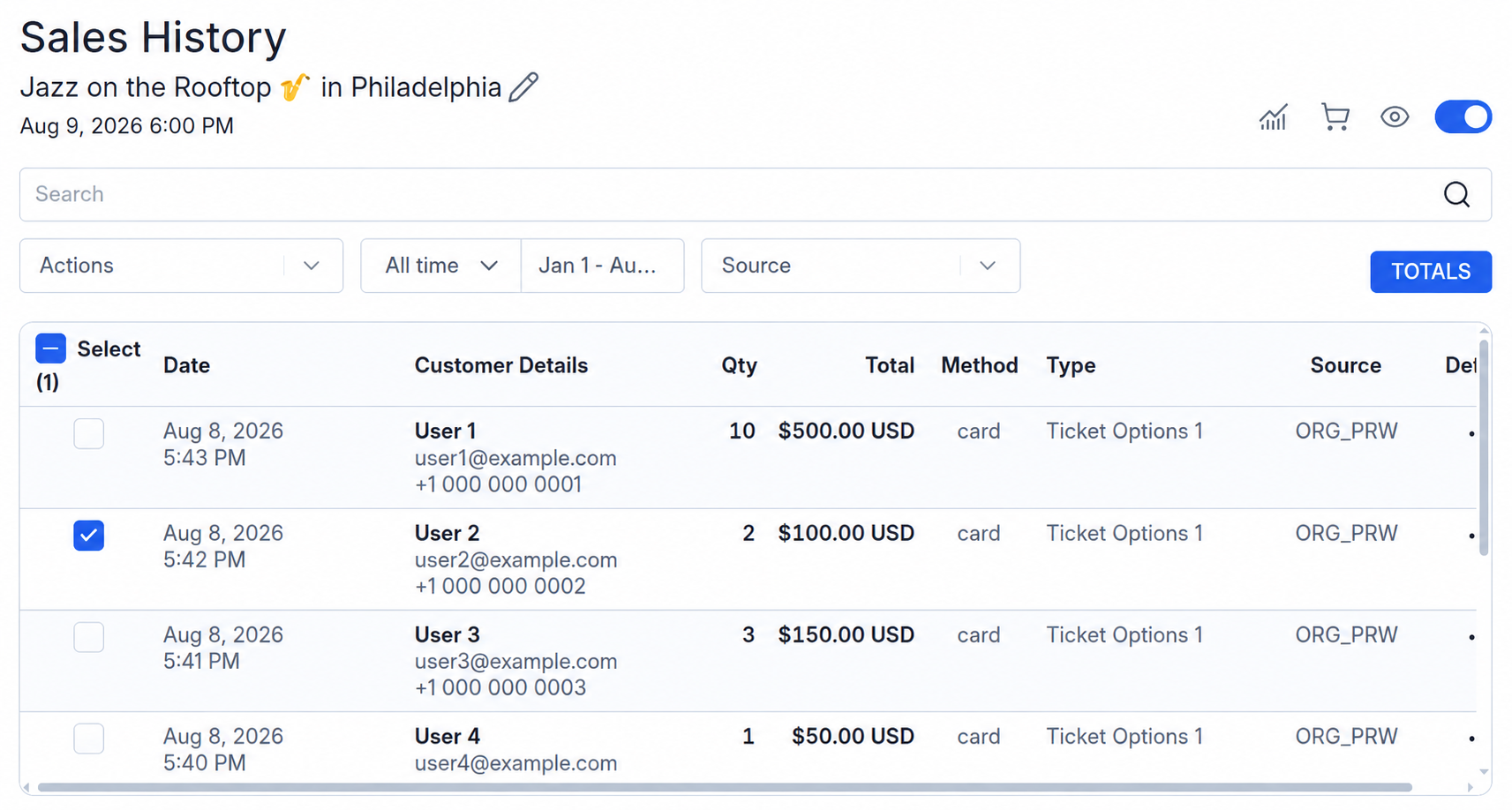
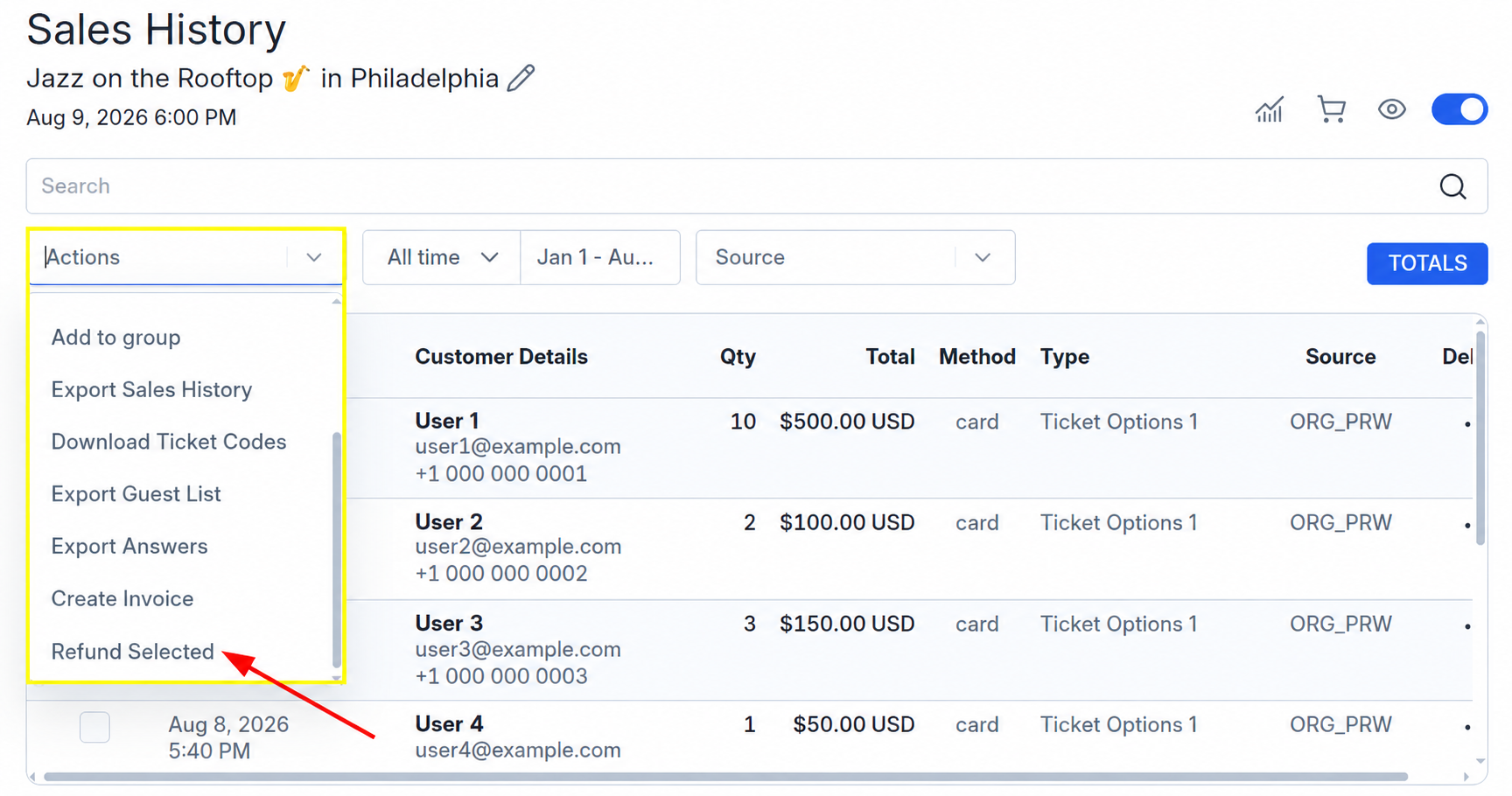
- Open the "Actions" menu;
- Select "Refund Selected".
- In the window that opens, use the "To" field to choose where to return the funds: to the customer’s payment card or EventCartel balance. To return the ticket to sale without issuing a refund, select "Back to stock, no refund";
- In the "Reason" field, select the reason for the refund. If you select "Other", you must complete the text field;
- Click "Refund" to confirm.
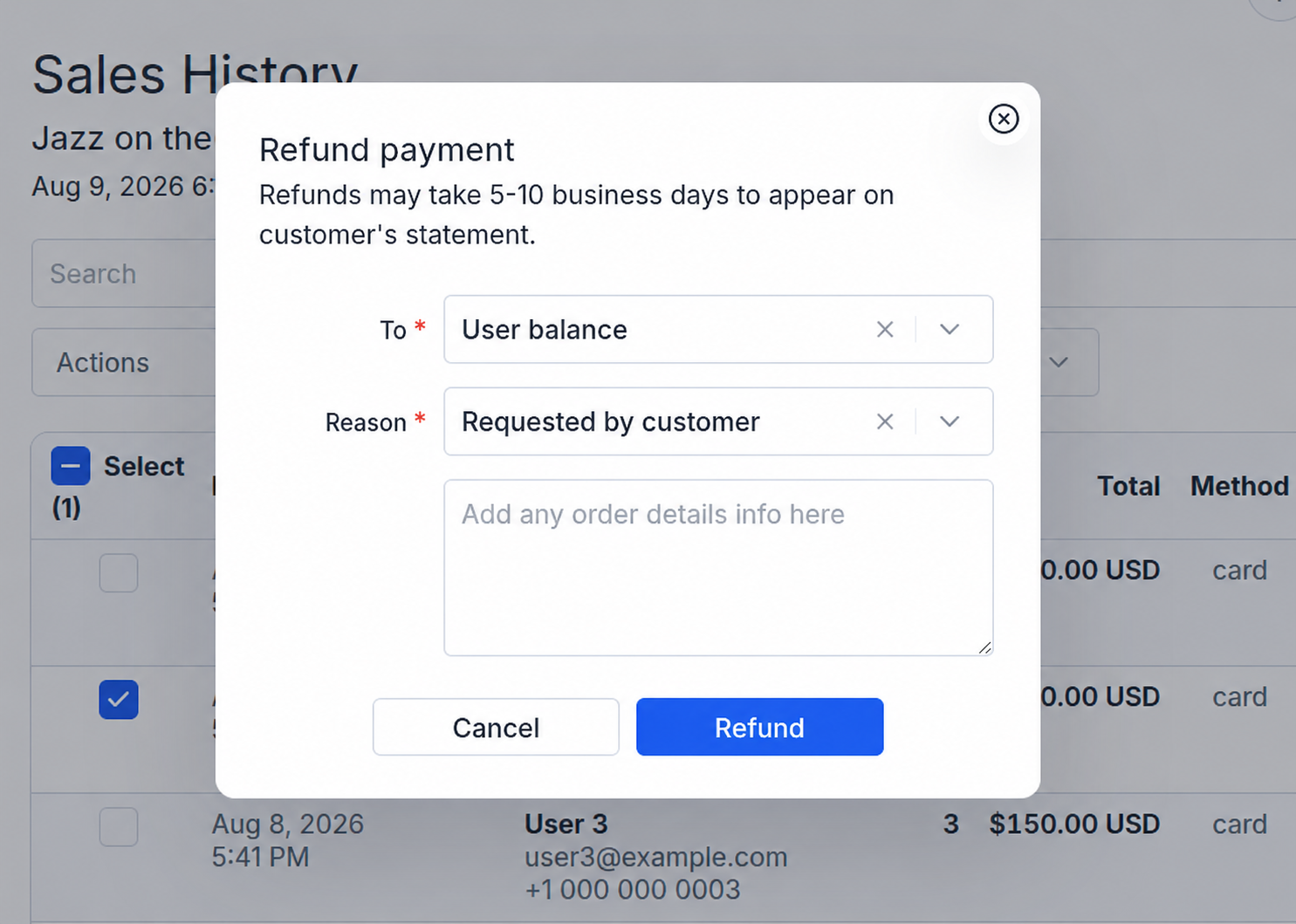
Done! The selected purchase has been refunded. Refunds to a payment card may take 5–10 business days to appear on the customer’s statement.