How to create seat holds on a seating map?
Jul 15, 2026Updated1 min read00
Seat Holds allow you to temporarily block selected seats on your seating chart. Held seats cannot be purchased until you release the hold and make them available for sale.
To create a seat hold:
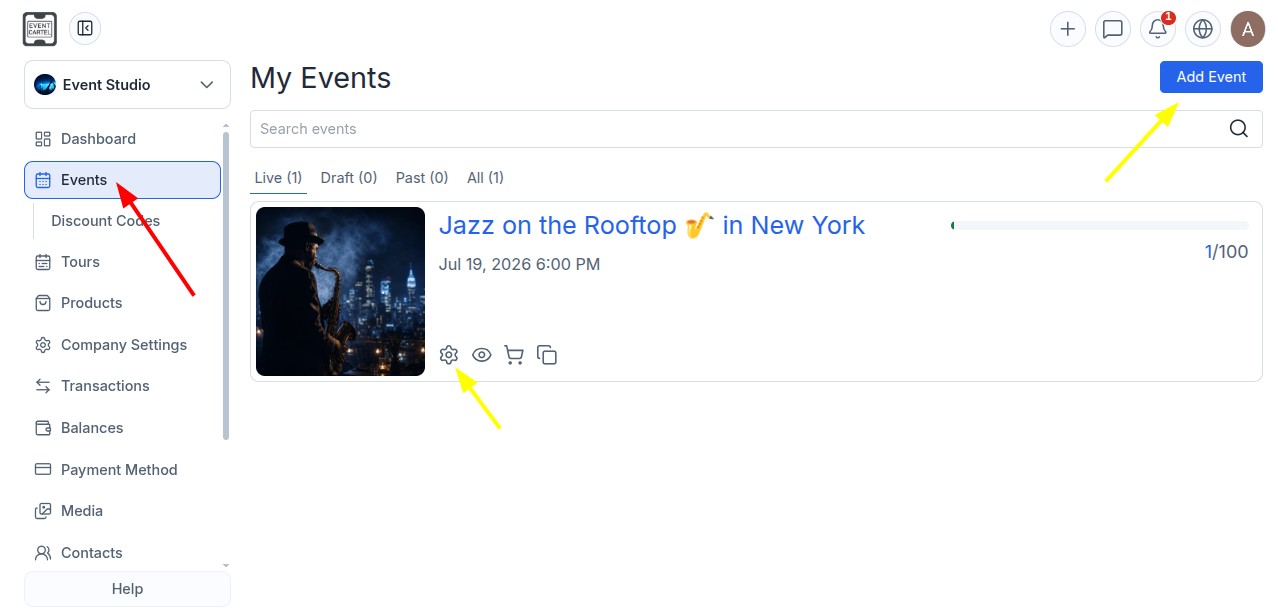
- Log in to your EventCartel account;
- Go to "Business Manager";
- Open the "Events" section;
- Find the event you need or create a new one.
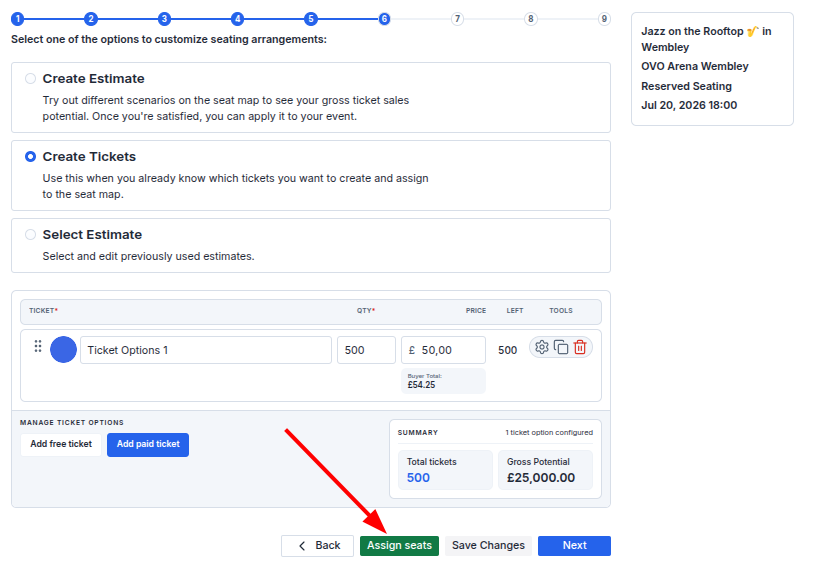
- Go to Step 6 of the event creation process;
- Click Assign Seats.
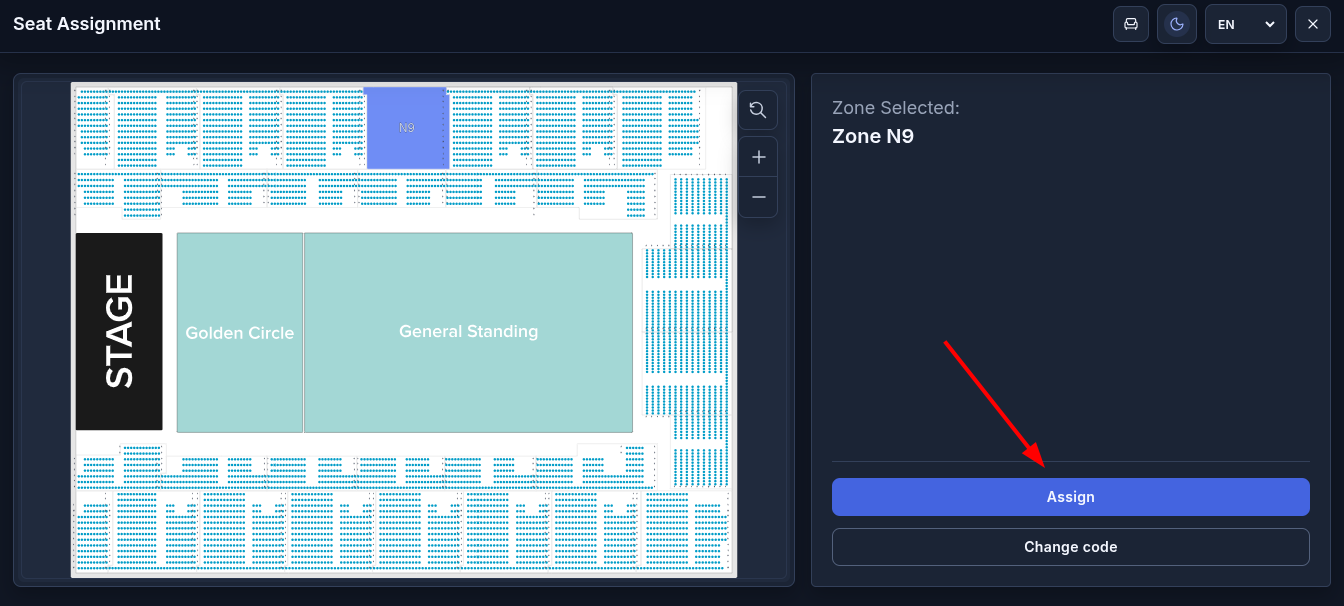
- Select the zone where you want to create a seat hold, then click "Assign".
- Select the seats you want to place on hold;
- Then click the "Create Hold" icon.
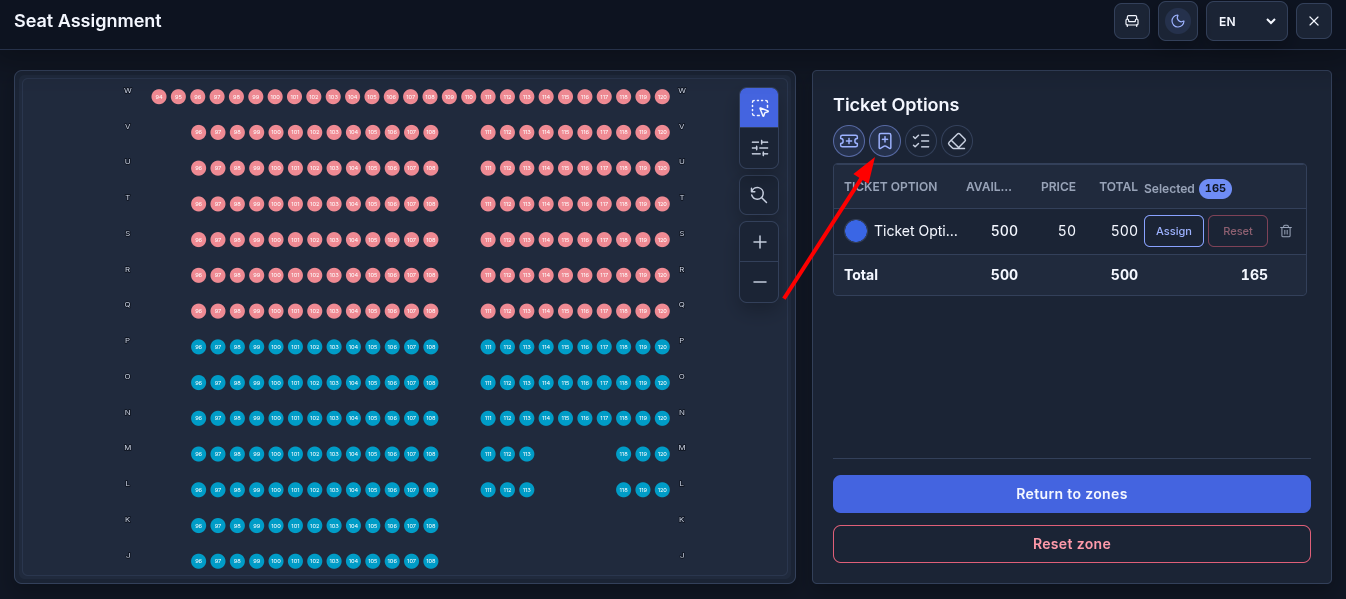
A new Hold will appear.
(Optional) Rename it if needed.
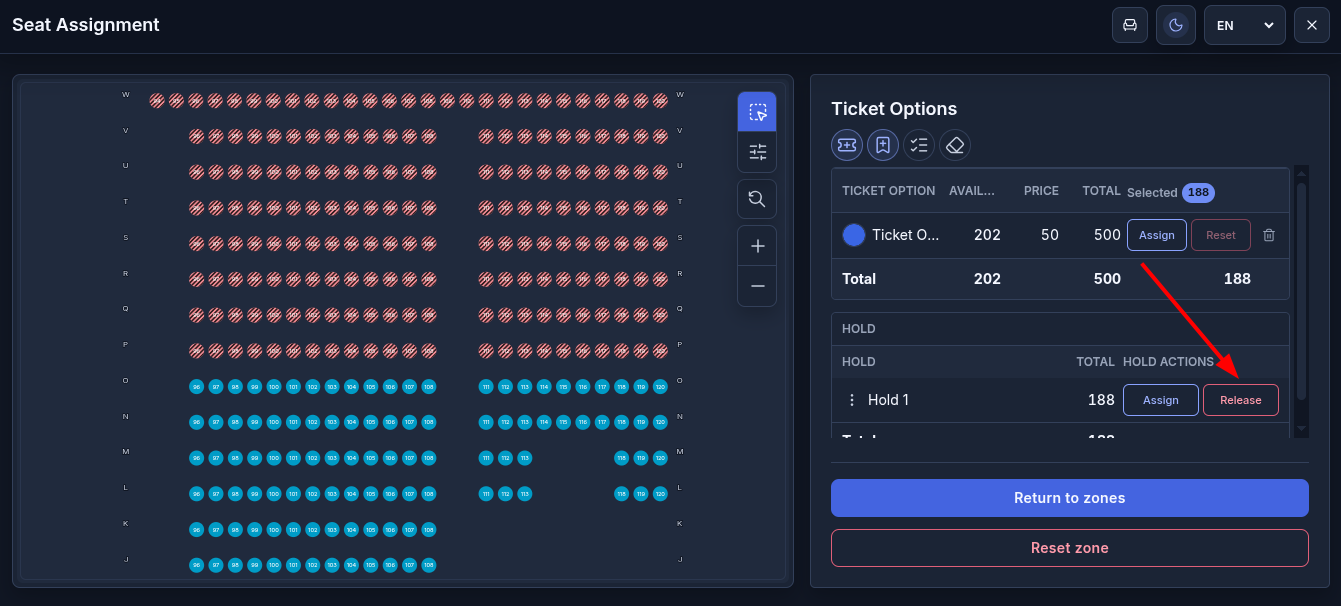
- To assign the Hold to the selected seats, click "Assign".
If you assigned extra seats by mistake, select them again and click "Release".
The selected seats will be removed from the Hold.
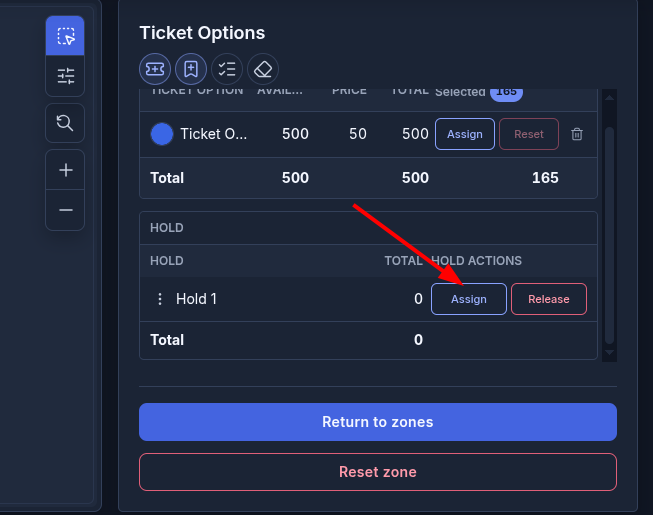
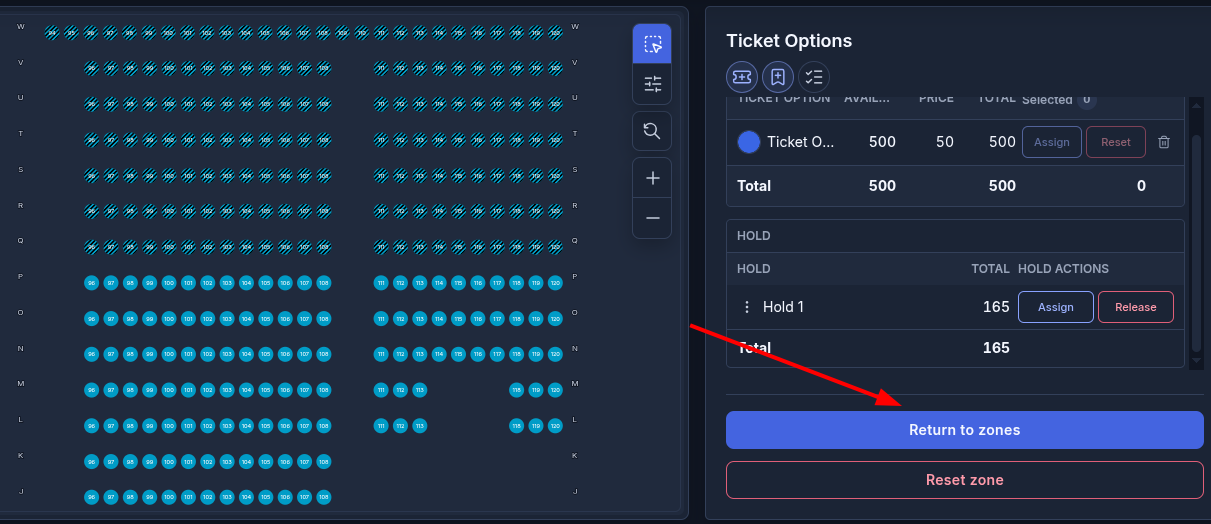
• Held seats will be displayed with diagonal hatching, indicating that they are temporarily blocked and unavailable for purchase.
• You can create multiple Holds.
- When you finish working with the current zone, click "Return to Zones".
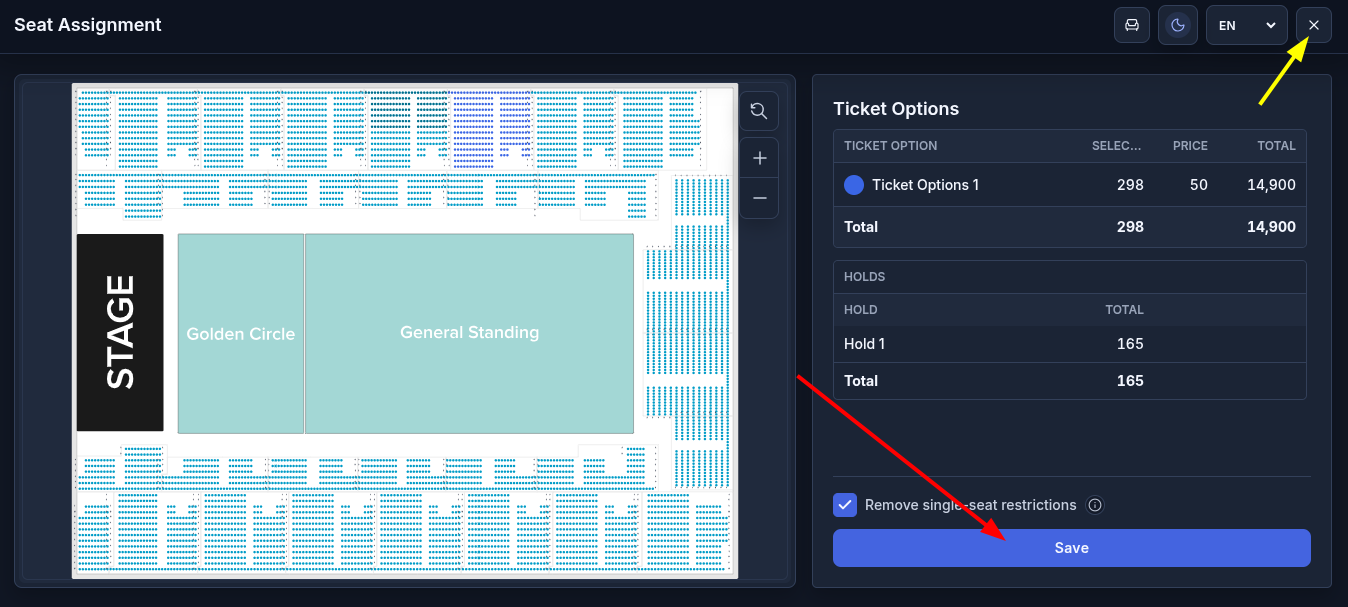
After you have assigned all ticket types and created the necessary Holds:
- Click "Save";
- Close the editor by clicking ✕ in the upper-right corner;
Held seats will appear as unavailable to customers, just like seats that have already been sold, so they cannot be purchased.
To release a seat hold:
- Go to the "Events" section;
- Open the event you want to edit;
- Go to Step 6 of the event creation process;
- Click "Assign Seats";
- Select the desired zone;
- Select the seats you want to release from the Hold;
- Click "Release";
- Return to the main seating map by clicking "Return to Zones";
- Close the seat map editor by clicking ✕;
- Click "Save Changes".