Back to Settings & Tools
How to Grant Access to the Scanner App
Application EC Scanner is used to verify tickets at the entrance and to work with the guest list. For events with a large number of attendees, it is recommended to add staff members in advance who will be responsible for registering guests.
After setting up access, you can send employees instructions for working with Scanner. A detailed guide is available in this article.
Adding a scanner:
Adding a scanner:
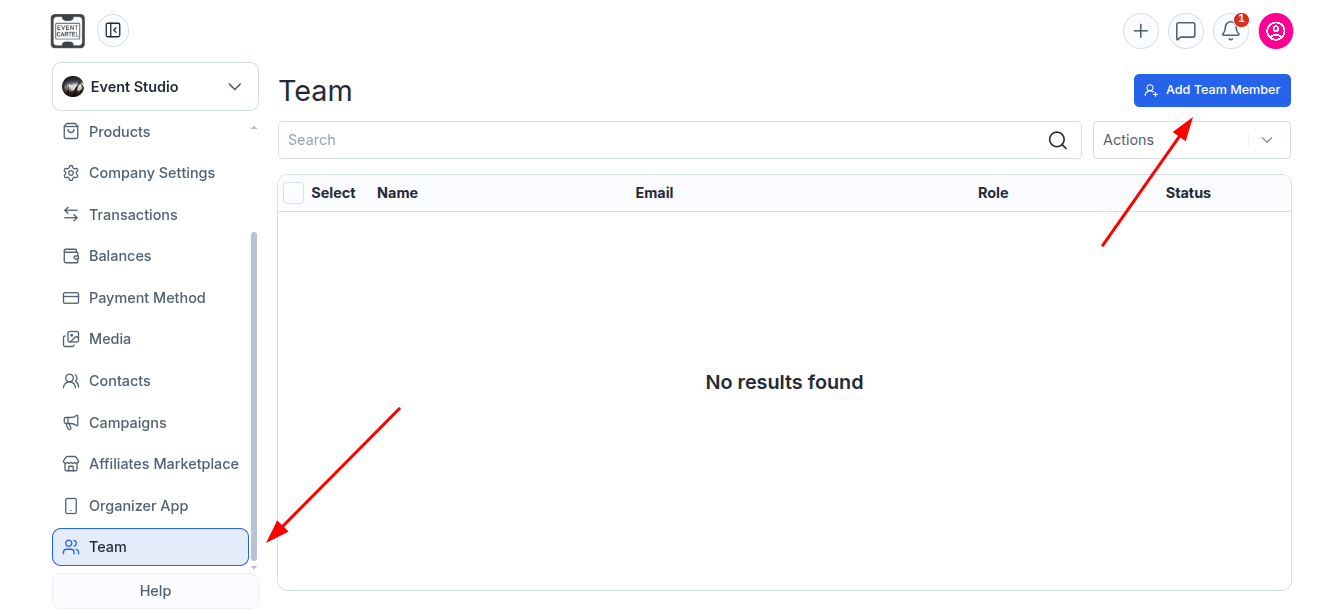
Log in to your organizer account and open Organizer Dashboard;
In the left menu, scroll down to the very bottom;
Go to the Team;
Click Add Team Member;
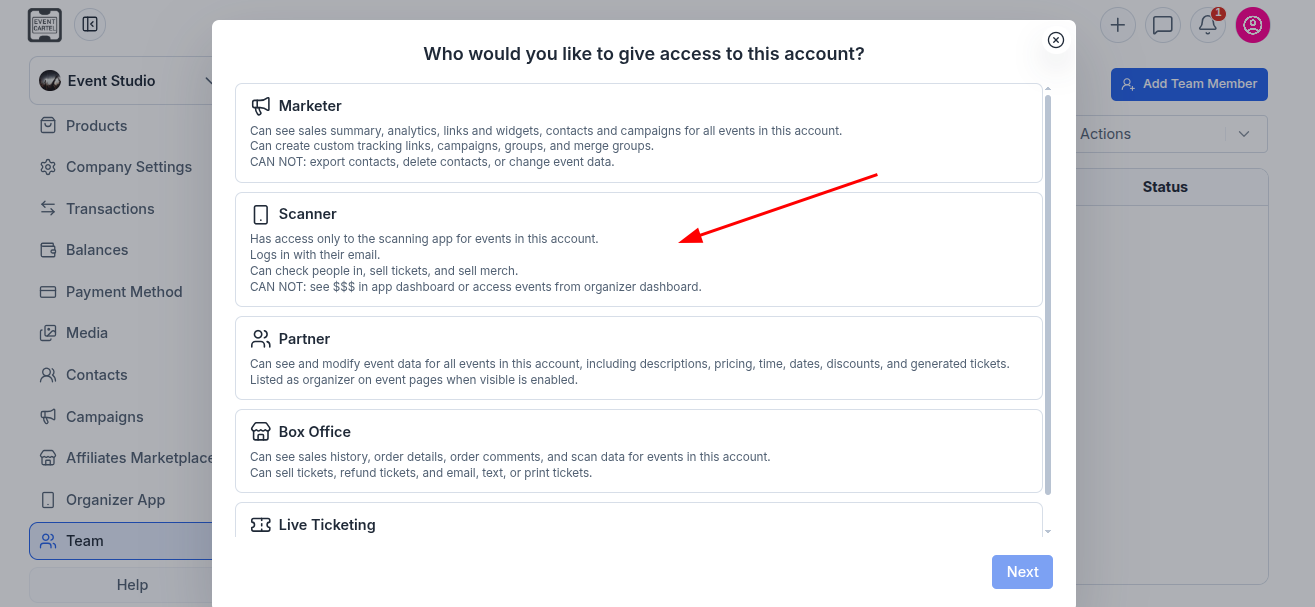
- Select the "Scanner" role;
- Click "Next";
The Scanner role allows users to:
Validate tickets using the EC Scanner app, view the guest list, сheck in guests manually.
The Scanner role does not provide access to:
Finances and payouts, sales information, event settings, organizer data.
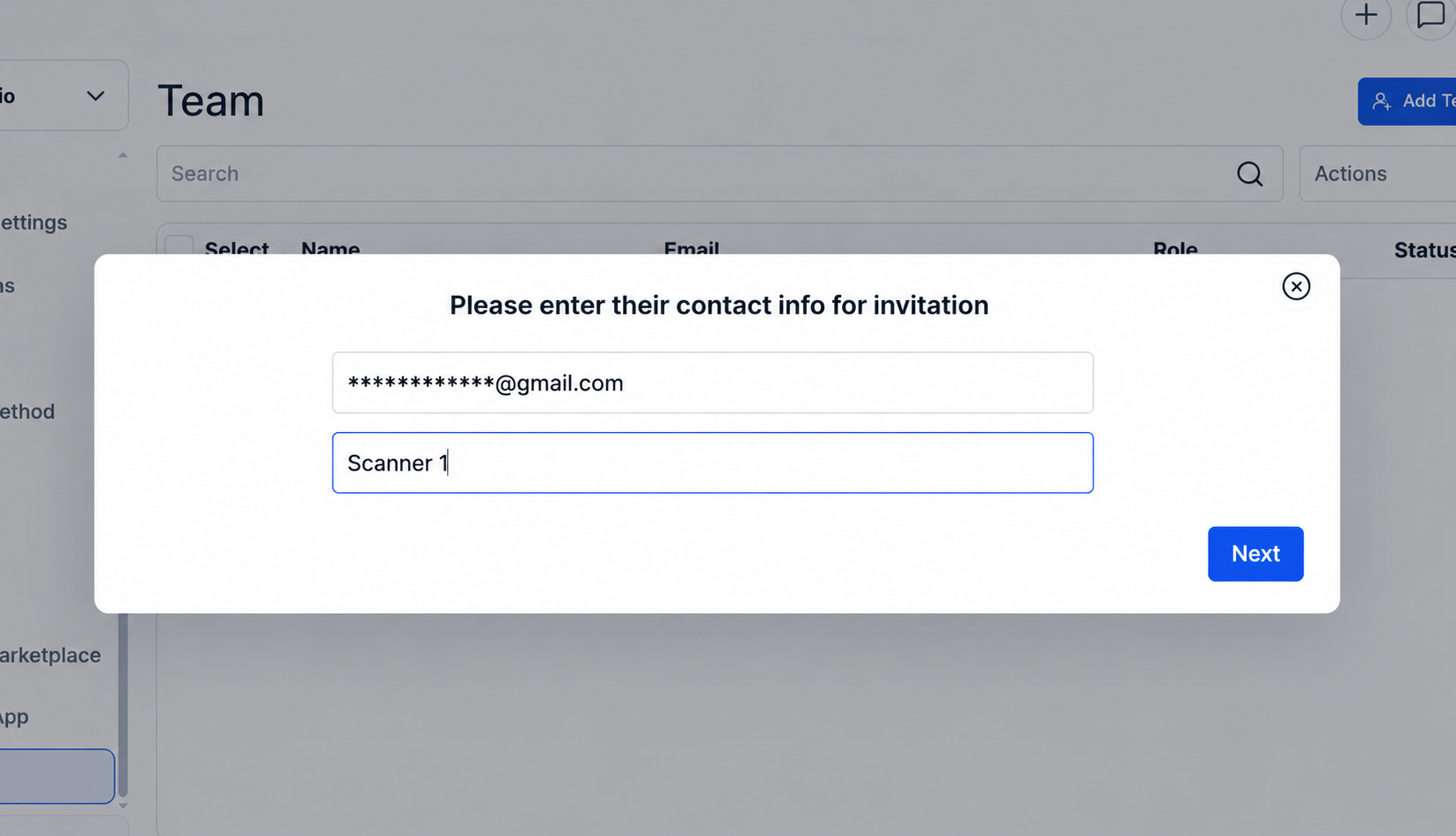
- Enter the staff member's email address;
- Enter their name;
- Click "Next".
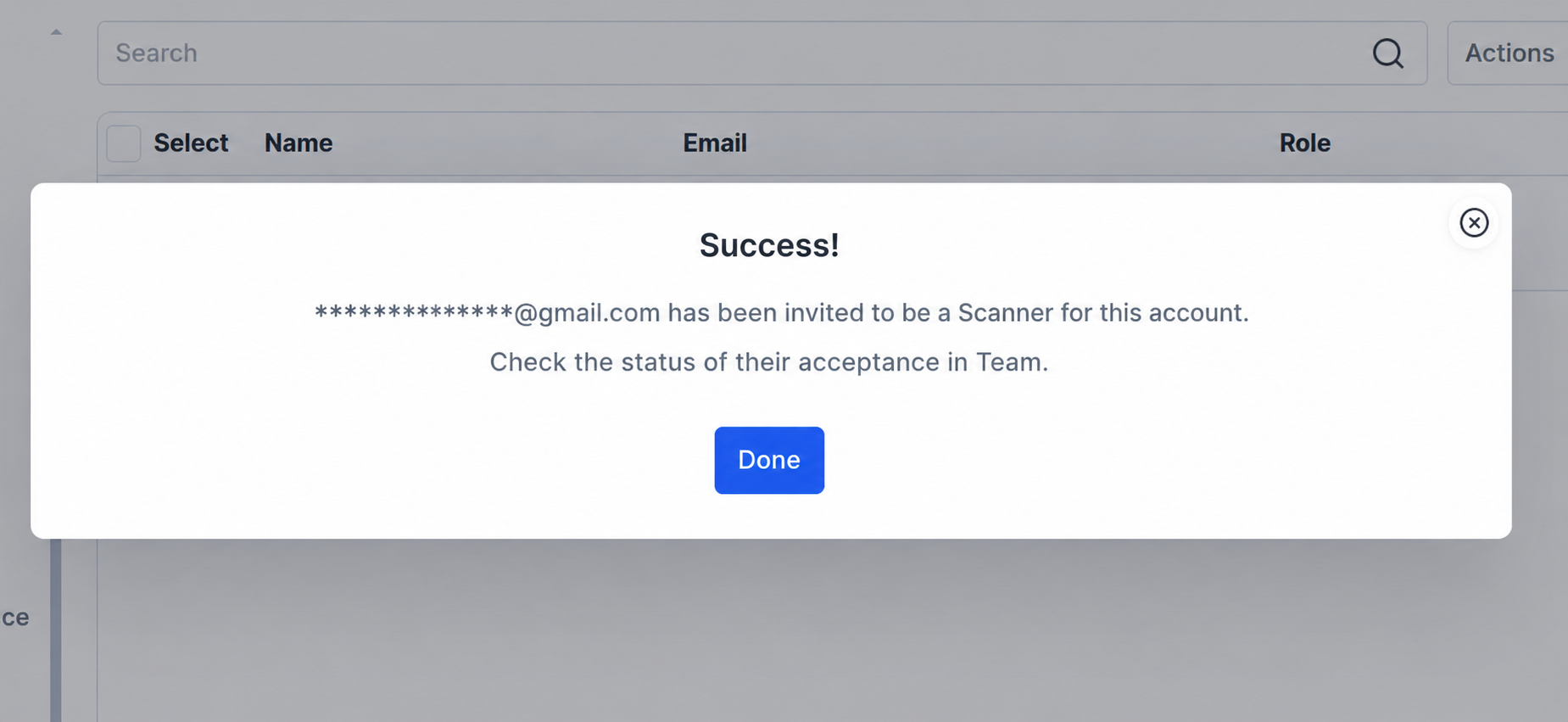
Once the invitation has been sent successfully, you will see a confirmation message indicating that access has been granted.
Signing in to the Scanner app:
Once the invitation has been accepted, the staff member can sign in to the EC Scanner app using their email address.
When signing in, they should select their name from the list of available roles rather than the organizer account. For example: Anna Afanasieva (Scanner).
After that, they will have access to the guest list and ticket validation tools.
How to revoke access or resend an invitation:
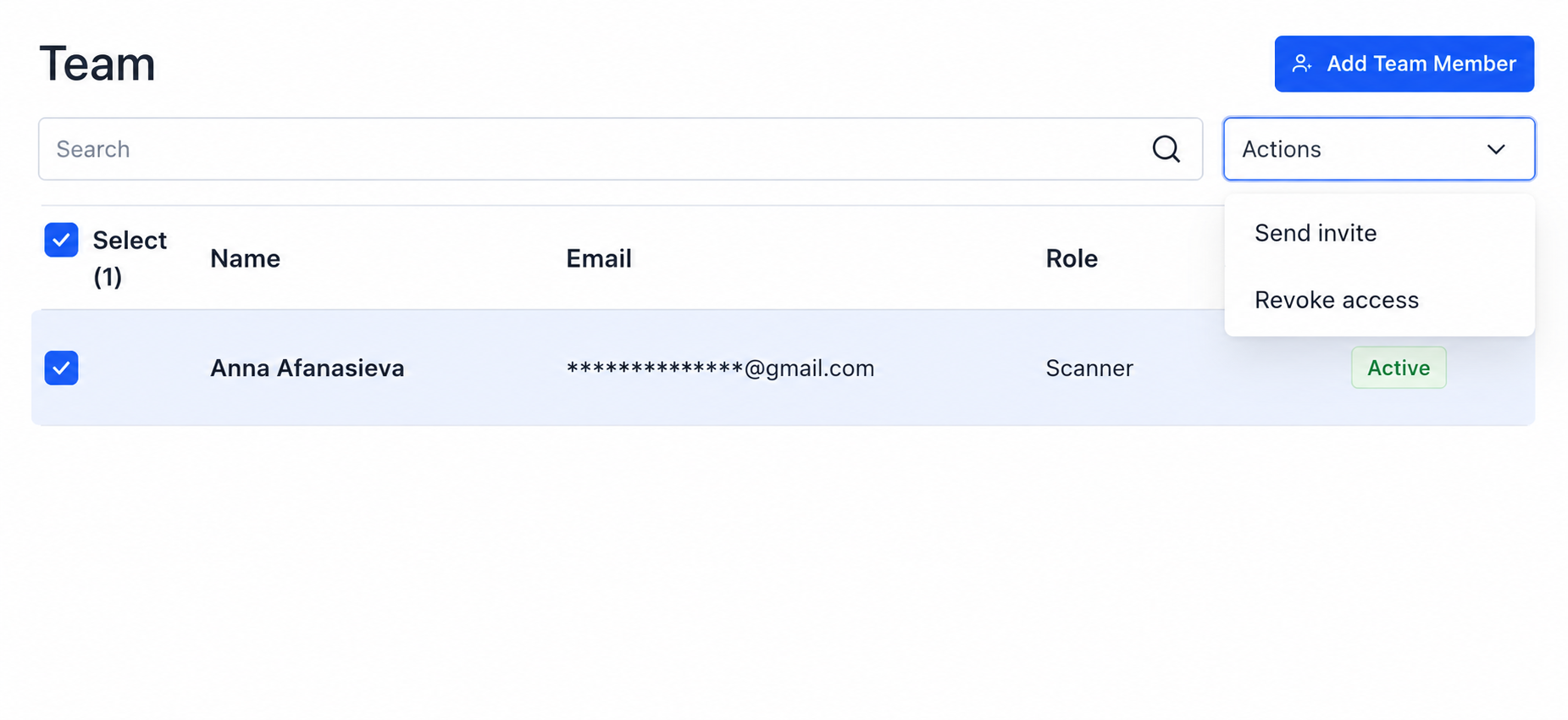
- Open the "Team" section;
- Check the box next to the desired staff member;
- Open the "Actions" menu.
Then choose one of the following options:
"Send Invite" – resend the invitation;
"Revoke Access" – remove Scanner access.
Once access has been revoked, the staff member will no longer be able to use the EC Scanner app for your events.