Back to Settings & Tools
How to Use the Scanner App?
The Scanner app is used to verify tickets at event entrances.
Download the app to your mobile device. The functionality is the same on both iPhone (iOS) and Android. Only the interface design may differ slightly.
With Scanner, you can verify tickets using QR codes, view the guest list, and search for attendees by first and last name.
Multiple users can use the app at the same time. This is especially useful for events with multiple entrances, as all changes are synchronized in real time, allowing the entire team to see ticket validation updates instantly.
The app can be accessed by event organizers and users who have been granted ticket-scanning permissions.
Installing the App:
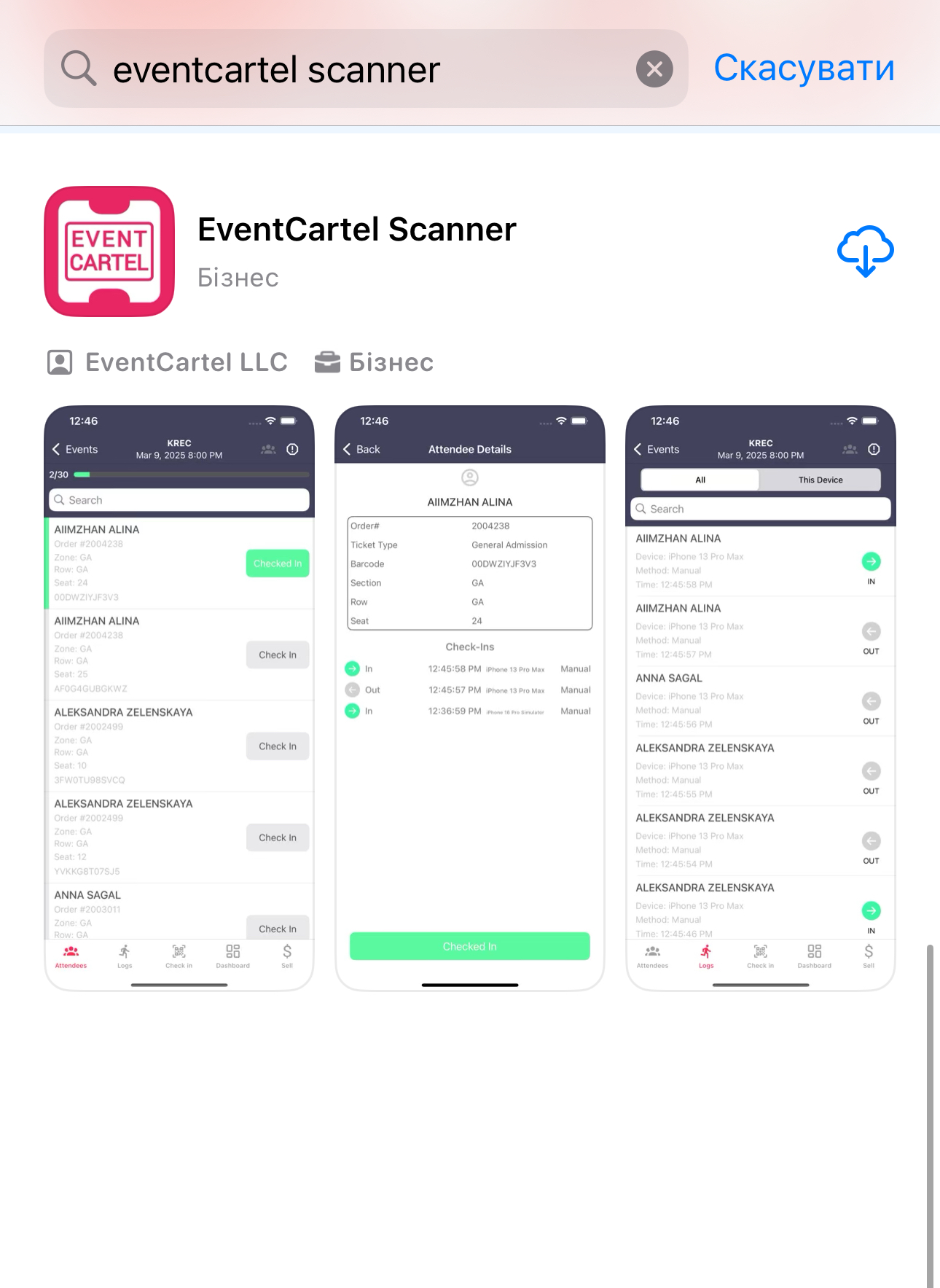
- If you are using an iPhone, open the App Store and search for EventCartel Scanner;
- If you are using an Android device, open Google Play and search for EC Scanner;
- Make sure to download the app with the red Event Cartel logo.
Logging In:
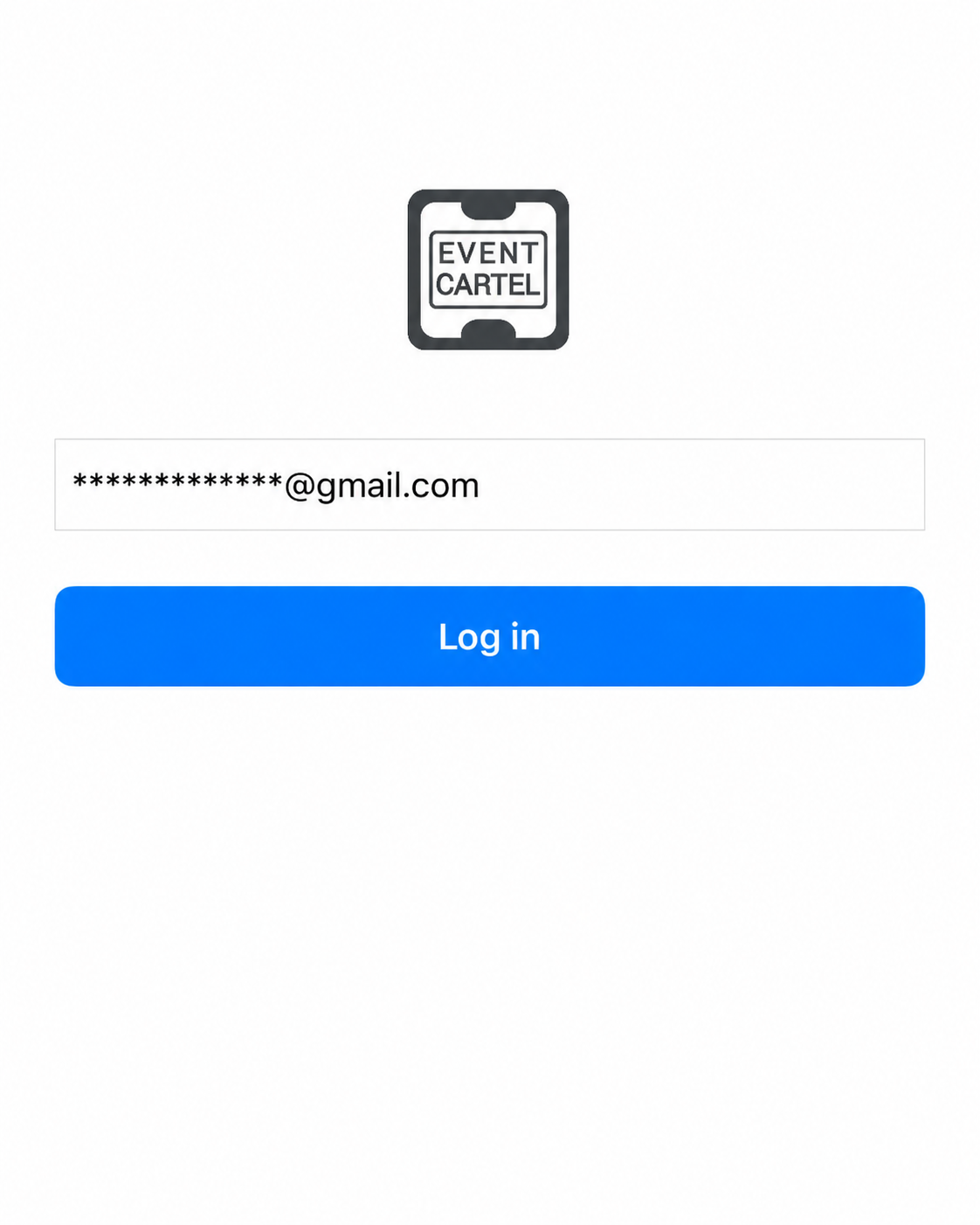
- Open the app and enter your email address;
- If access was granted by an organizer, use the email address to which the invitation was sent;
- If you are an organizer and would like to grant access to other users, please refer to this article.
- A verification code will be sent to your email address (just like when signing in to your Event Cartel account);
- Enter the verification code;
- If you have access to multiple organizers, select the one you want to work with;
- If you were granted access as a scanner, your name will appear in the list with the label (Scanner). For example: Anna Afanasieva (Scanner).
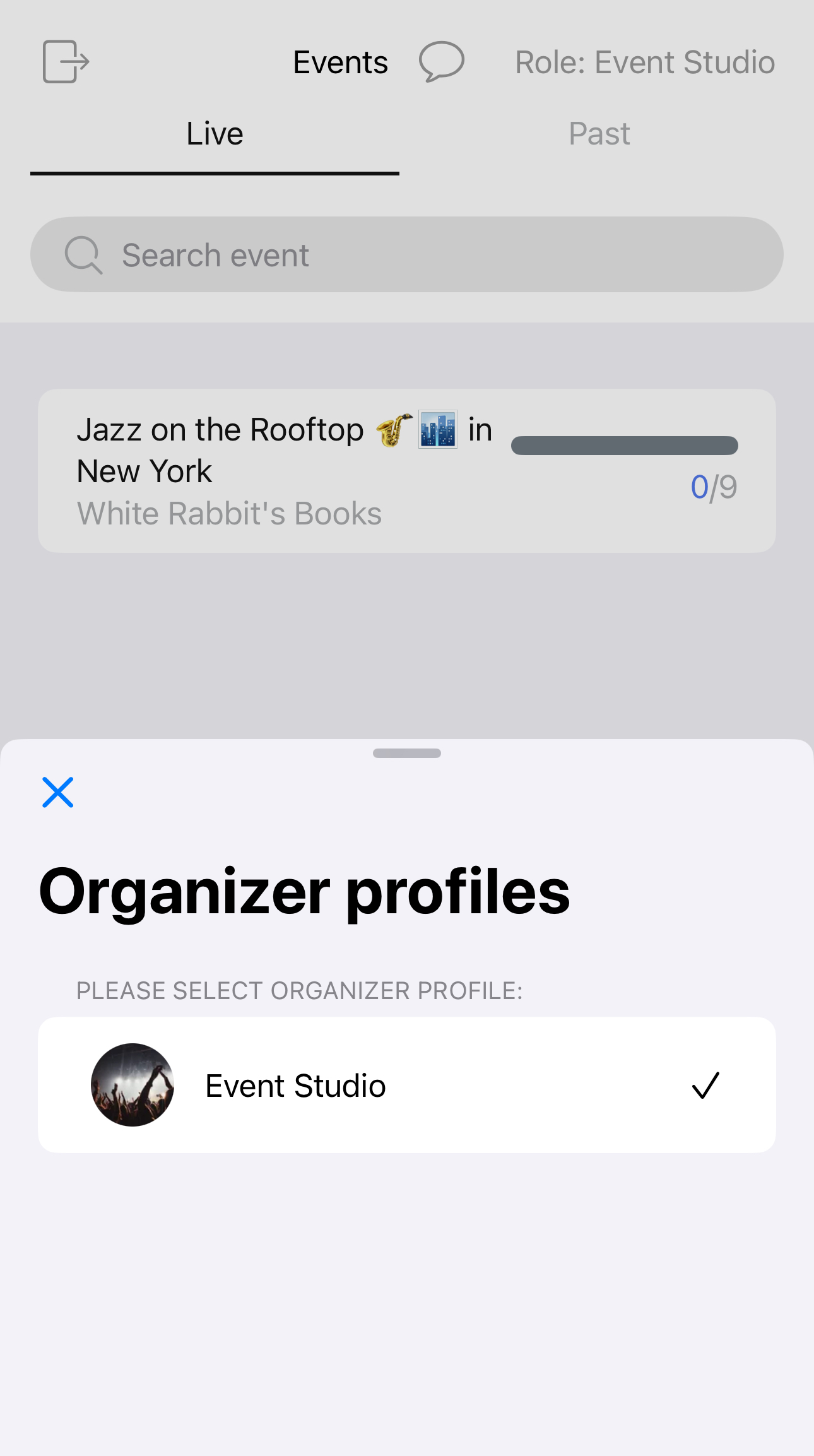
- Select the event from the list.
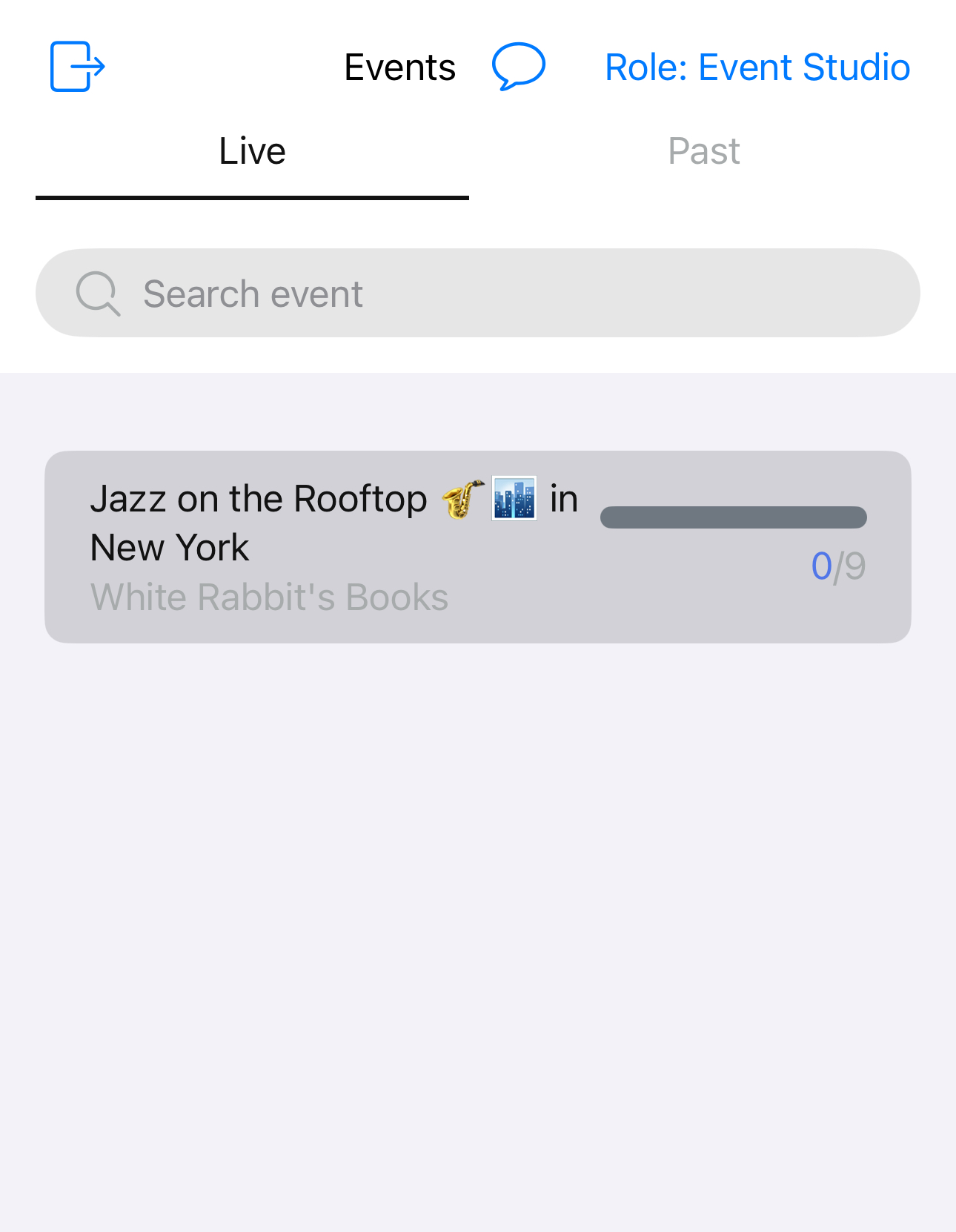
Scanning Tickets:
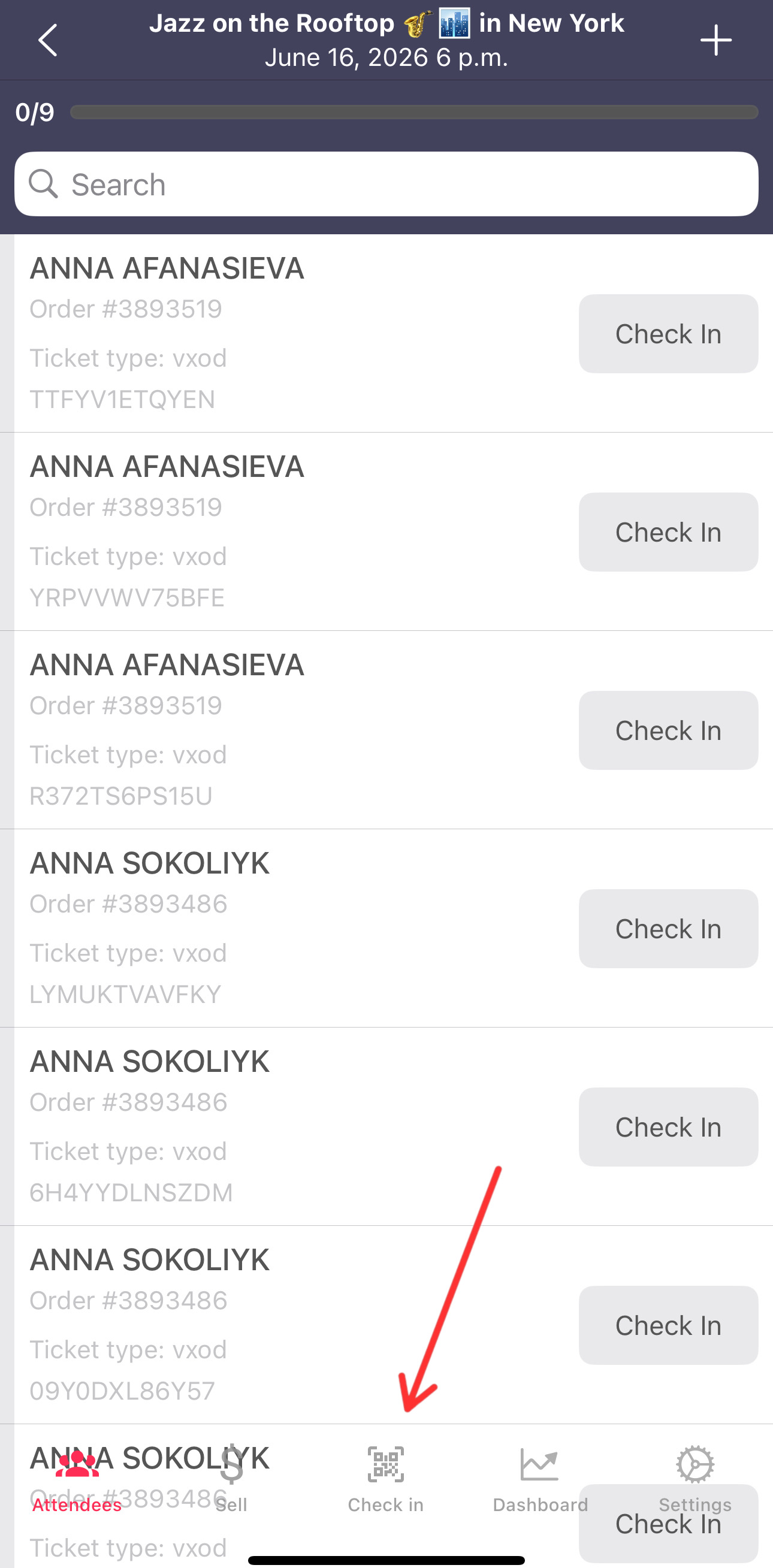
- After selecting an event, you will see a list of guests who have purchased tickets;
- Tap the Scanner icon at the bottom of the screen.
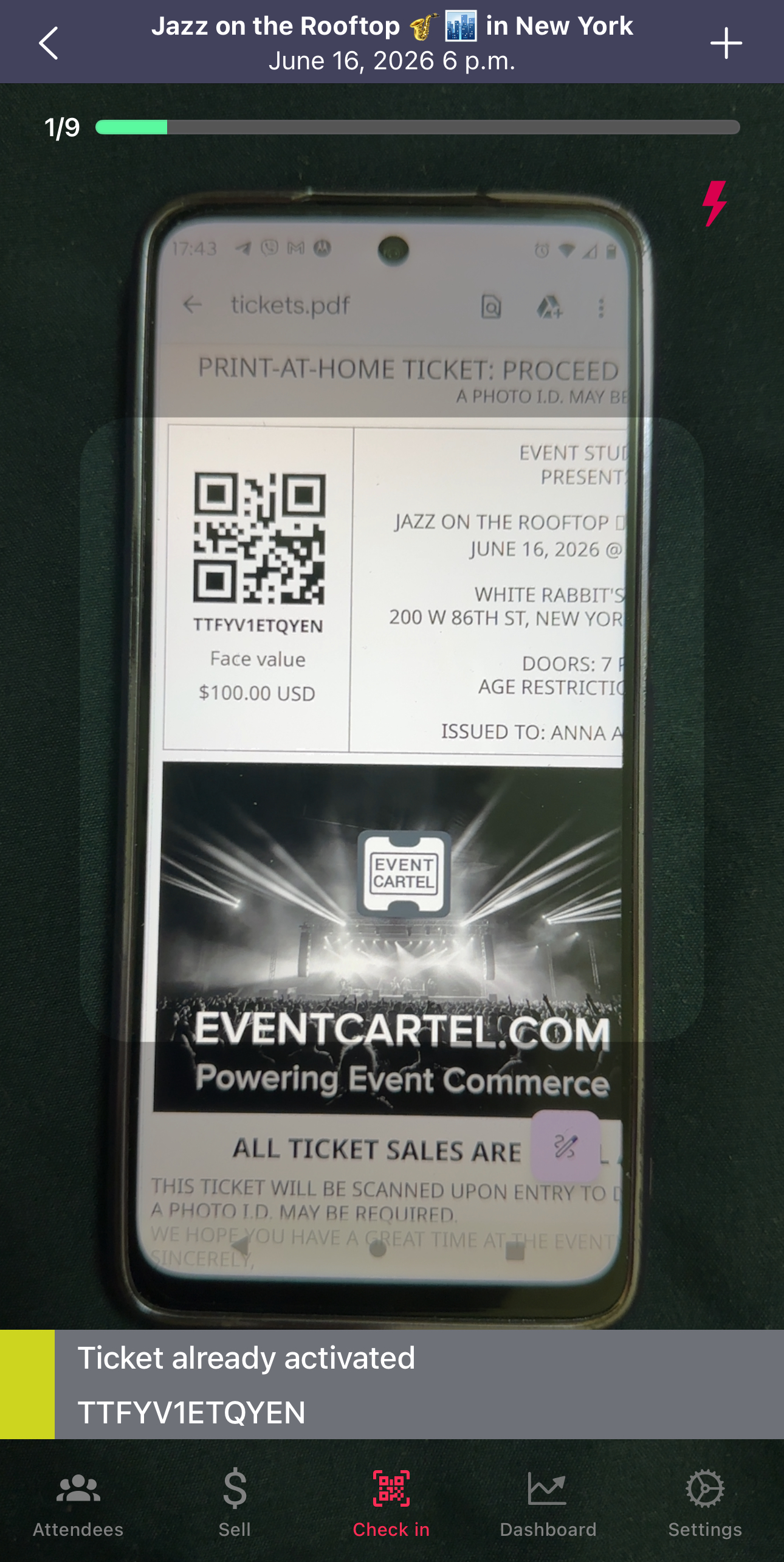
- Point your camera at the ticket's QR code. The ticket can be displayed on a mobile device or printed on paper;
- If the area is dark, tap the lightning bolt ⚡ icon in the top-right corner to turn on the flashlight;
Scan Results:
- A green screen with the message VALID and the ticket holder's last name means the ticket has been successfully verified. Its status in the guest list will change to Checked In;

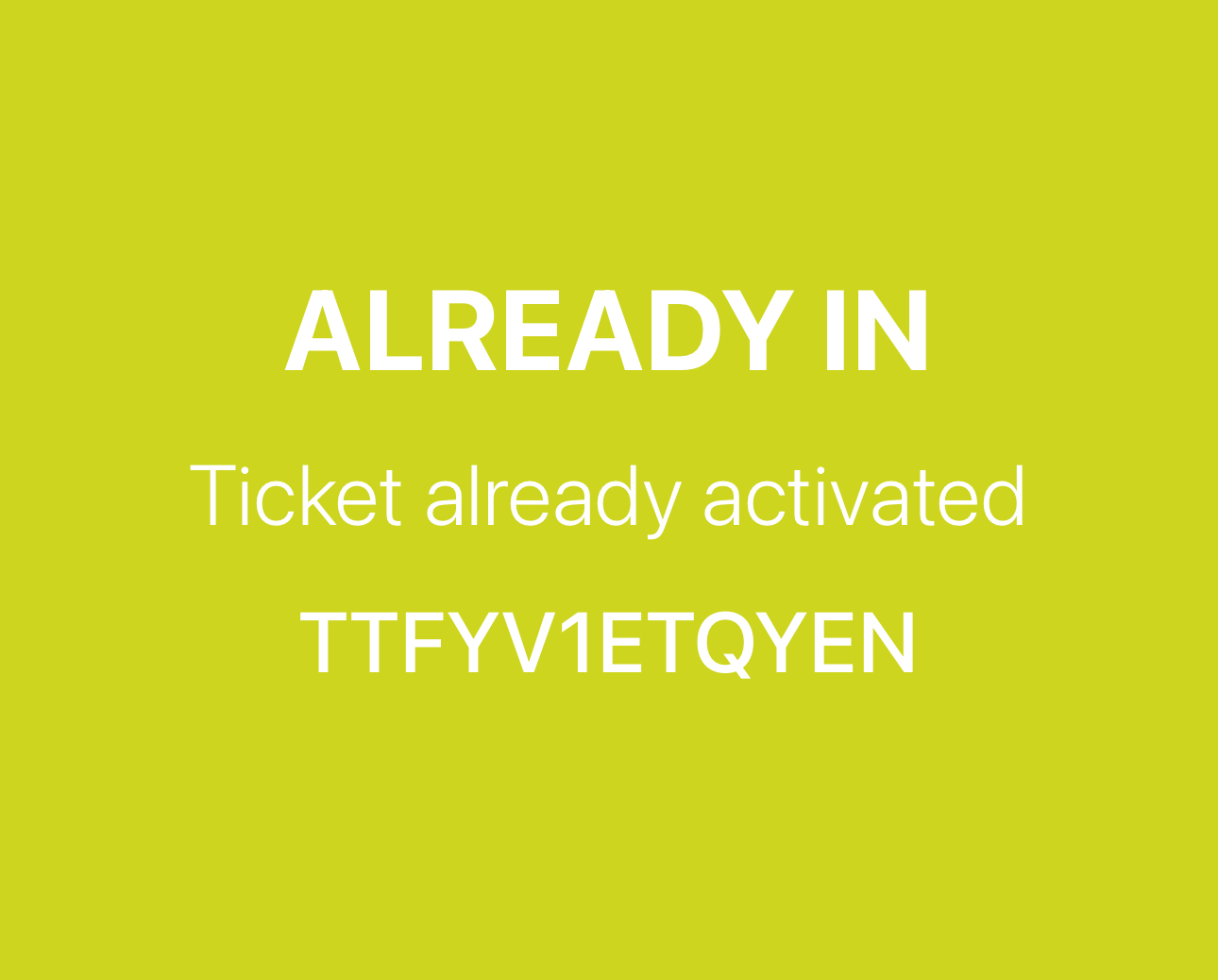
- A yellow screen with the message ALREADY IN means this ticket has already been scanned;
- A red screen with the message NOT VALID means the ticket belongs to a different event;

Working with the Guest List:
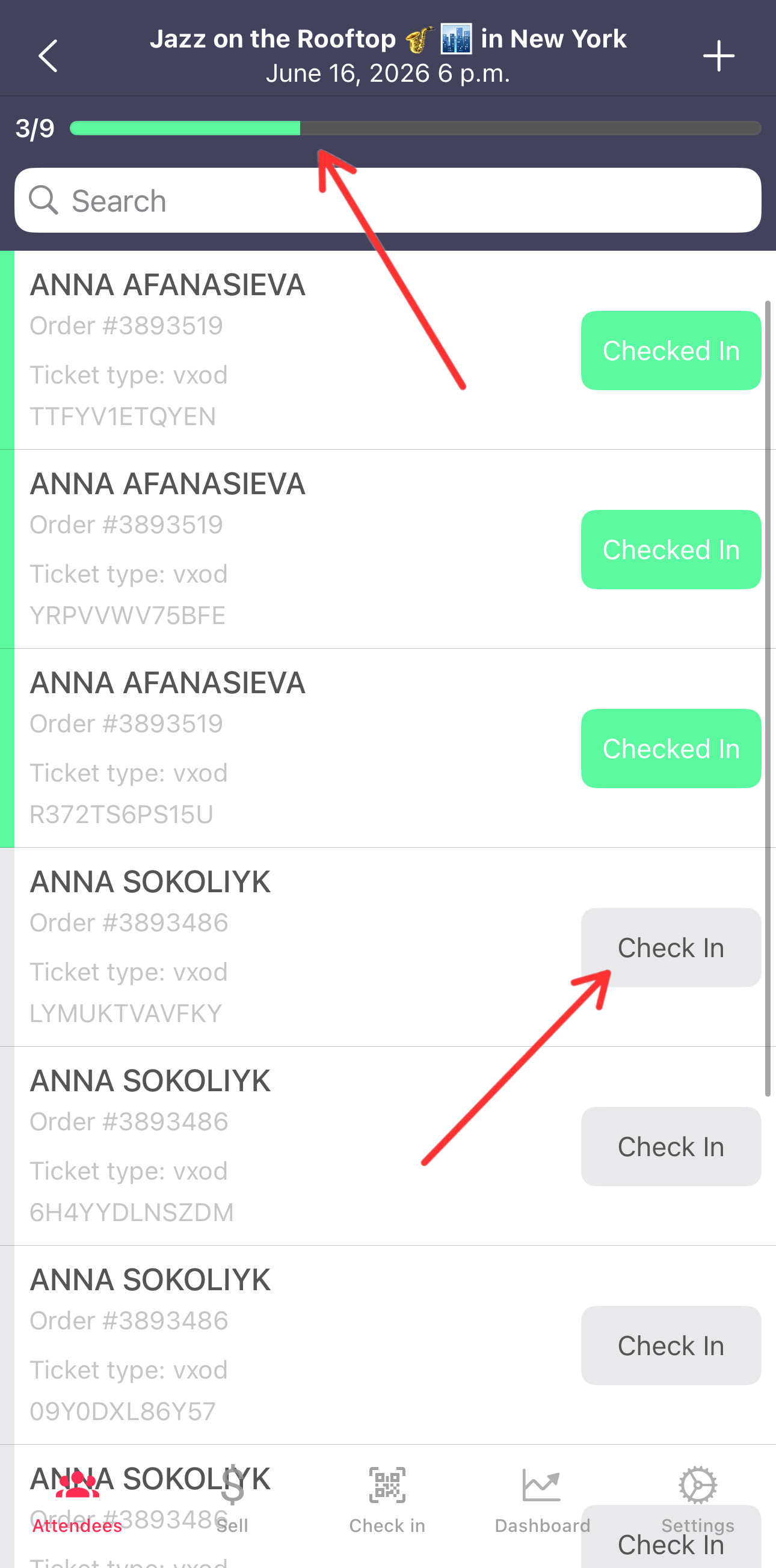
- At the top of the screen, you can see how many tickets have been sold and how many of them have already been scanned;
- If needed, you can check in a guest manually by tapping Check In next to their name;
- To undo the check-in, tap Check In again. The button will turn gray;
- To quickly find a guest, use the search bar at the top of the list and enter their first or last name;
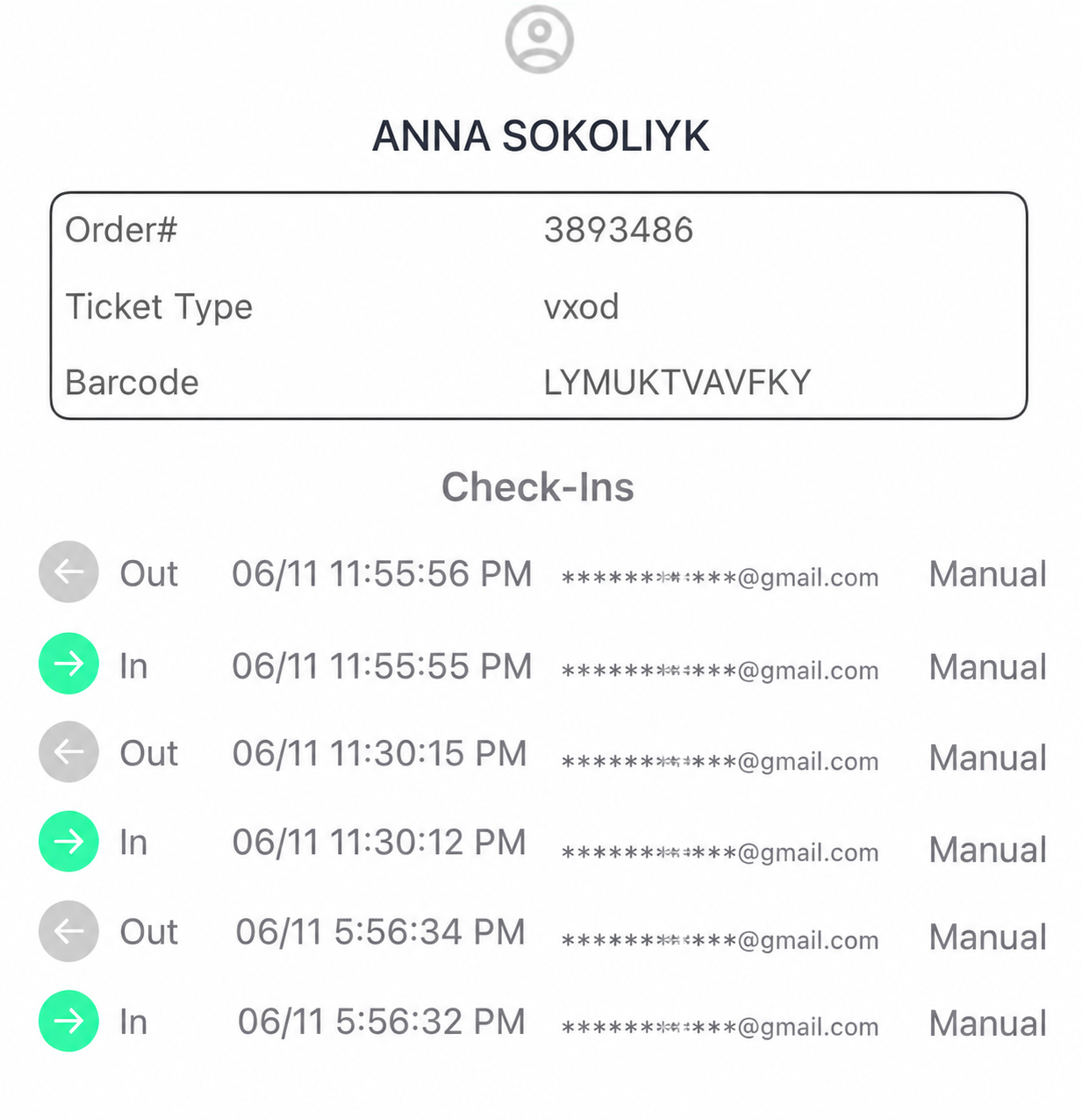
- To view a ticket's history, tap the guest's name in the list. Here, you can see all actions associated with that ticket;