How to adjust your EventCartel email settings
Oct 2, 2026Updated1 min read00
You can choose which EventCartel notifications you receive by email and as push notifications. You can access these settings from an email or through your account on the website.
Access notification settings from an email:
- Open an email from EventCartel and scroll to the bottom.
- Click "here" in the line "To unsubscribe click here".
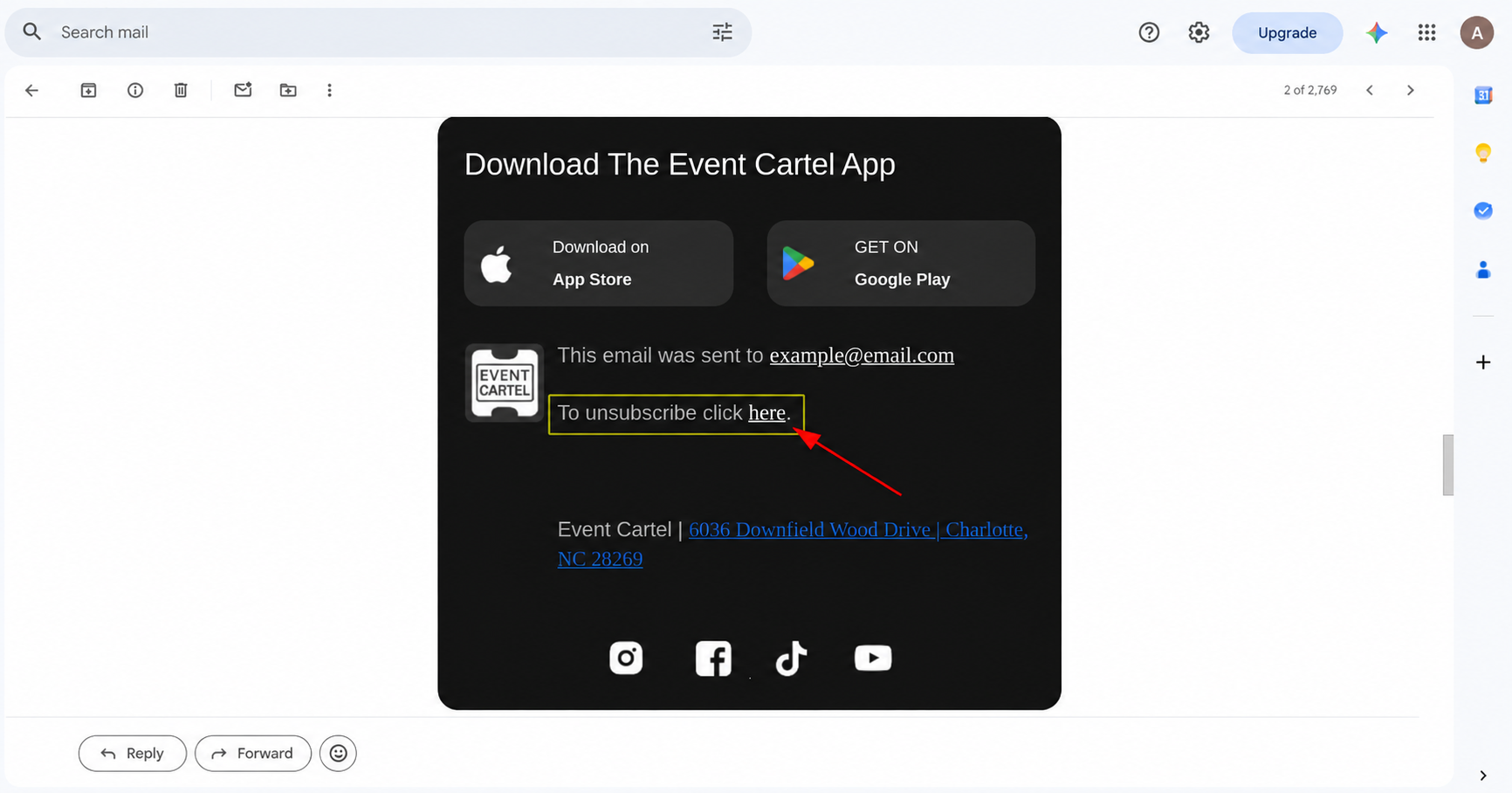
If you are signed in to your EventCartel account, clicking the link will open the notification settings page.
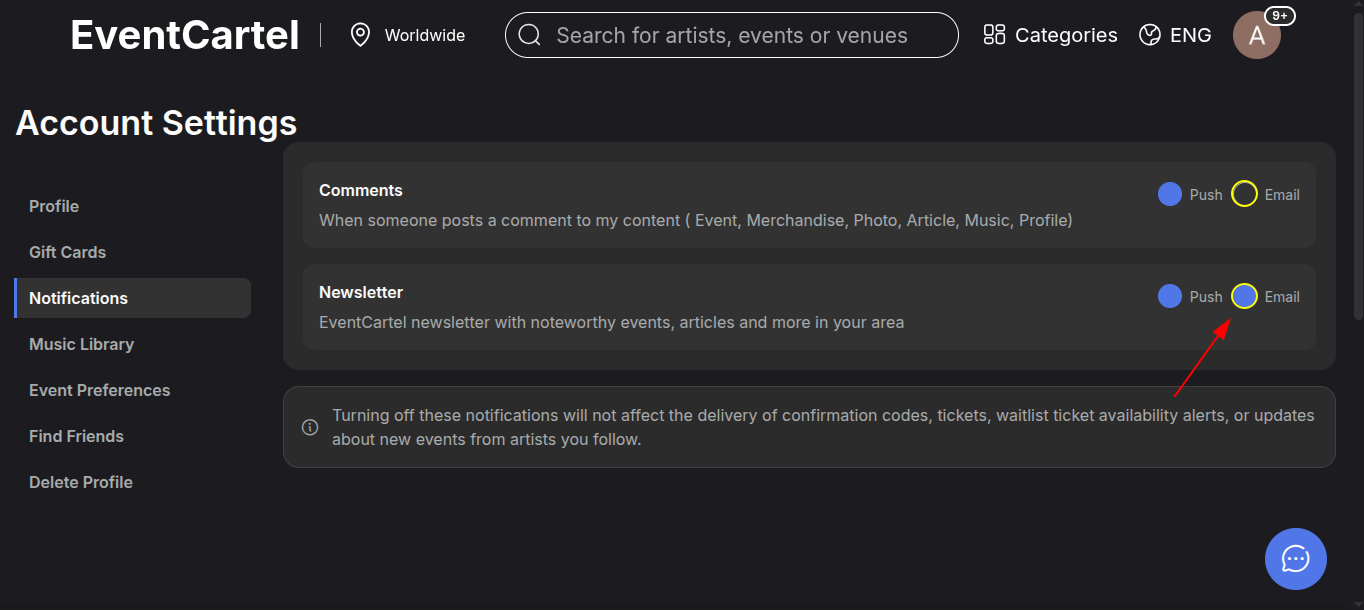
On the "Notifications" page, choose which emails you want to receive. To turn off emails with event recommendations and news from your area, find the "Newsletter" row and click the blue circle next to "Email". The circle will become empty, indicating that the newsletter is turned off.
You can turn off comment emails and push notifications in the same way: click the blue circle next to the relevant option.
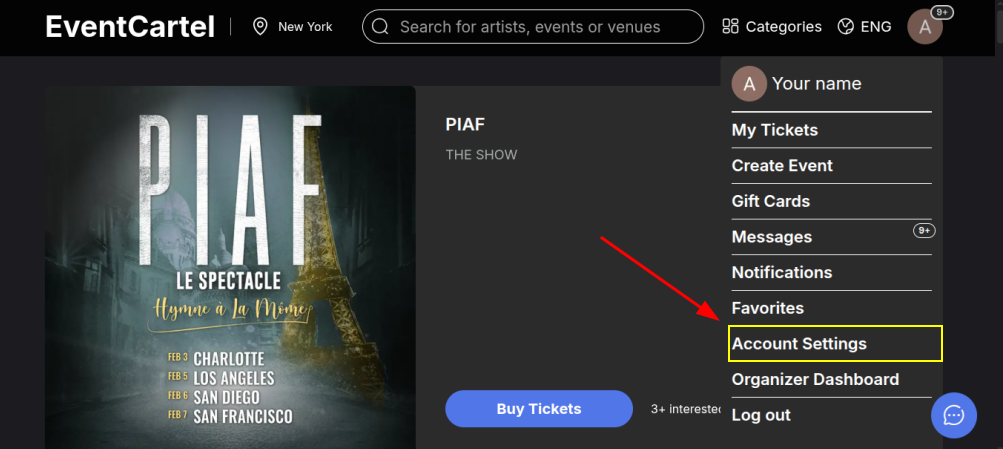
You can also access this section directly on the EventCartel website:
- Hover over your account avatar in the top-right corner.
- Select "Account Settings" from the menu that appears.
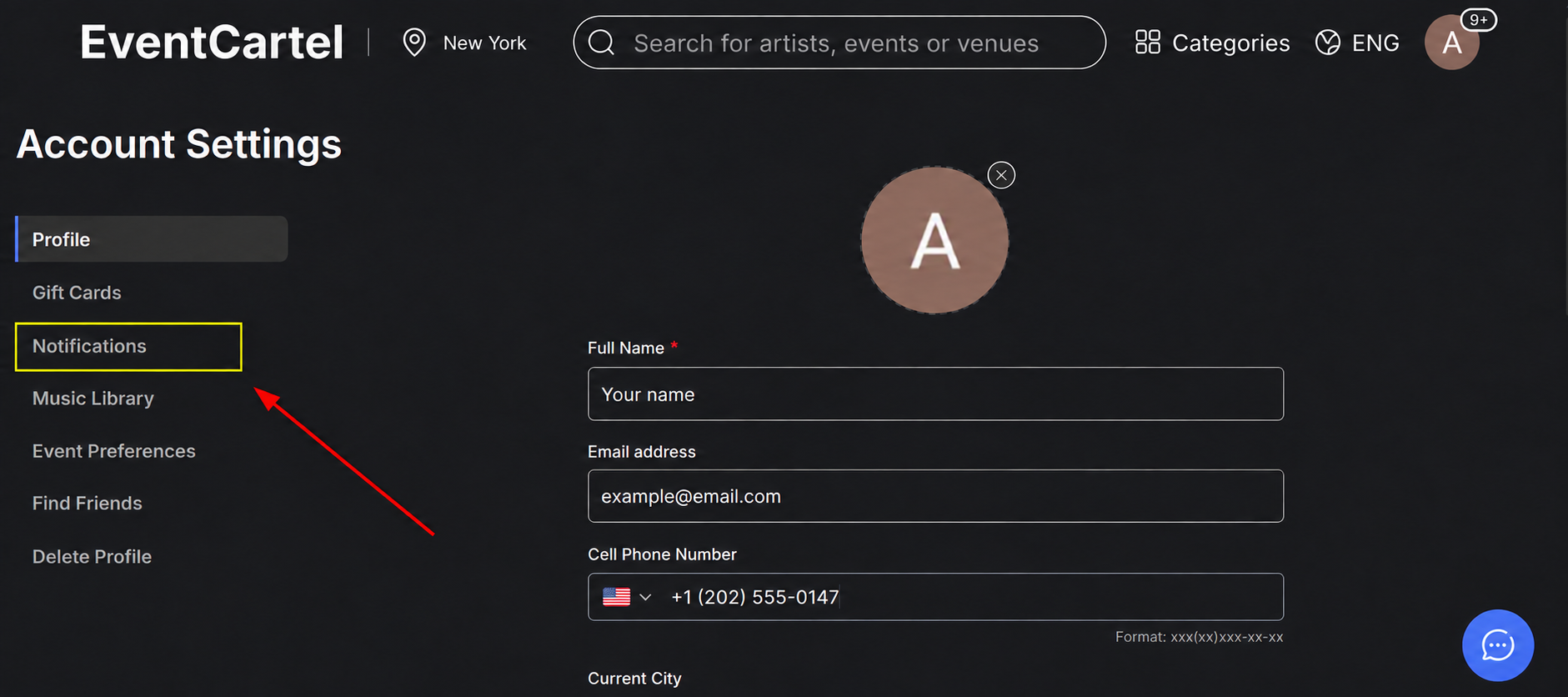
- Select "Notifications" from the menu on the left. Then adjust your email and push notification settings as described above.
Which messages will you still receive?
These settings do not affect confirmation codes or ticket delivery by email or SMS. If you have joined a waitlist, you will also receive a notification when tickets become available.
Notifications about events featuring artists you follow are managed separately. If you no longer want to receive updates about a particular artist, open their page and unfollow them.