How to add a ticket to Apple Wallet or Google Wallet
Sep 19, 2026Updated1 min read00
After purchase, you can add your ticket to the digital wallet on your phone. This allows you to quickly open the ticket and show its QR code when entering the event.
Android devices use "Google Wallet", while iPhones use "Apple Wallet".
How to add a ticket to Google Wallet on Android:
- Purchase a ticket for the event;
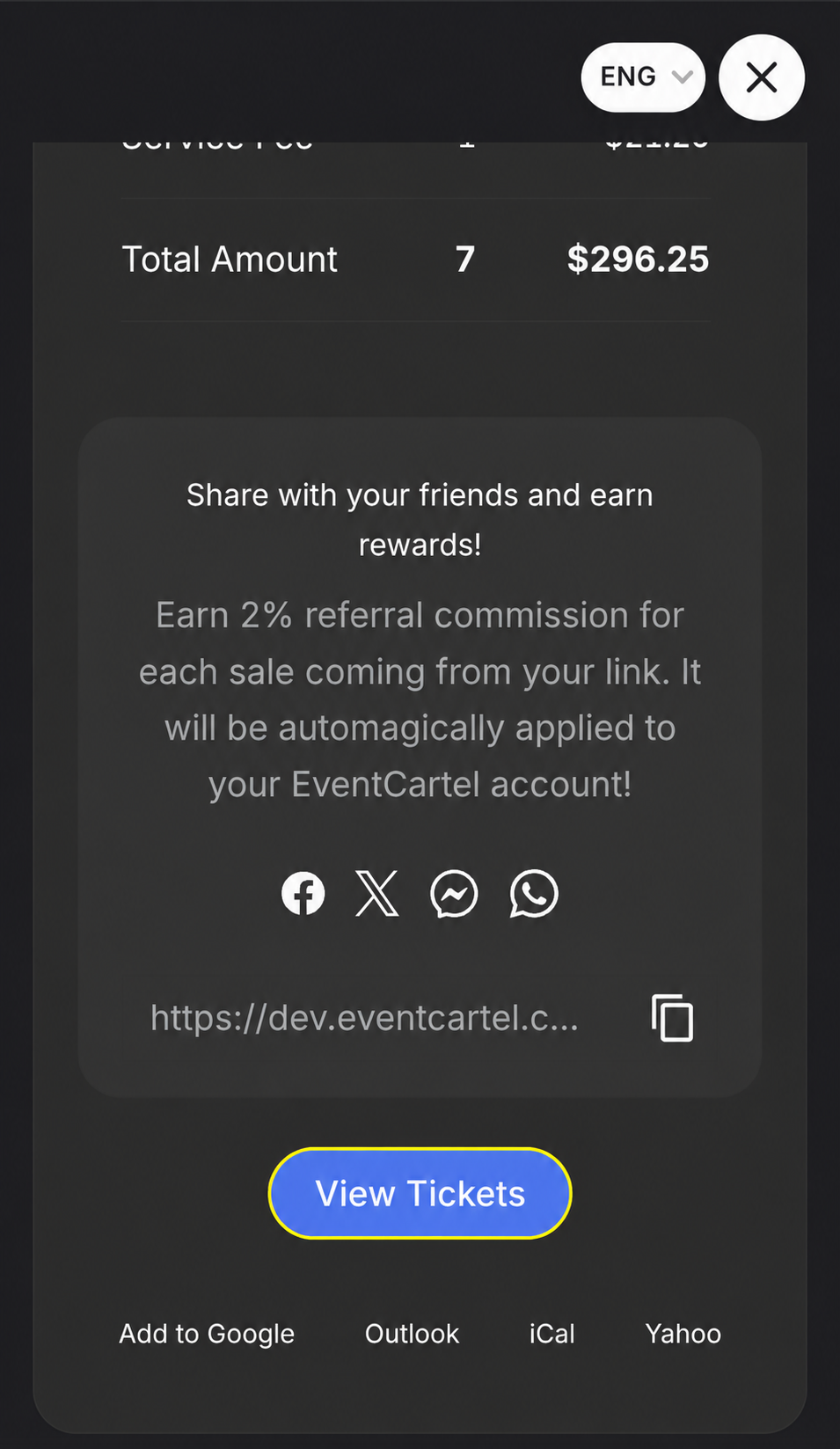
- After completing your purchase, tap "View Tickets".
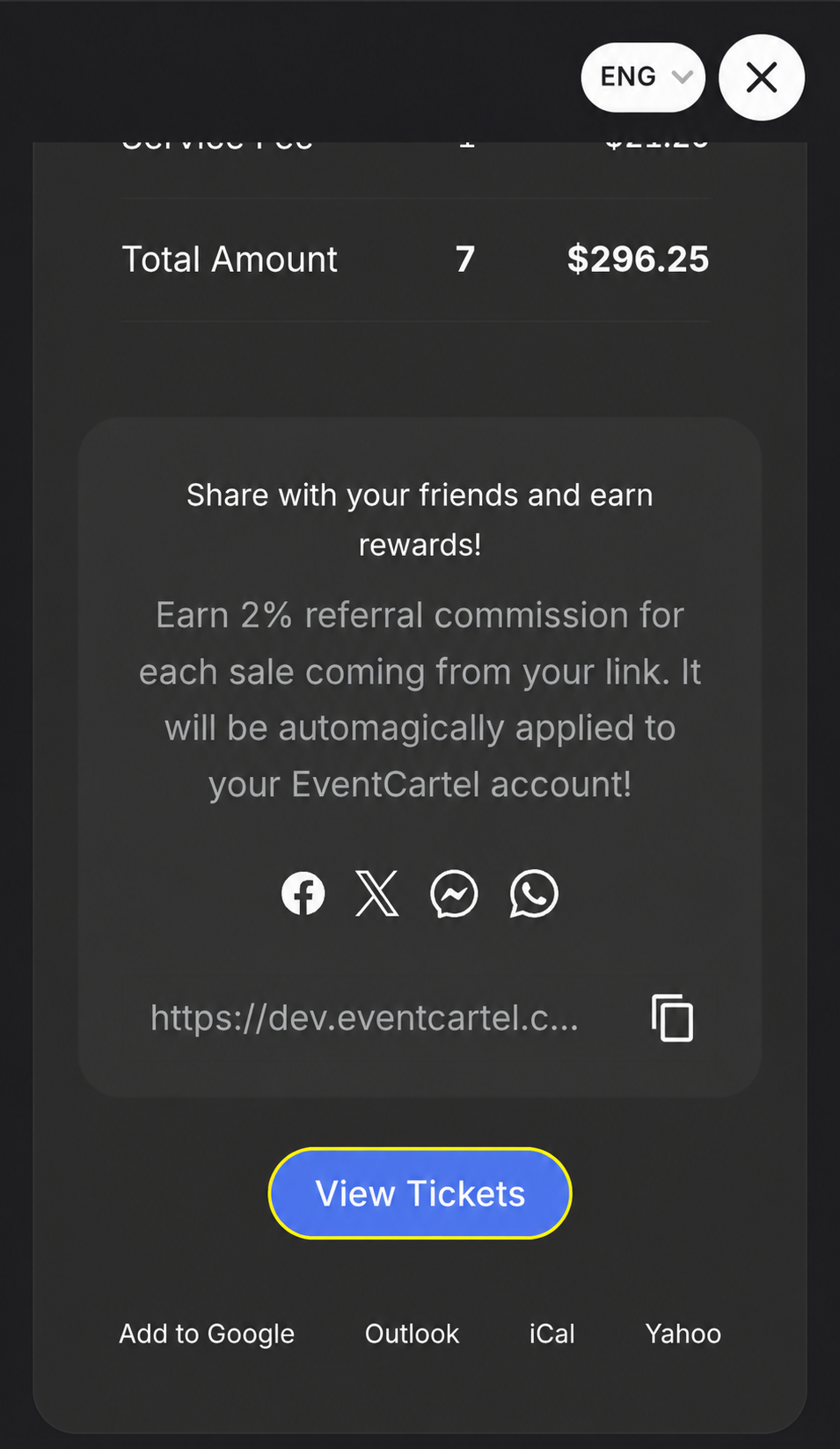
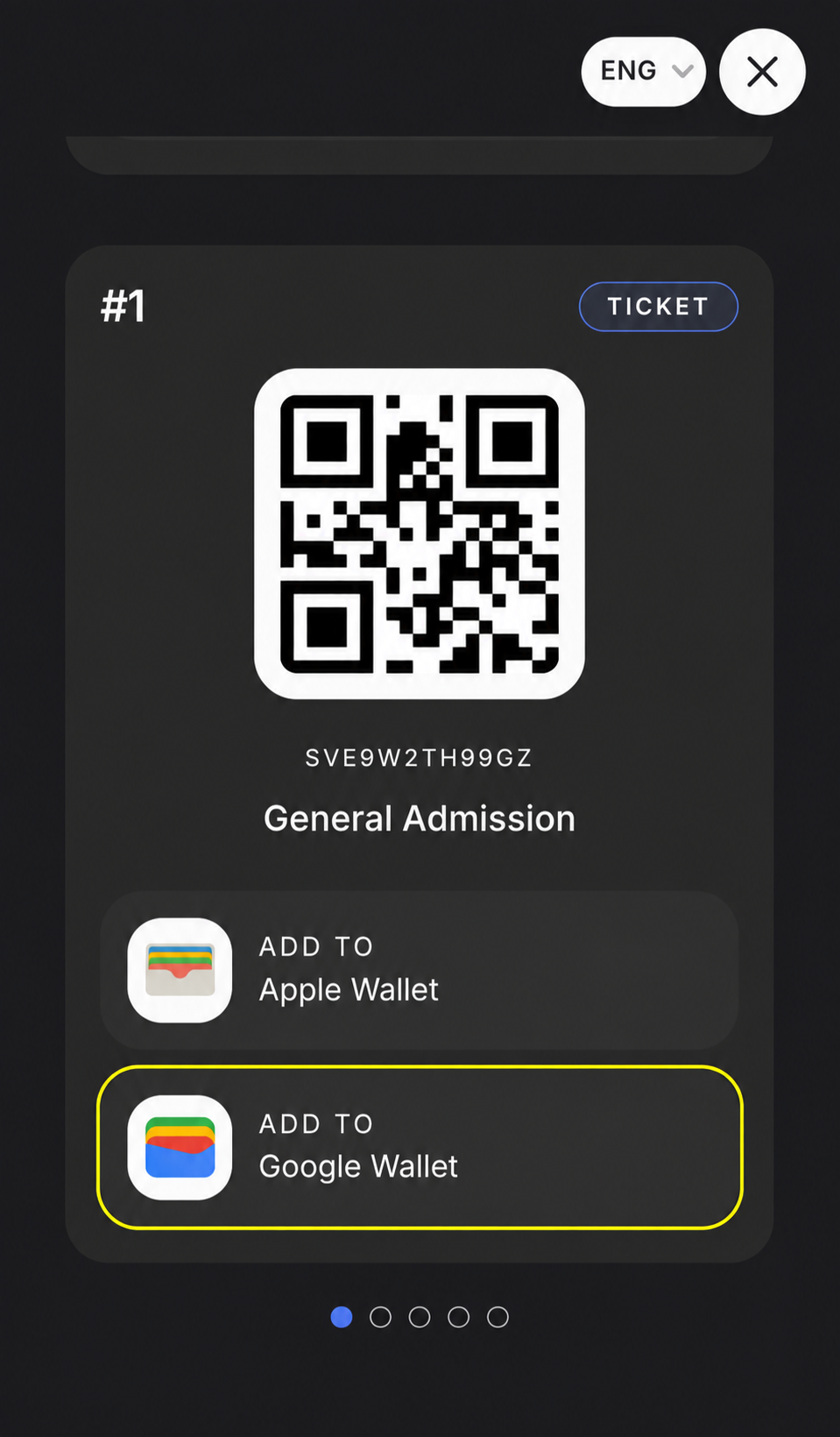
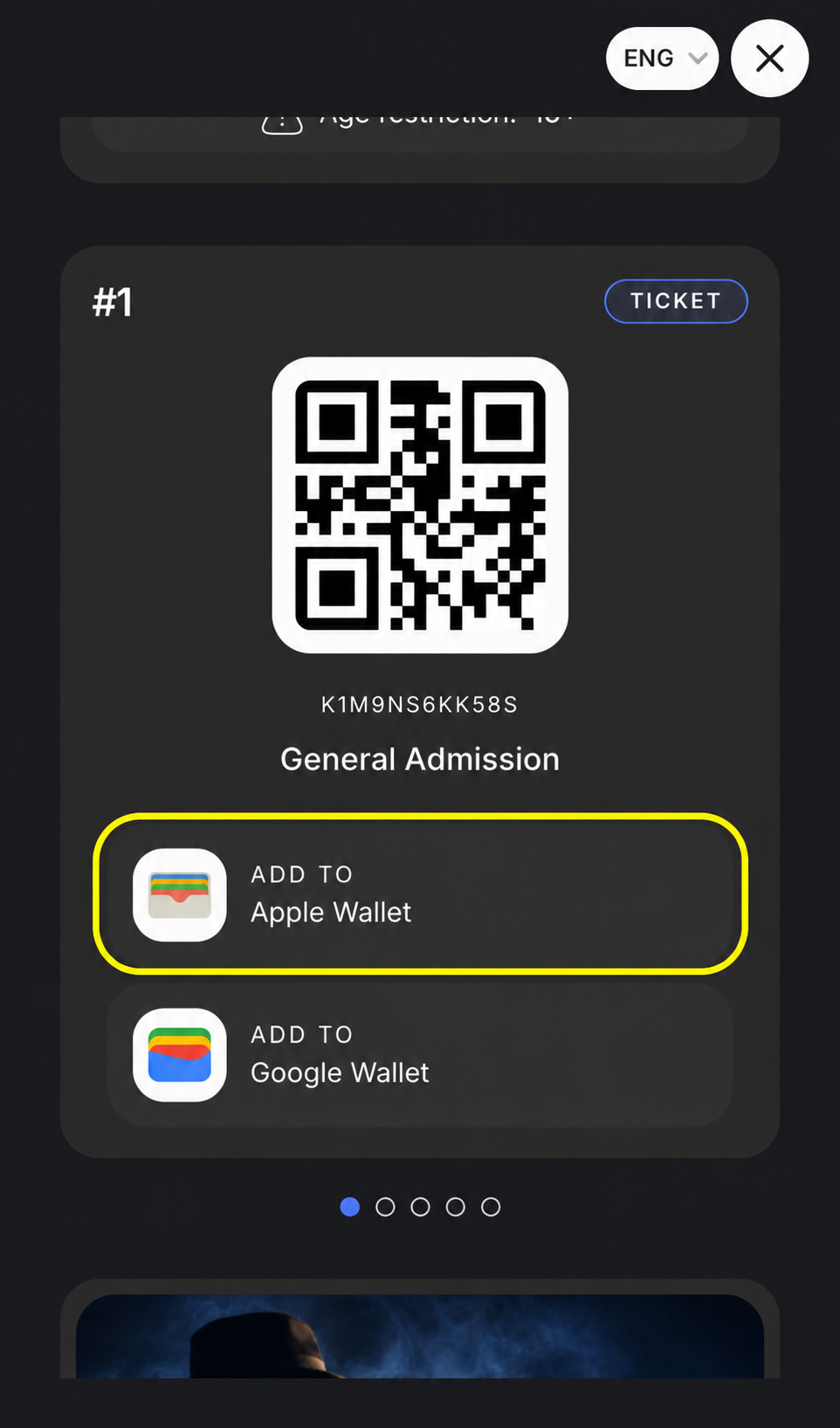
- Select the ticket you want;
- Tap "Add to Google Wallet".
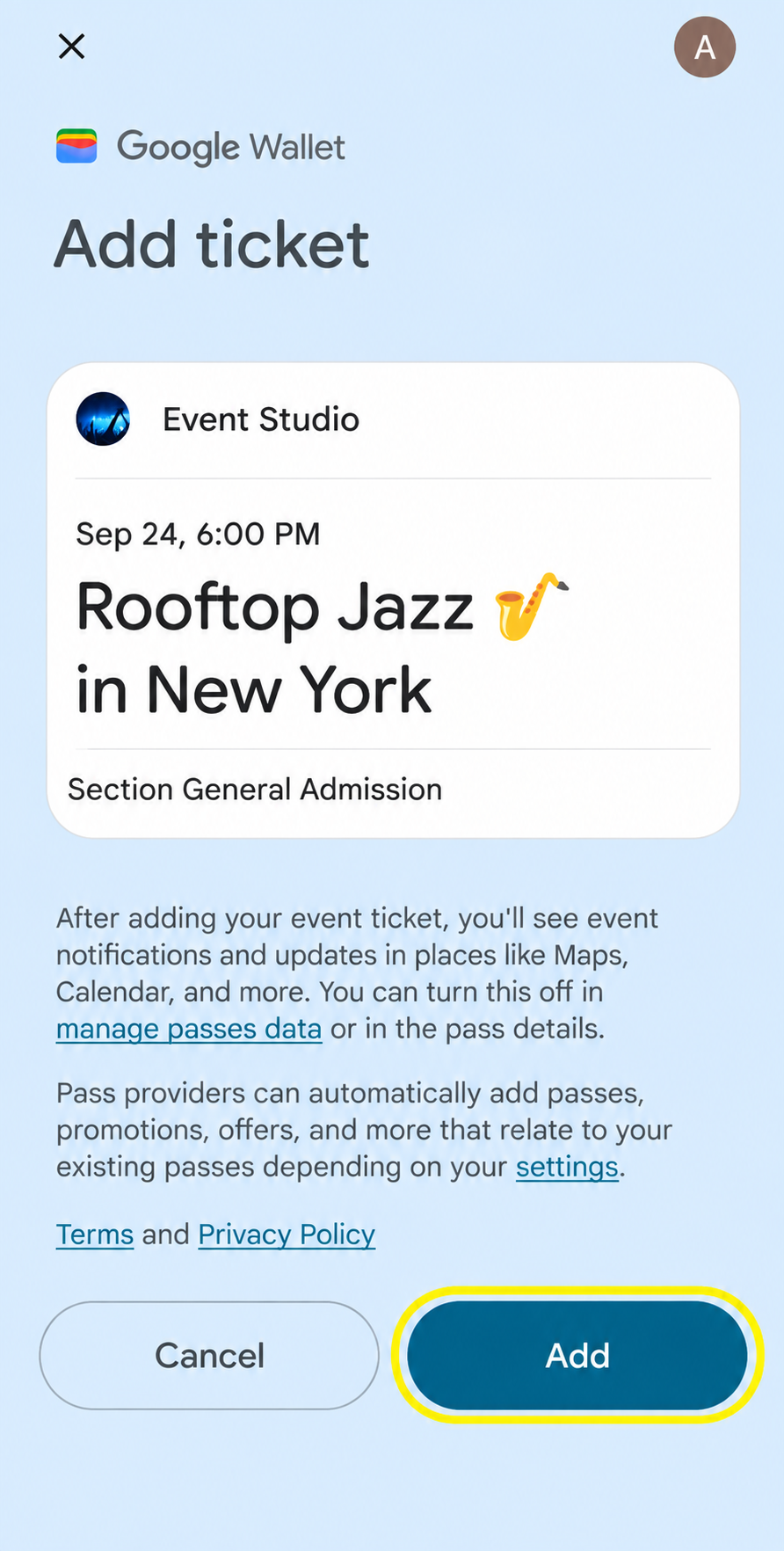
- On the page that opens, tap "Add".
- After the ticket is successfully added, the "Added to Wallet" message will appear.
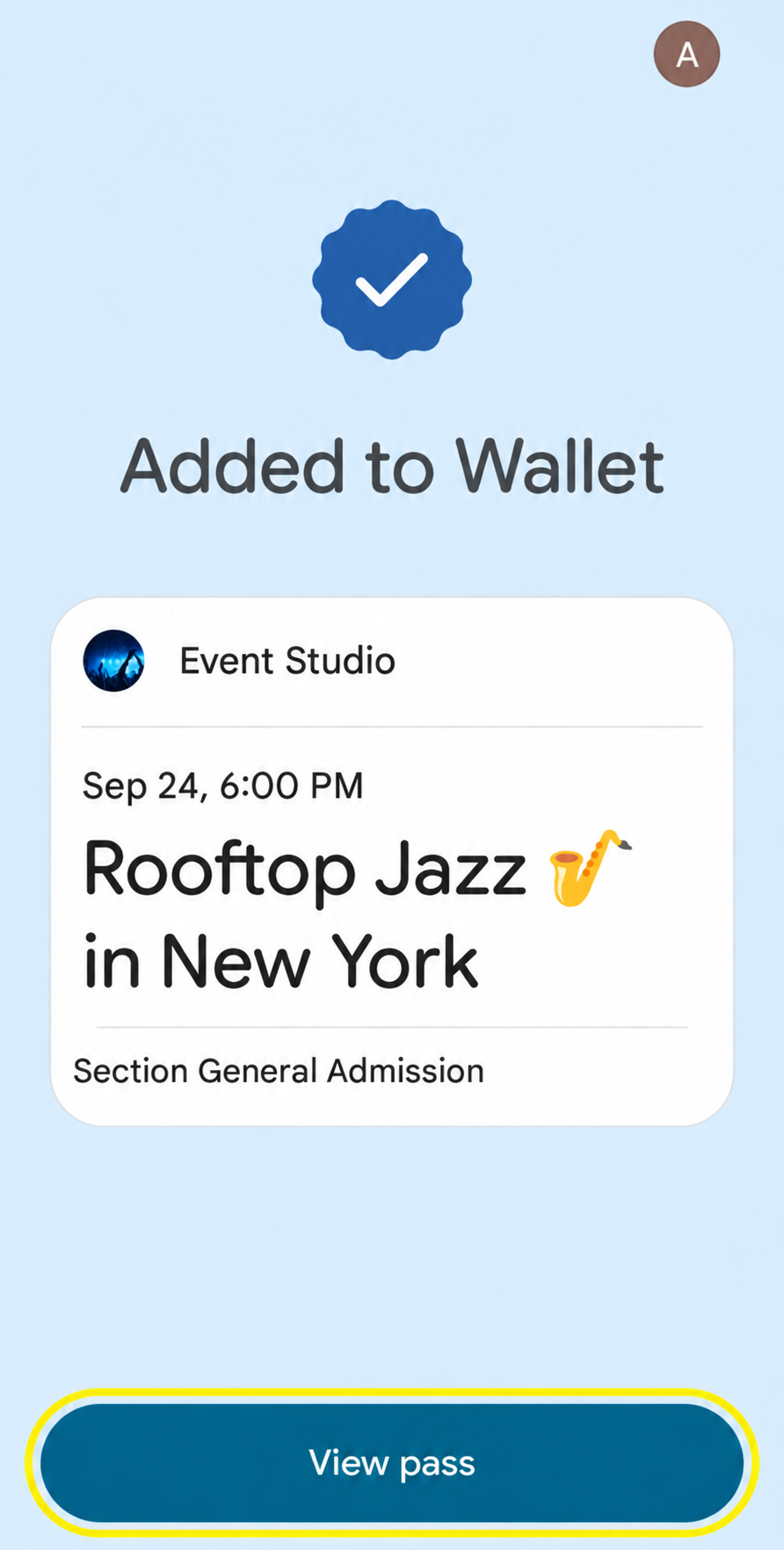
- To open the ticket, tap "View pass" or open the "Google Wallet" app on your phone.
- The ticket will display the event name, date, time, ticket category or seat, and the QR code for entry.

How to add a ticket to Apple Wallet on iPhone:
- Purchase a ticket for the event;
- Tap "View Tickets".
- Select the ticket you want;
- Tap "Add to Apple Wallet".
- On the page that opens, tap "Add" in the top-right corner.
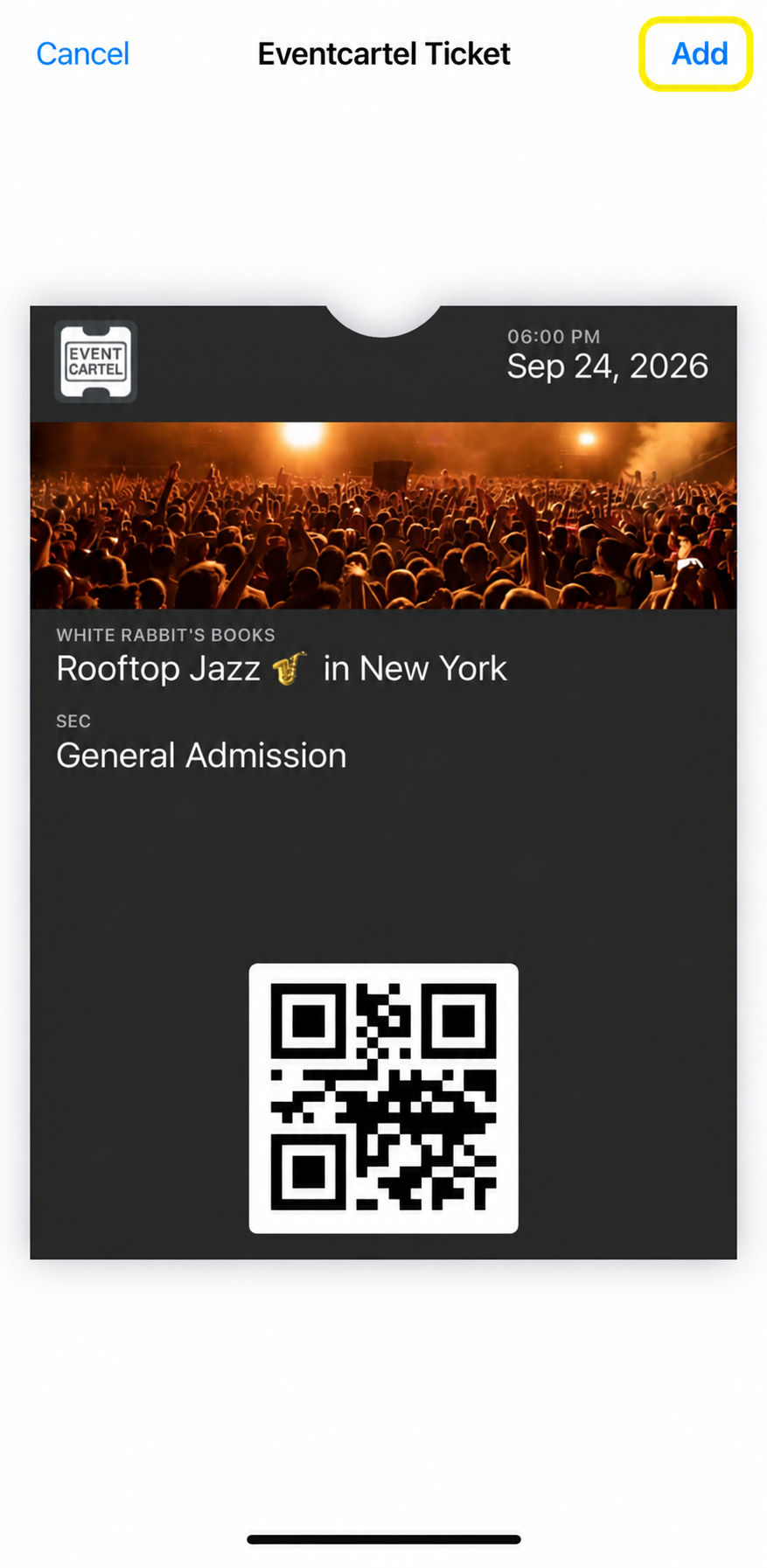
- After that, the ticket will be saved in the "Wallet" app.
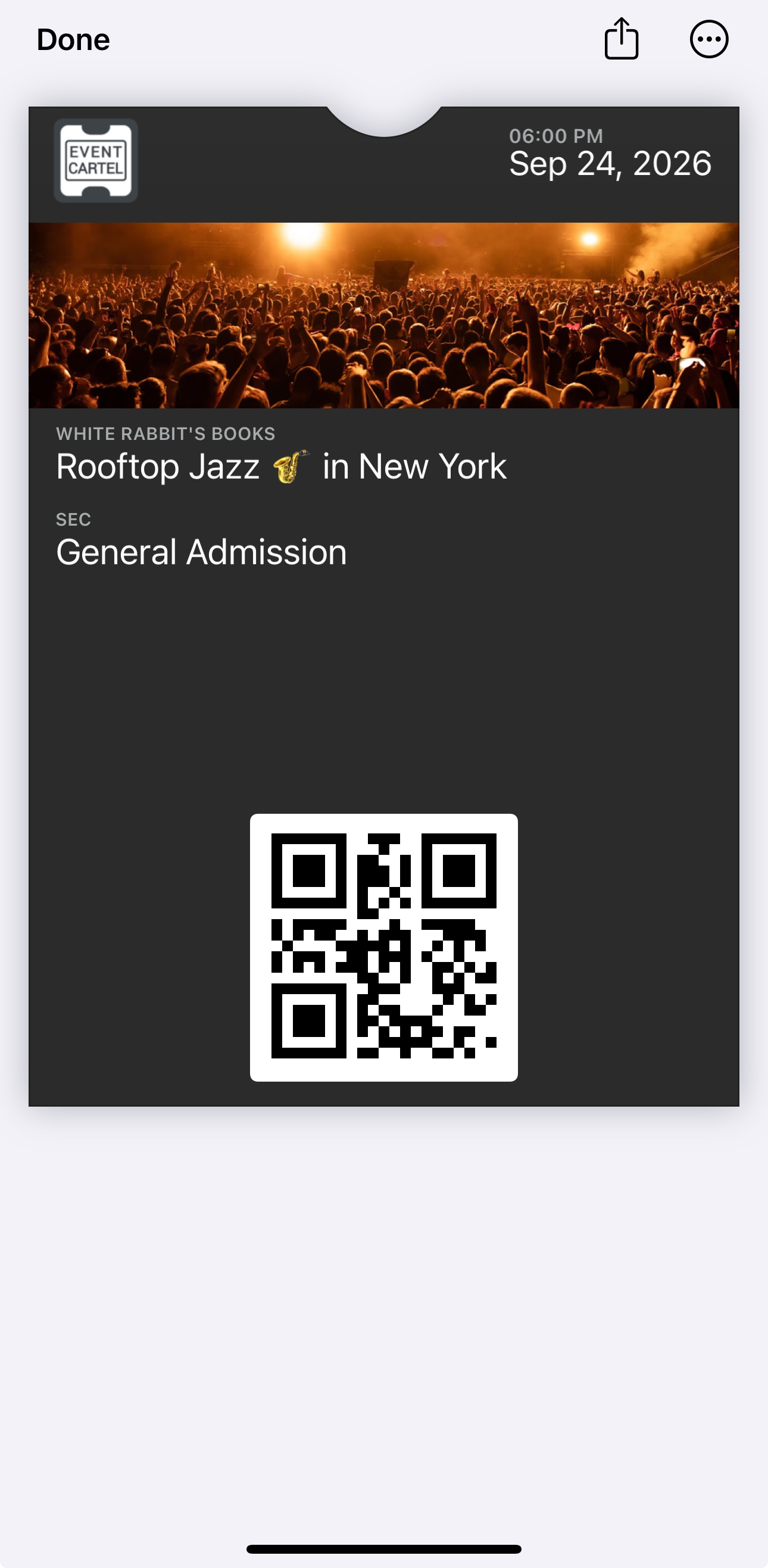
- The ticket will display the event name, date, time, ticket category or seat, and the QR code for entry.
If there are multiple tickets in the order, add each ticket to the wallet separately. To move to the next ticket, swipe the current ticket to the right.