How to assign roles to team members for all of a promoter’s events
Sep 14, 2026Updated4 min read00
In the "Team" section, a promoter can add team members and assign them roles for all current and future events. Available sections and actions depend on the selected role.
If you want to assign a role for only one event, see "How to grant a user access to a specific event."
How to add a team member:
- Log in to "Business Manager";
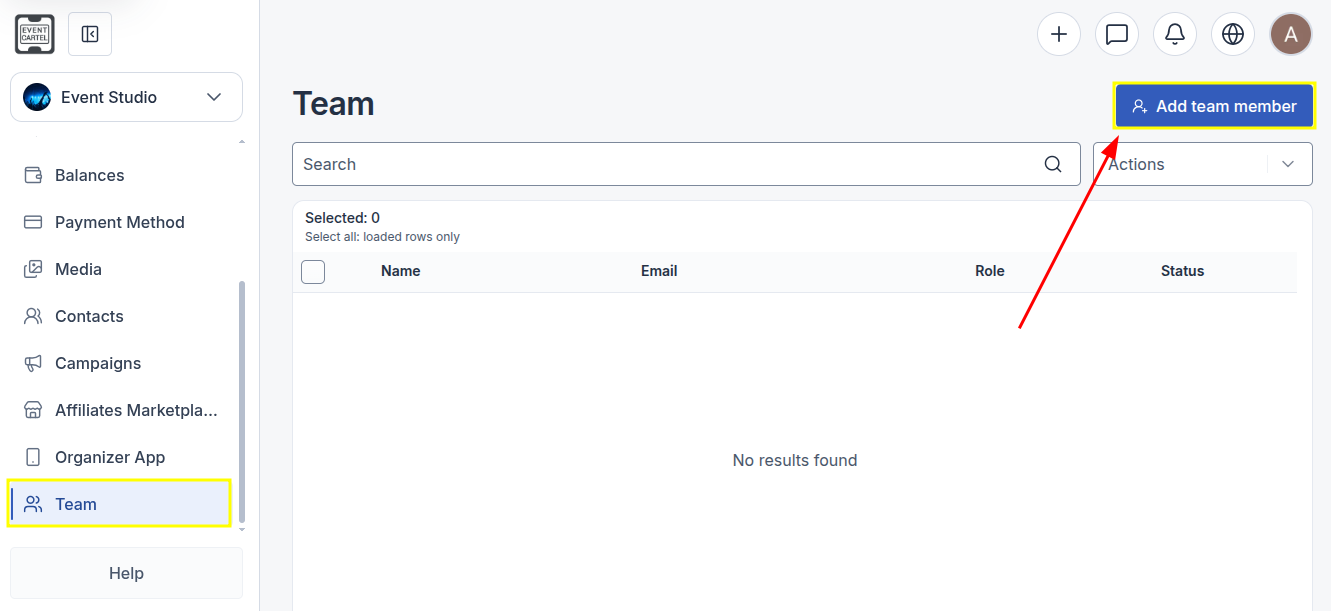
- In the upper-left corner, select the promoter account whose team you want to add a member to;
- Open the "Team" section in the sidebar;
- Click "Add team member".
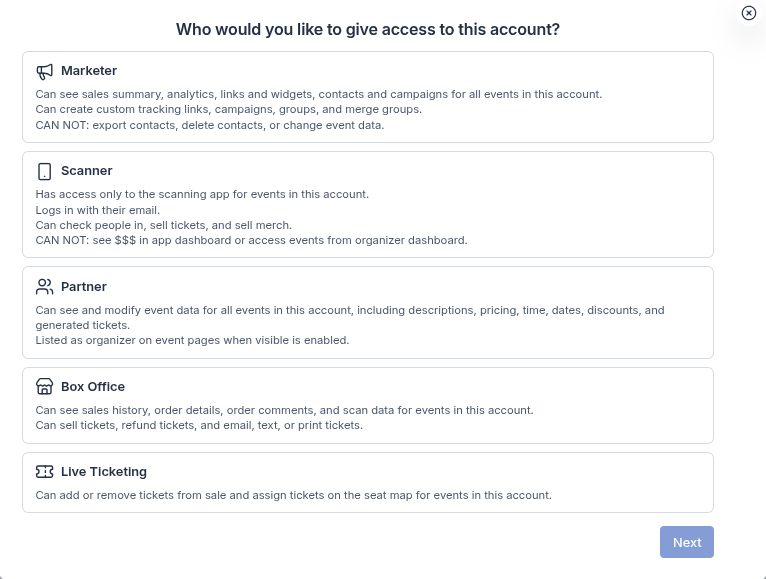
Select a role and access level for the team member:
🔹 Marketer - a role for event promotion and analytics.
They can view Sales Summary, analytics, links, widgets, and promotional materials. They can also work with contacts and groups, create email and SMS campaigns, and track their results.
Contacts are displayed in anonymized form. They cannot export or delete contacts or modify event data.
🔹 Scanner - a role for checking tickets at the entrance.
They only have access to the ticket scanning app. In the app, they can check in attendees, sell merchandise, sell tickets with card or cash payments, and issue complimentary tickets.
They do not have access to Business Manager or financial information in the app.
🔹 Partner - the role with the highest level of access.
They can perform nearly the same actions with your events as you can: create and edit events and manage tickets, prices, discounts, sales, refunds, contacts, and campaigns.
A Partner can also assign the Marketer, Box Office, Live Ticketing, and Scanner roles to users for a specific event.
If the user has their own promoter account, they can be added as an additional organizer. Their profile will then appear alongside yours on the event pages.
However, they cannot manage the Team section, add or remove other Partners, change the main promoter’s role, or receive payouts. Only you can perform these actions.
🔹 Box Office - a role for working with customers, sales, and ticket-related issues.
They can view Sales History, order details and comments, and check ticket scanning statuses.
They can sell tickets with card or cash payments, issue complimentary and consignment tickets, process refunds, and import, send, or print tickets. They can also manage ticket options, seats, holds, and products, work with the waitlist, and notify users when tickets become available.
The Totals tab containing general financial information in Sales History is not available to them.
🔹 Live Ticketing - a role for managing tickets and seats.
They can view event information and Sales Summary, add or remove ticket options from sale, change the number of available tickets, assign seats on the Seat Map, and create holds.
However, they cannot manage purchases, process refunds, or import tickets.
- Select the appropriate role and click Next.
- Select the appropriate role and click Next.
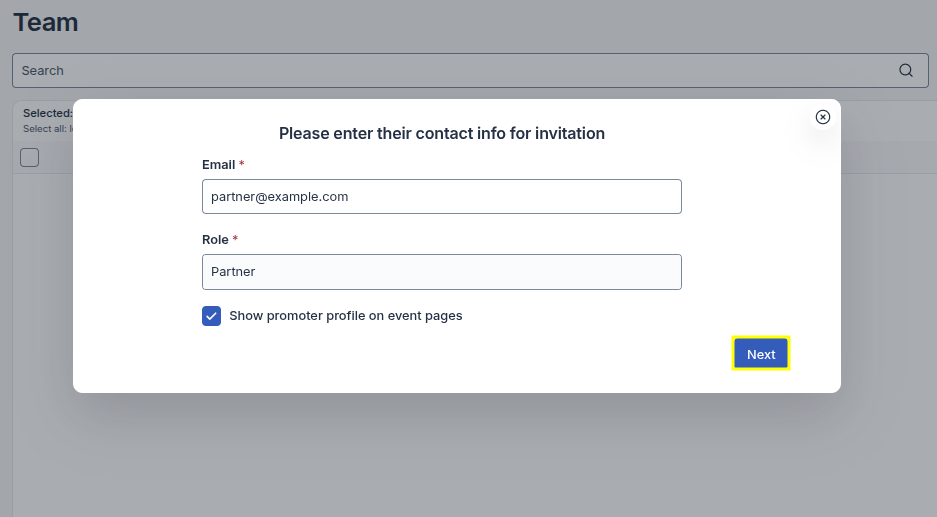
How to send an invitation:
- In the "Email" field, enter the team member’s email address;
- Make sure the correct role is displayed in the "Role" field.
If you selected the Partner role, the "Show promoter profile on event pages" option will also appear.
Select this checkbox if you want to display the team member as an additional organizer on the event pages.
- Click "Next" to send the invitation.
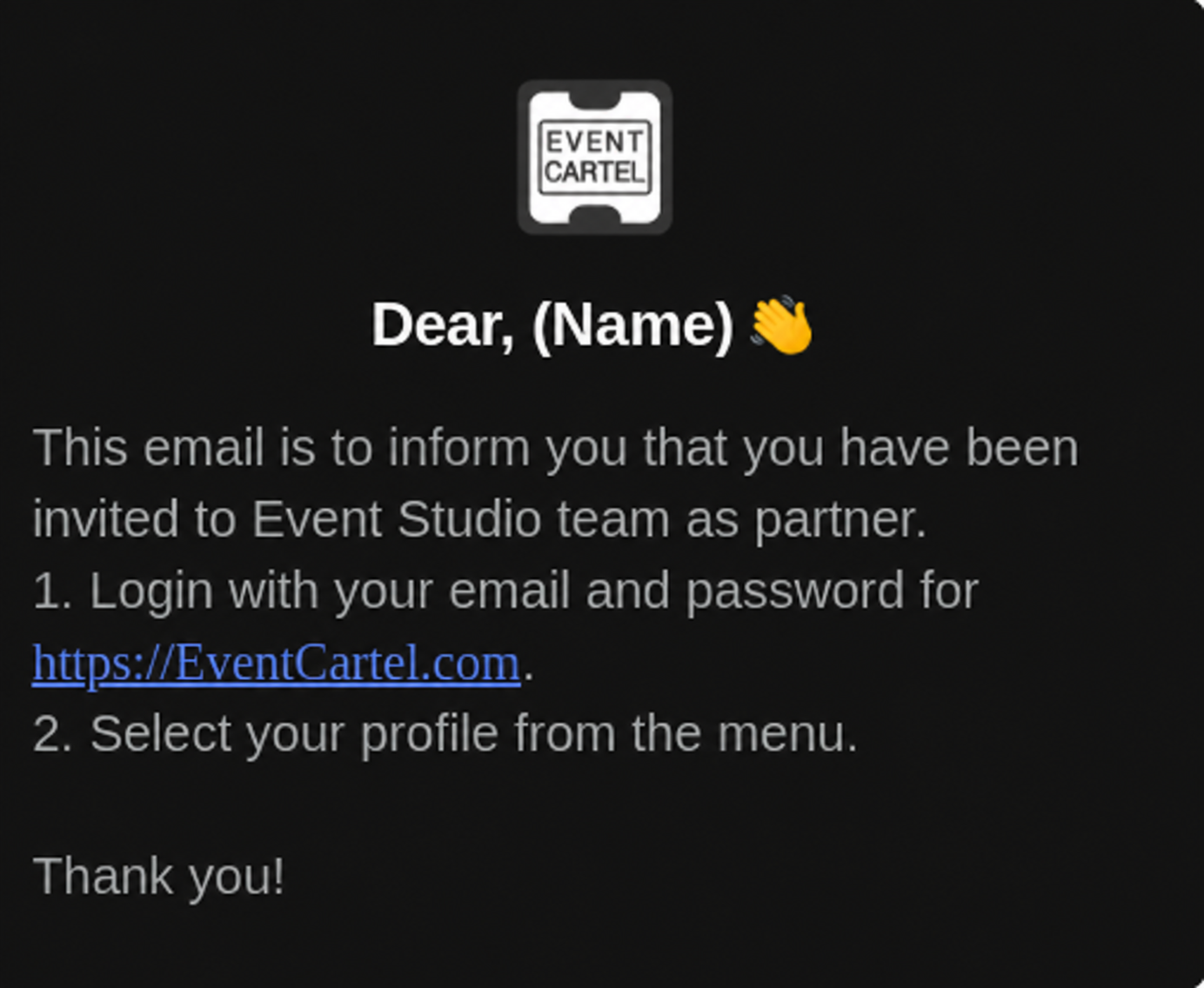
An email with the assigned role and information about joining the promoter’s team will be sent to the specified address.
To get started, the team member needs to log in to their EventCartel account using this email address.
If the team member did not receive the email, you can resend the invitation:
If the team member did not receive the email, you can resend the invitation:
- Select the checkbox next to the team member;
- Open the "Actions" menu;
- Select "Send Invite".
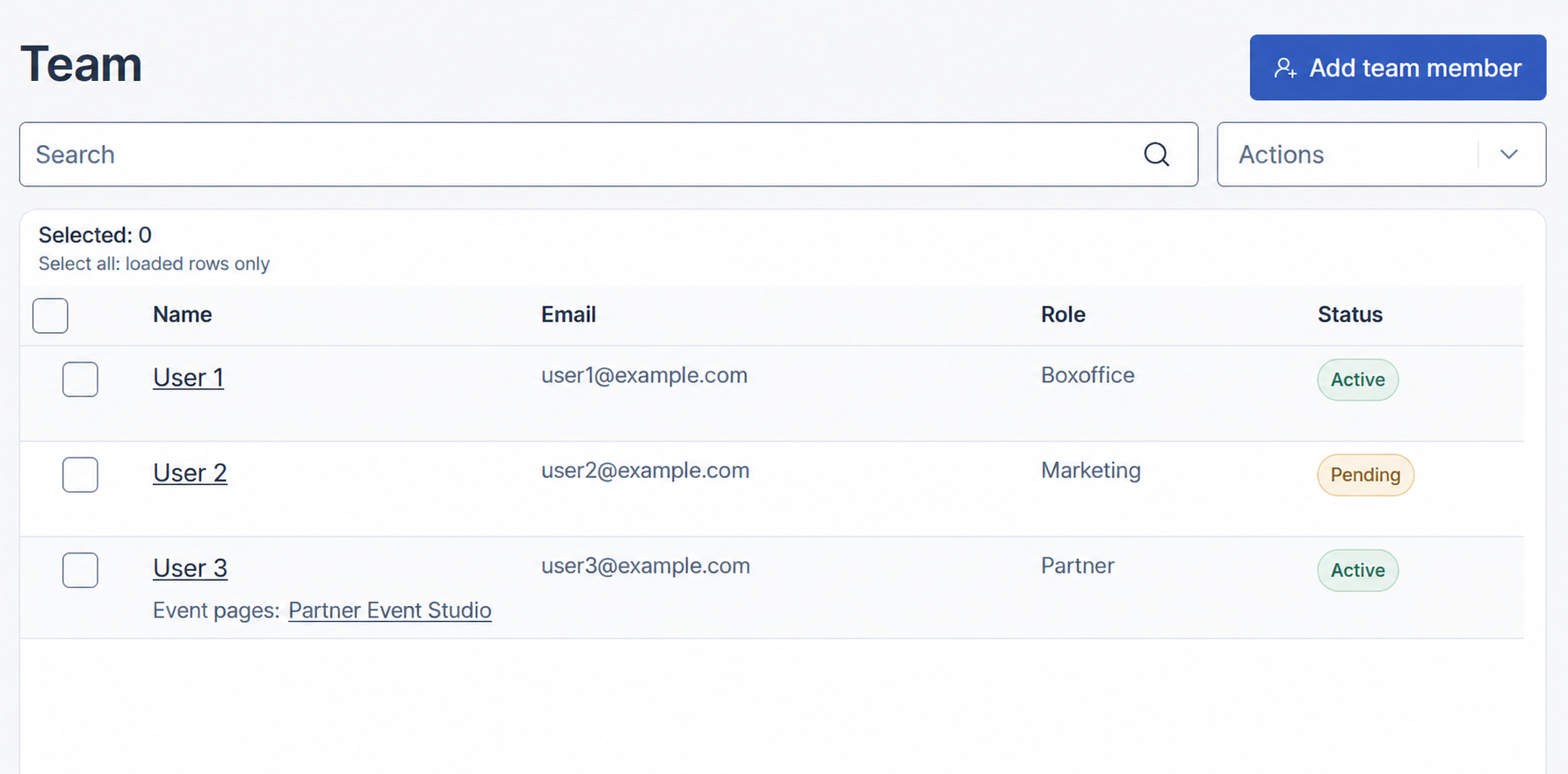
Team member statuses:
After the invitation is sent, the user will appear in the "Team" section. Their current status will be displayed in the "Status" column:
Pending - there is no EventCartel account registered with the specified email address yet;
Active - an EventCartel account is already registered with the specified email address, and the assigned role is active.
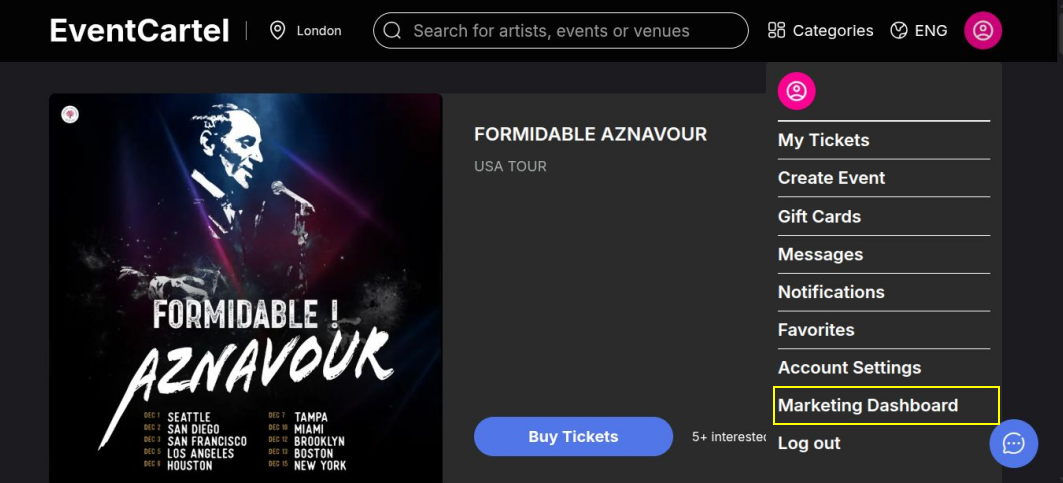
How a team member can access the relevant section:
After logging in to EventCartel, the team member needs to hover over the profile icon in the upper-right corner of the website.
The available section depends on the assigned role:
• For the Marketer role, "Marketing Dashboard" will appear in the menu;
• For the Partner role - "Organizer Dashboard";
• For the Box Office role - "Box Office Dashboard";
• For the Live Ticketing role - "Ticketing Dashboard".
• For the Scanner role, no separate section appears in the website menu. The user needs to log in to the ticket scanning app directly using the specified email address.
• For the Scanner role, no separate section appears in the website menu. The user needs to log in to the ticket scanning app directly using the specified email address.
After opening the corresponding section, the team member will see the promoter’s events and have access to the actions allowed by their role.
A user can have only one role in a single promoter’s team. However, they can belong to the teams of different promoters and have a separate role in each team.
If you want to change the assigned role, first remove the team member. Then click "Add team member", select a different role, enter their email address, and send a new invitation.
How to remove a team member:
- Open the "Team" section;
- Select the checkbox next to the team member;
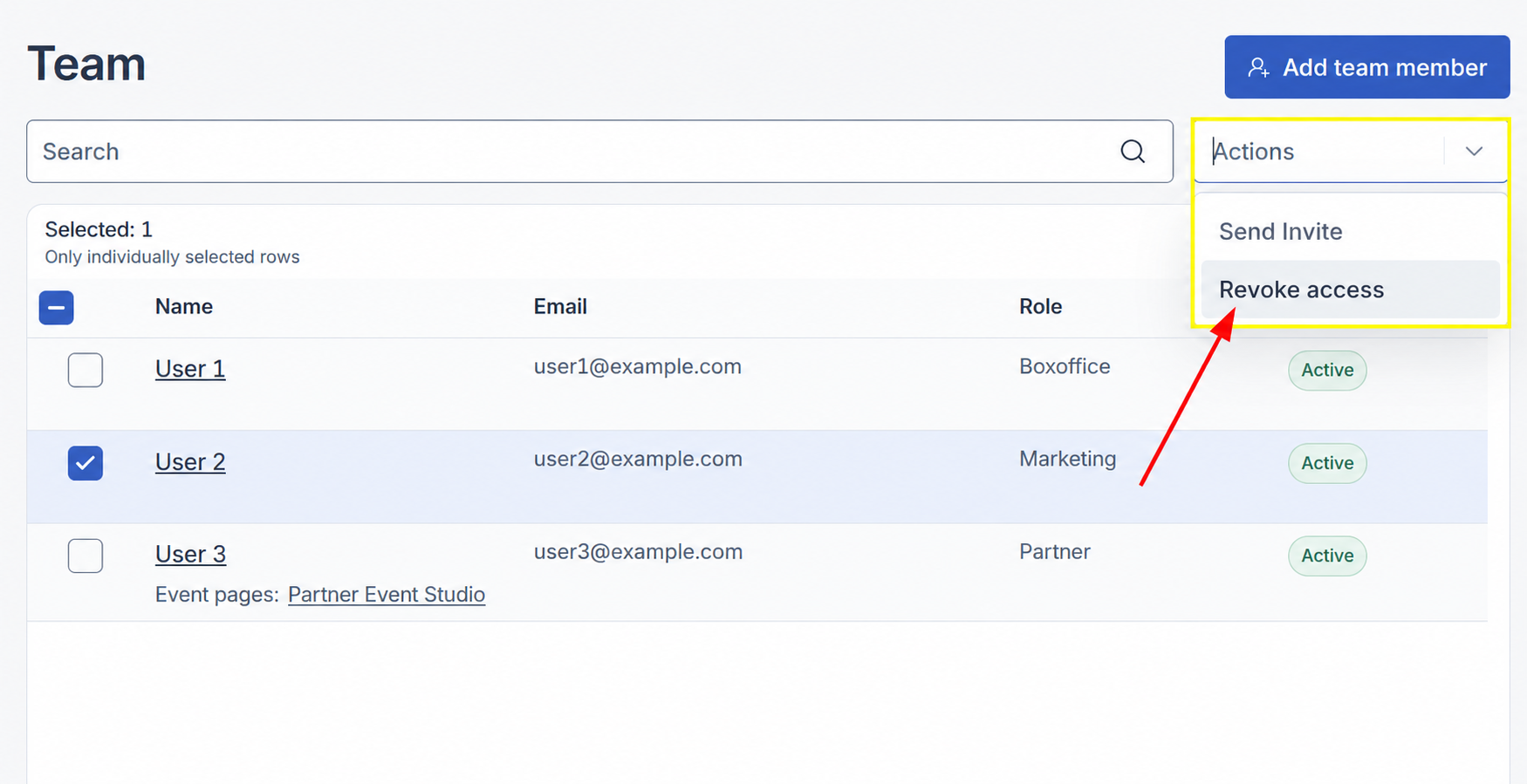
- Open the "Actions" menu;
- Select "Revoke access".
Once removed, the team member will lose access to all events belonging to this promoter under the assigned role.