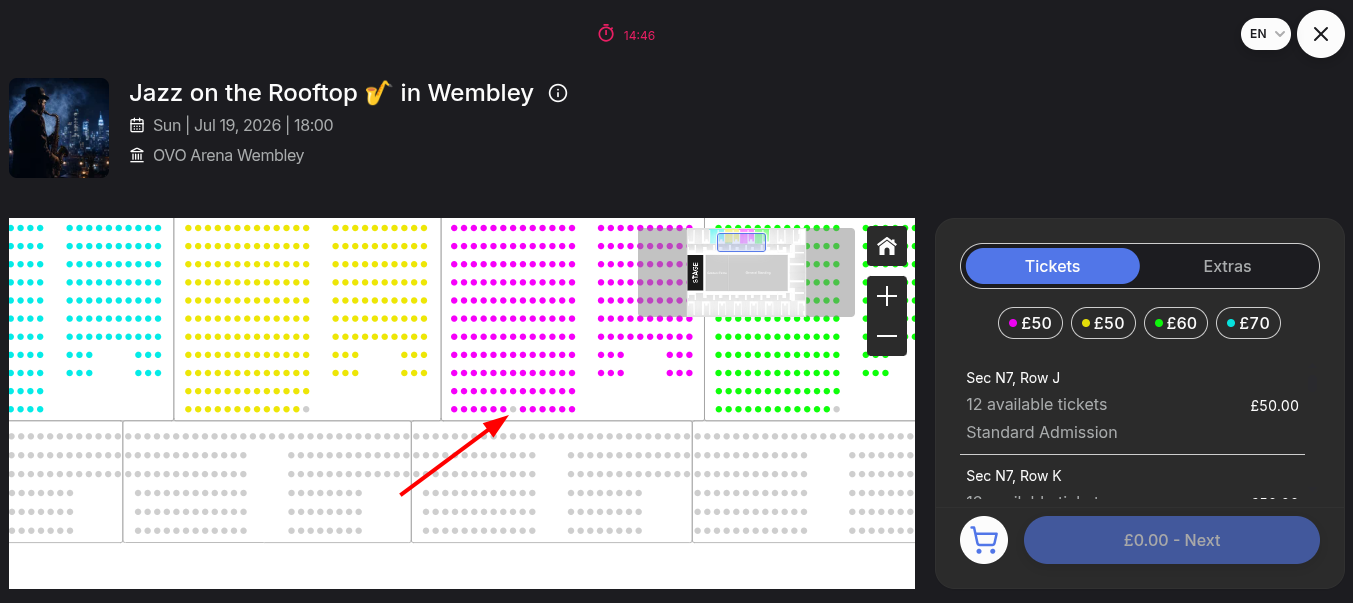
How to reassign a customer to a different seat?
Jul 15, 2026Updated1 min read00
If a customer requests a different seat after purchasing a ticket, you can issue a new ticket and return the previously selected seat to sale without processing a refund.
To do this:
- Log in to your EventCartel account;
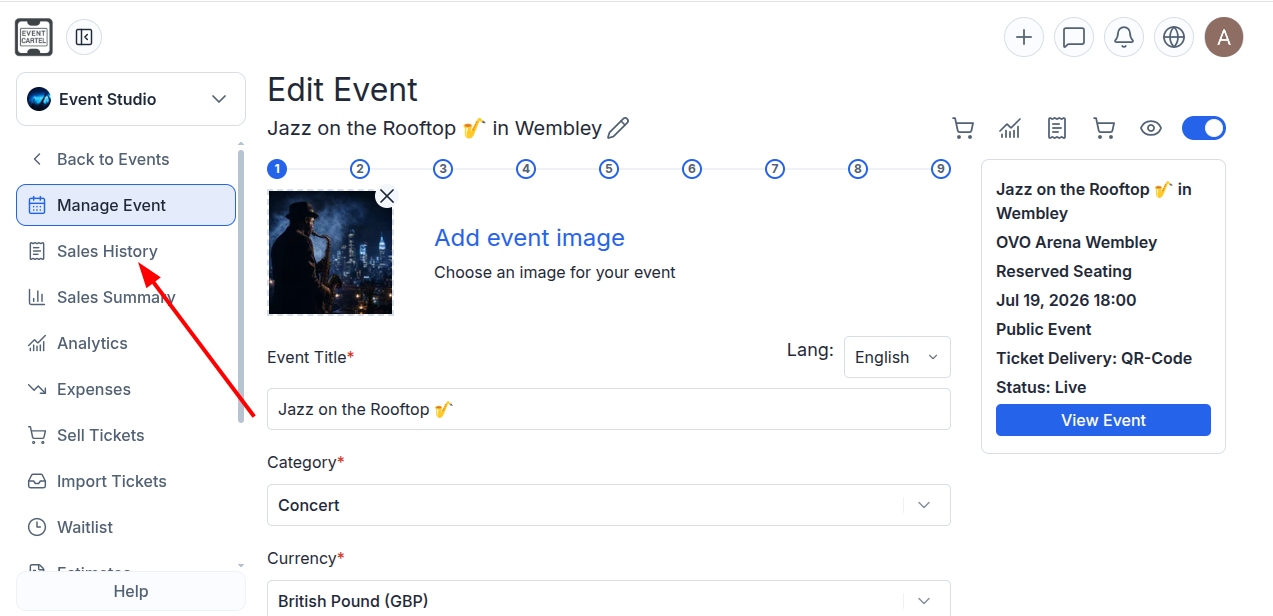
- Open the "Organizer Dashboard";
- Open the "Organizer Dashboard";
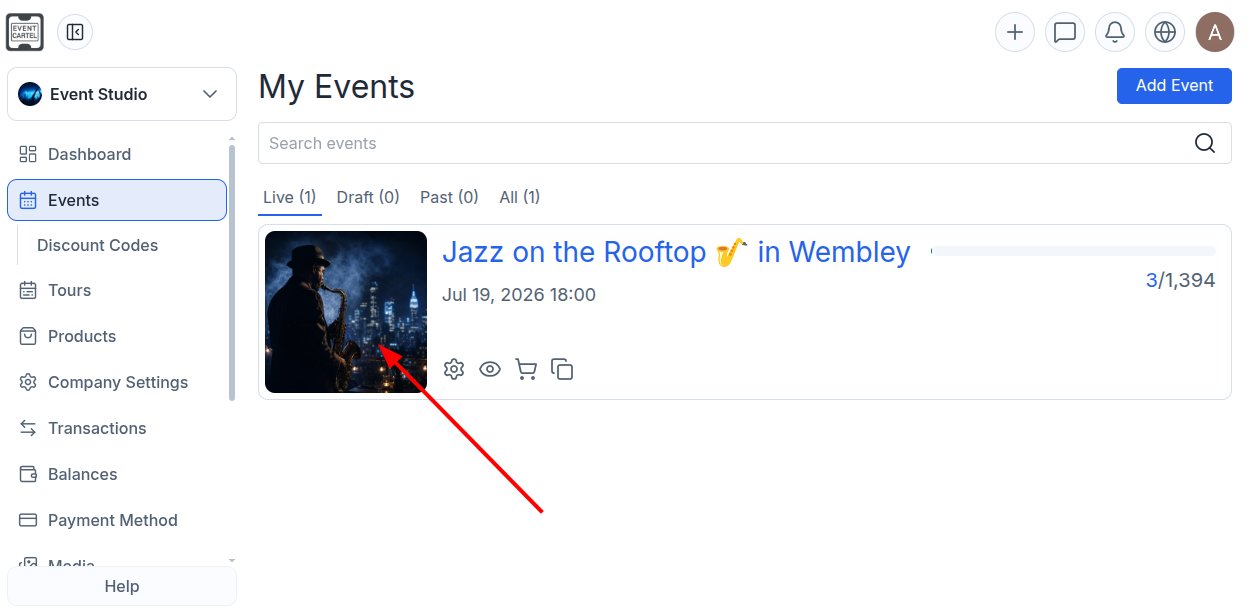
- Go to "Events";
- Select the event you need.
- Select "Sales History."
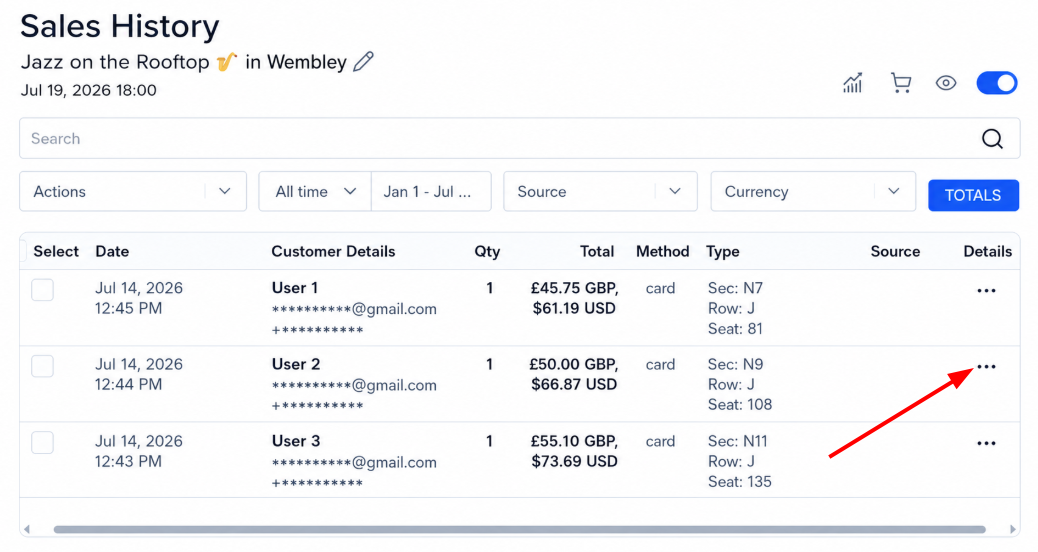
- Find the order for which you want to change the seat.
(You can use the customer's name or the order number to find it.)
- Click ⋯ next to the order to open it.
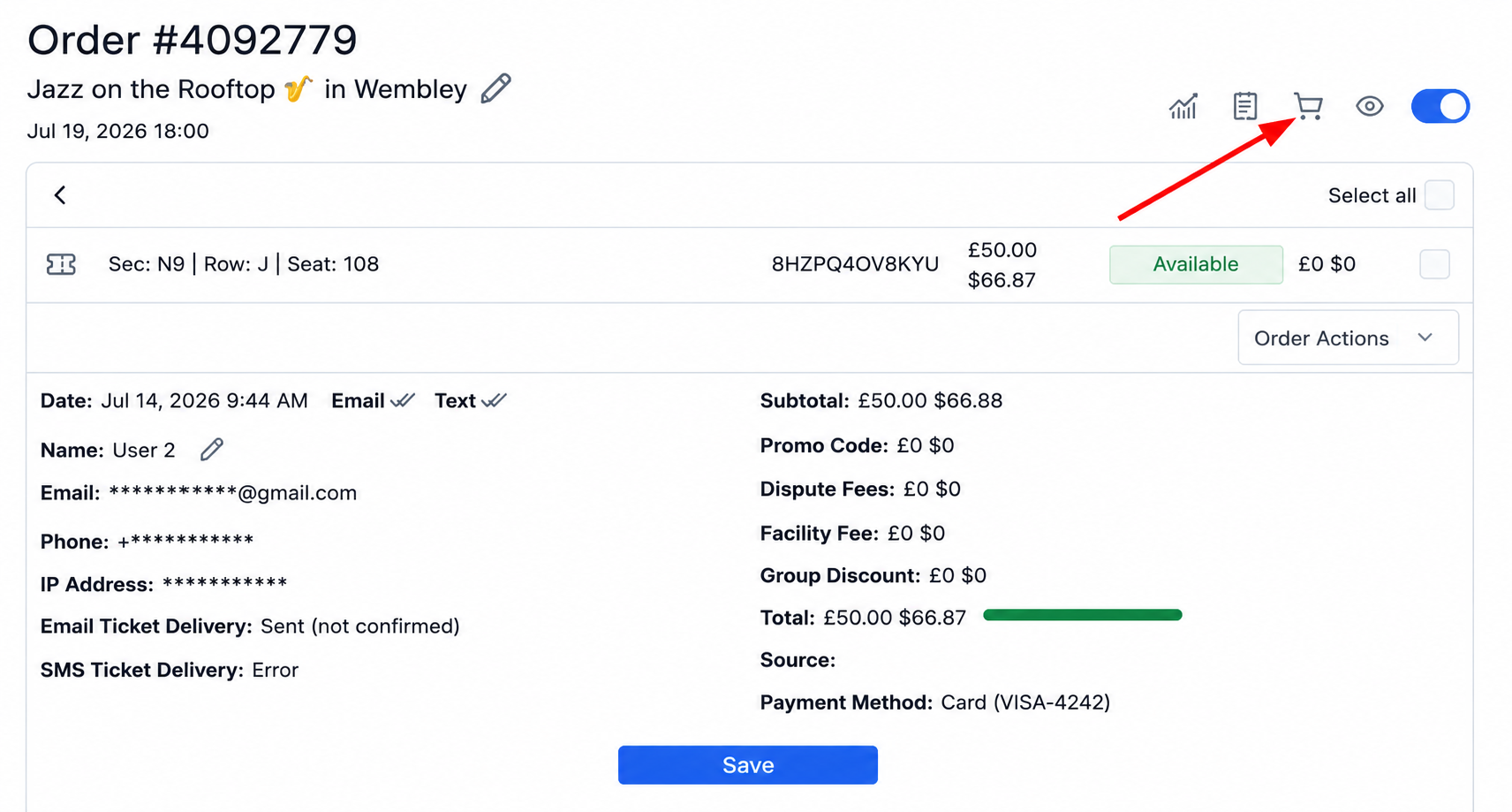
- In the top-right corner, click the 🛒 "Sell Tickets" icon.
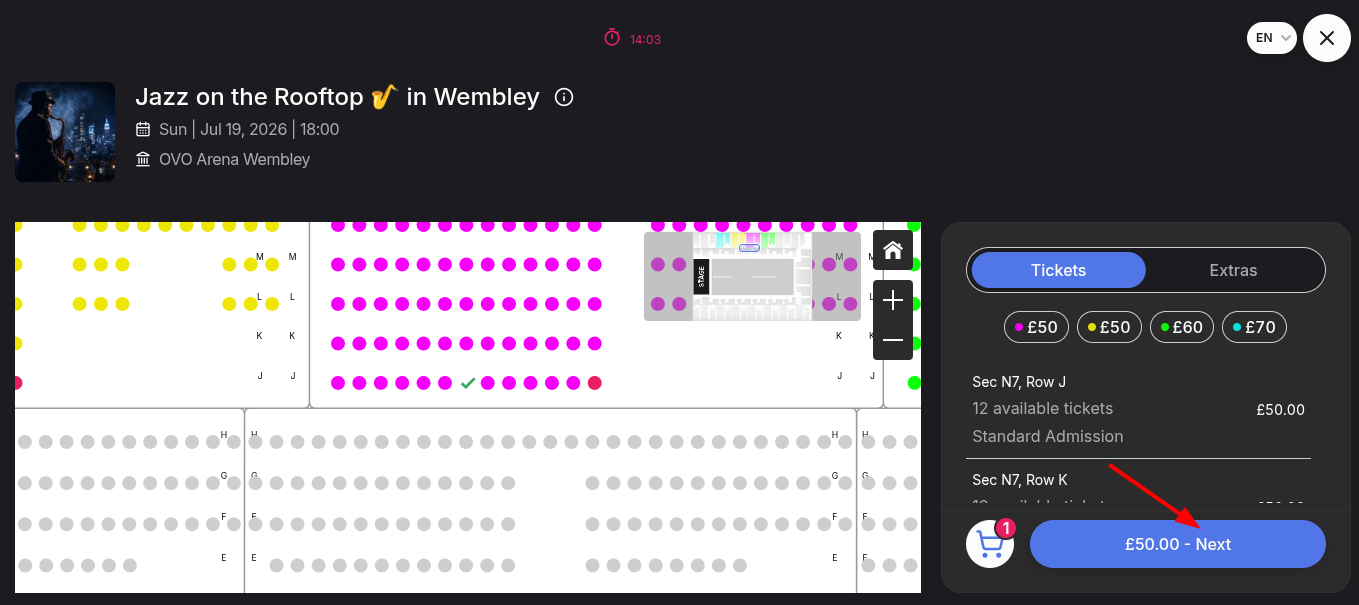
- On the seating map that opens, select the new seat and click "Next."
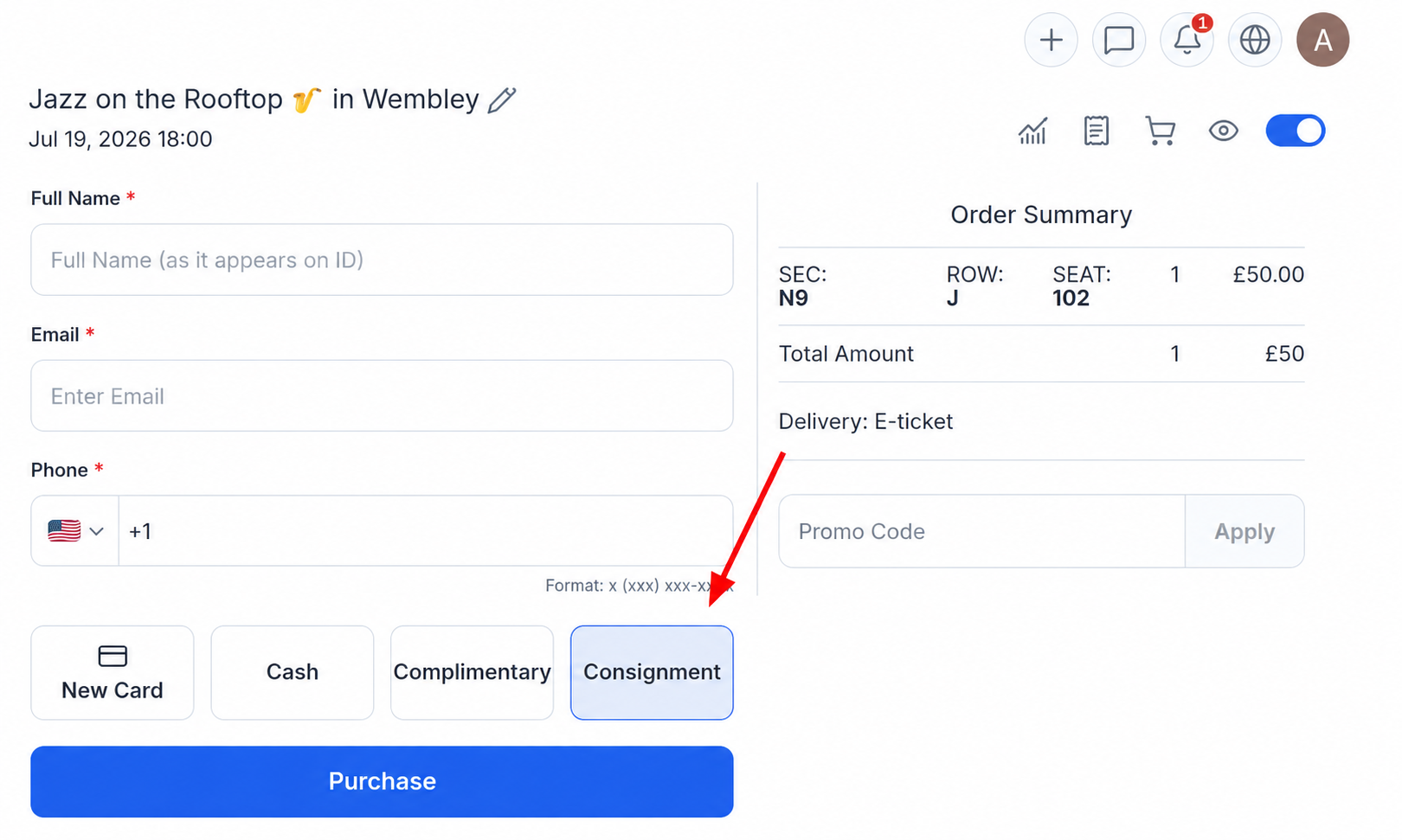
- Enter the customer's information;
- Select "Consignment" as the payment method;
- Click "Purchase."
Next, return the seat from the original ticket back to sale:
- Go back to "Sales History";
- Select the original order.
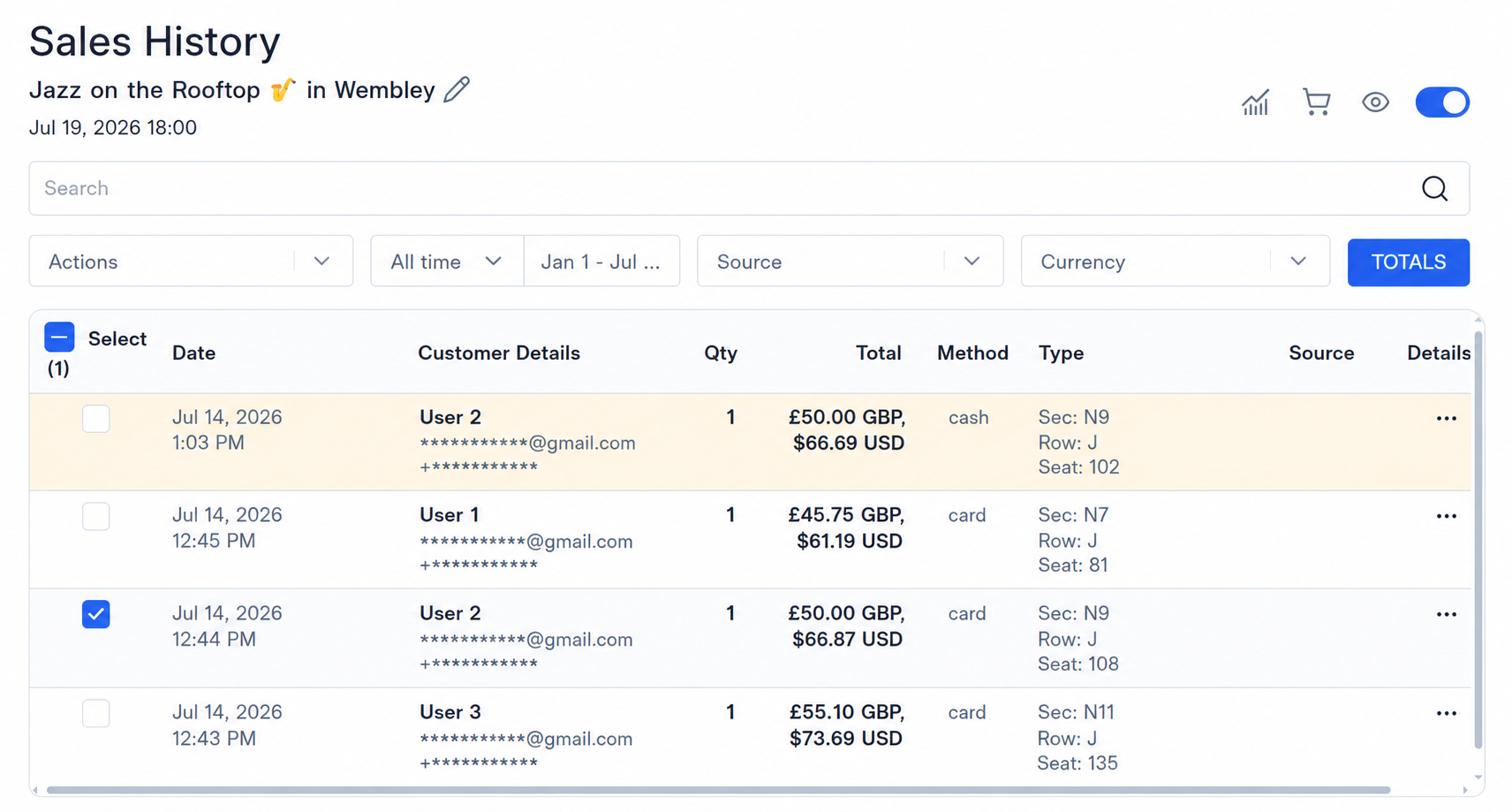
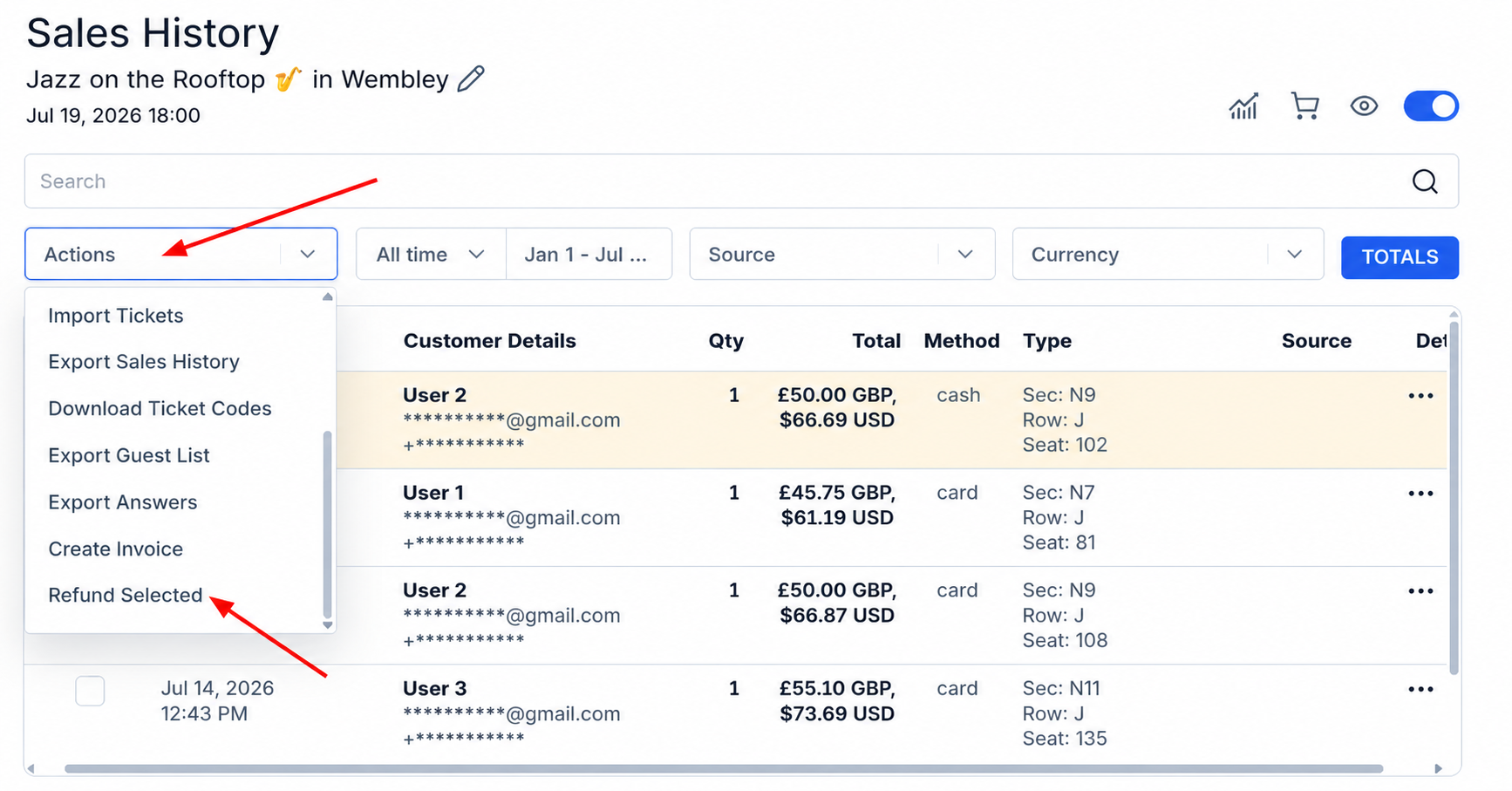
- Open the "Actions" menu and select "Refund Selected."
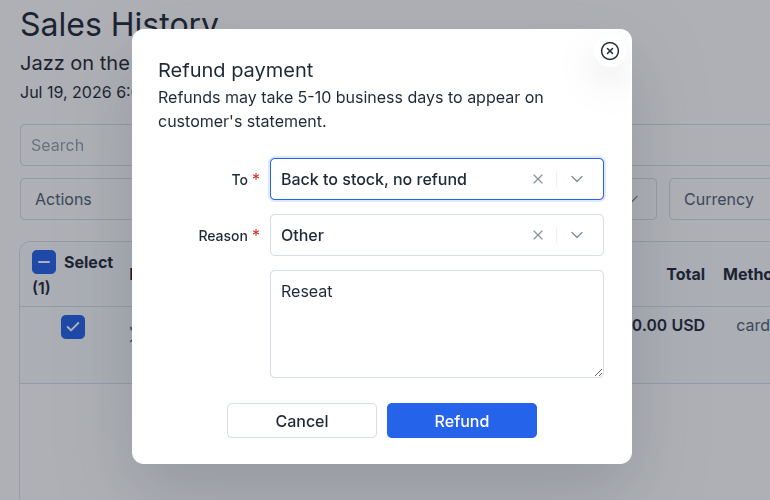
- In the "To" field, select "Back to stock, no refund";
- In the "Reason" field, select "Other" and enter "Reseat";
- Click "Refund."
Done! The original seat is now available for purchase again, and the customer will receive the new ticket by email. You can open the ticket purchase page to verify that the new seat has been assigned correctly.