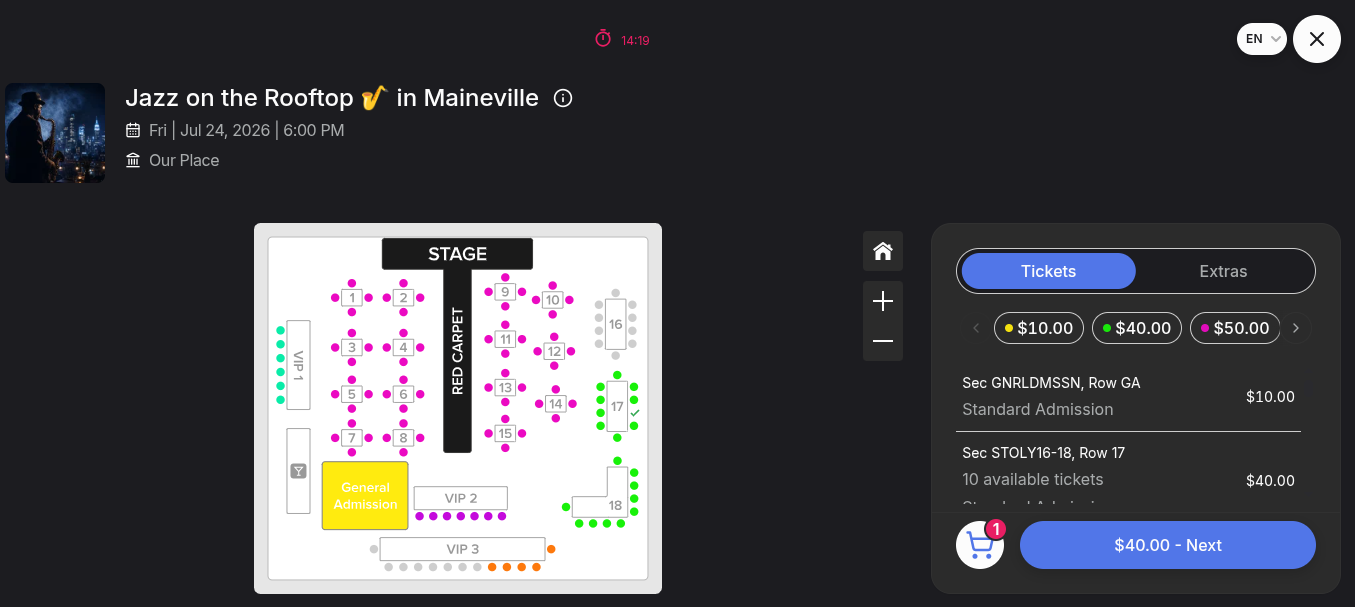
How to change prices on a seating map after sales have started
Jul 20, 2026Updated1 min read00
If tickets for the event are already on sale, you can still change the price of the remaining available seats on the seating map. The price of tickets that have already been purchased will remain unchanged.
To do this:
- Log in to the "Organizer Dashboard";
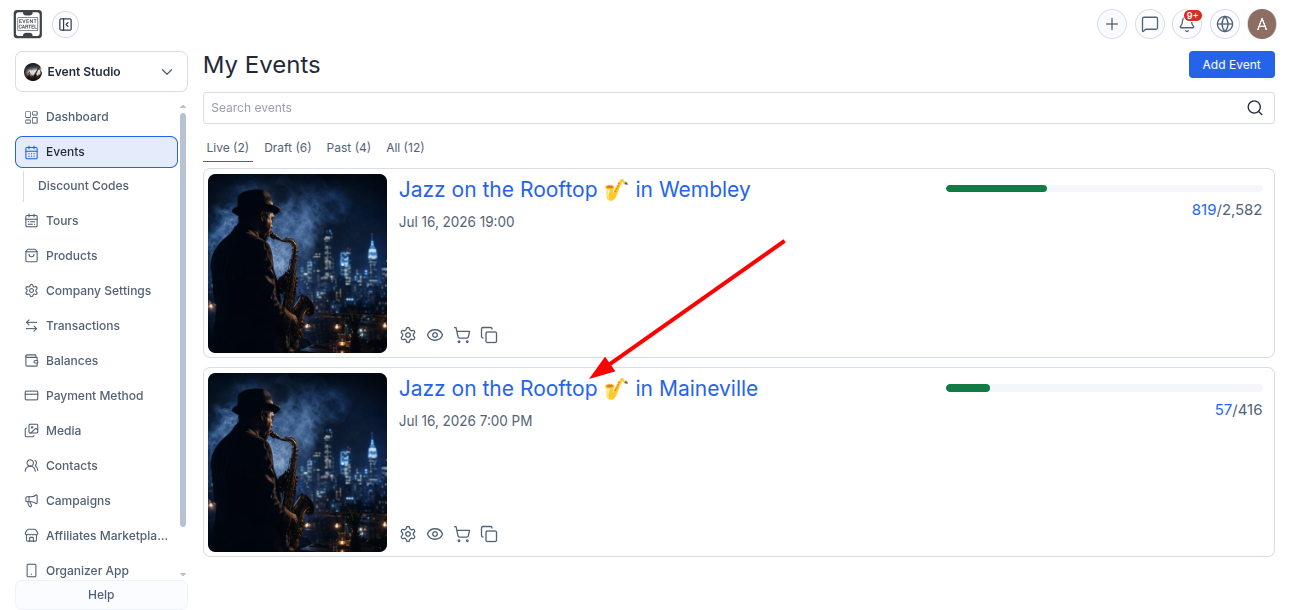
- Go to "Events";
- Select the event for which you want to change seat prices.
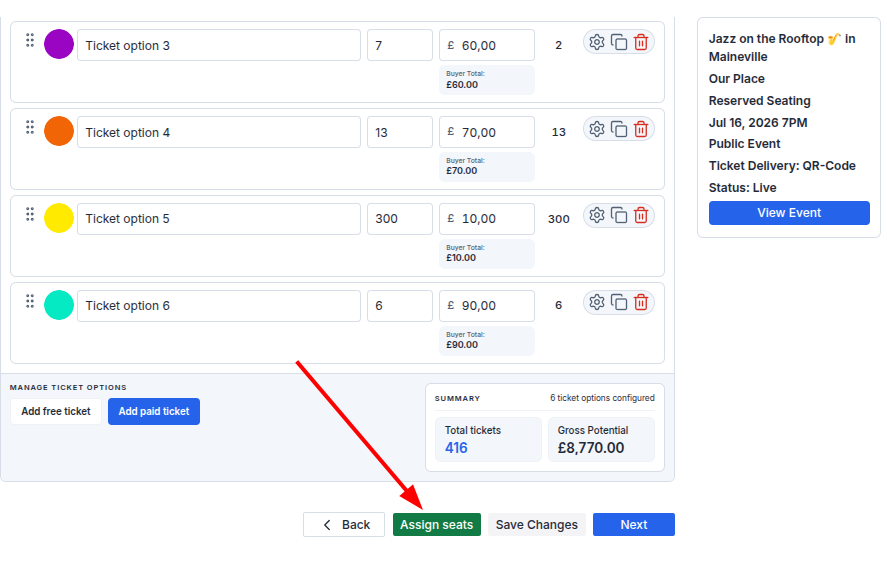
- Go to step 6 of the event creation process;
- Click "Assign Seats."
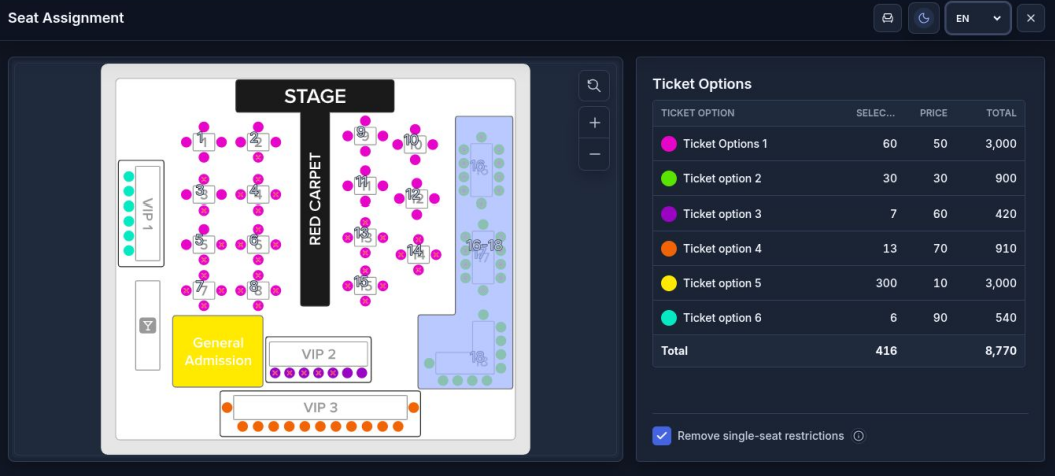
- Select the required zone;
- Click "Assign."
- Find the ticket option whose price you want to change;
- Click the current price;
- Enter the new price;
- After changing the price, click "Return to zones."
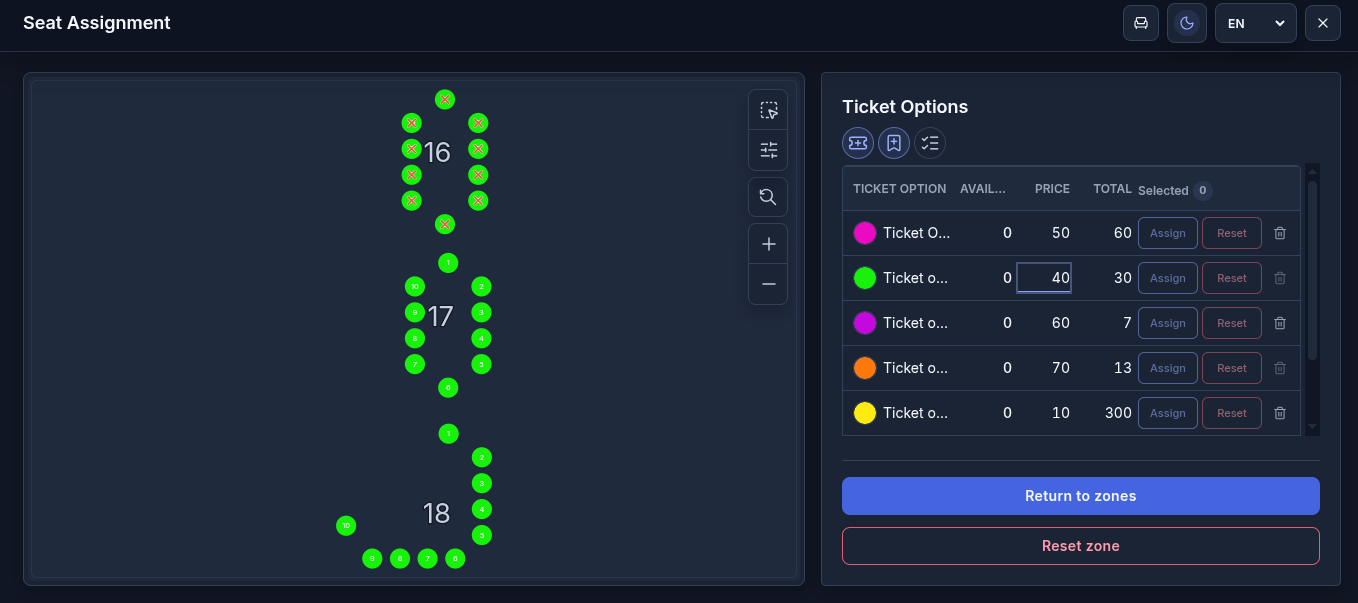
Please note: If tickets have already been sold under this ticket option, the system will automatically create a new version. The previous version will be archived to preserve the records of tickets sold at the old price.
The archived ticket option will be marked "ARCHIVE." Customers will not see it during checkout—only the new version with the updated price will be available.
To close the seating map, click ✕ in the upper-right corner.
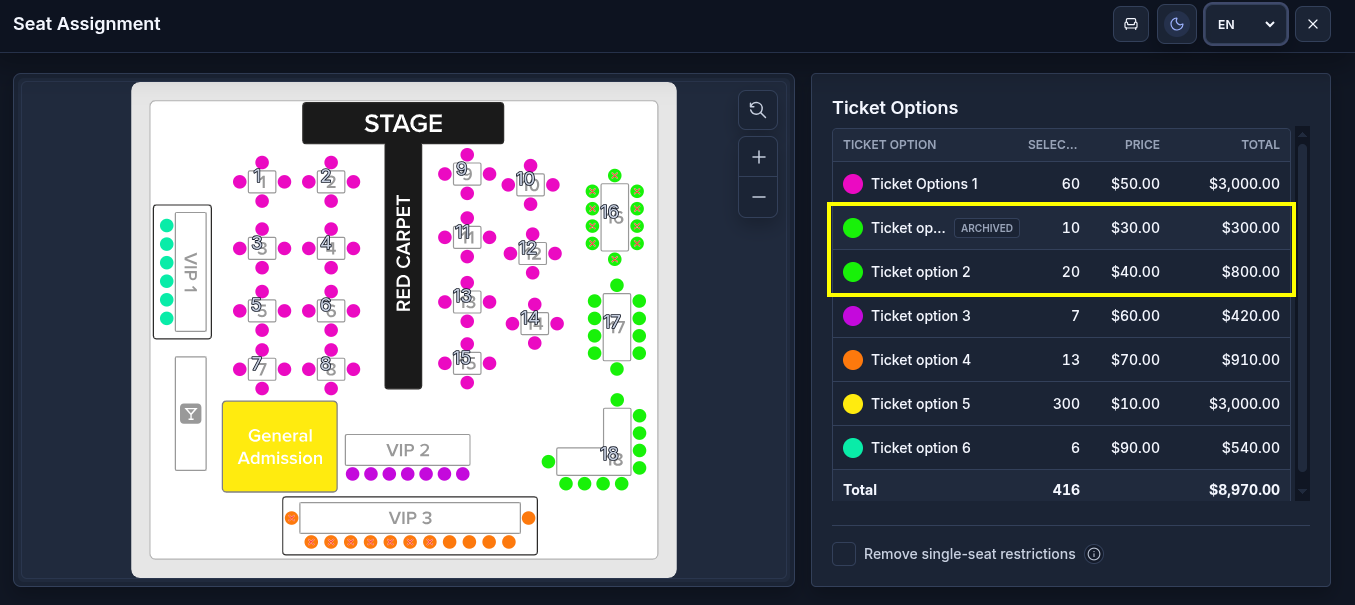
When you return to step 6, you will see both versions of the ticket option.
• The archived version will be grayed out and cannot be edited;
• The "QTY" field for the archived version will show the number of tickets sold at the previous price;
• The new version will display the updated price;
- Click "Save Changes."
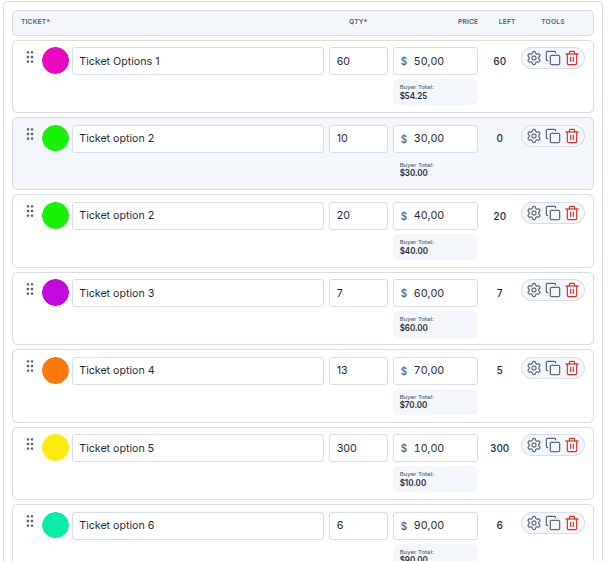
Done! The tickets will be displayed with the updated price on the purchase page.